
pair maker
Pair Maker: How to Create Random Pairs for Class or Workshops
Learn how to use a free pair maker to quickly create random pairs for classrooms, workshops, and training sessions. Step-by-step guide, expert tips, and integration with Google Classroom, Slack, and Zoom.

Getting students or workshop participants into pairs should be simple, but it rarely is. You call out names, someone complains, and a couple of students are left standing without a partner. A dedicated pair maker like the free Random Pair Generator from random-group-generator.com takes the stress out of this everyday task. In this guide, you’ll learn why random pairing improves collaboration, how to use the tool step by step, and how to make it work for your specific classroom or training setting.
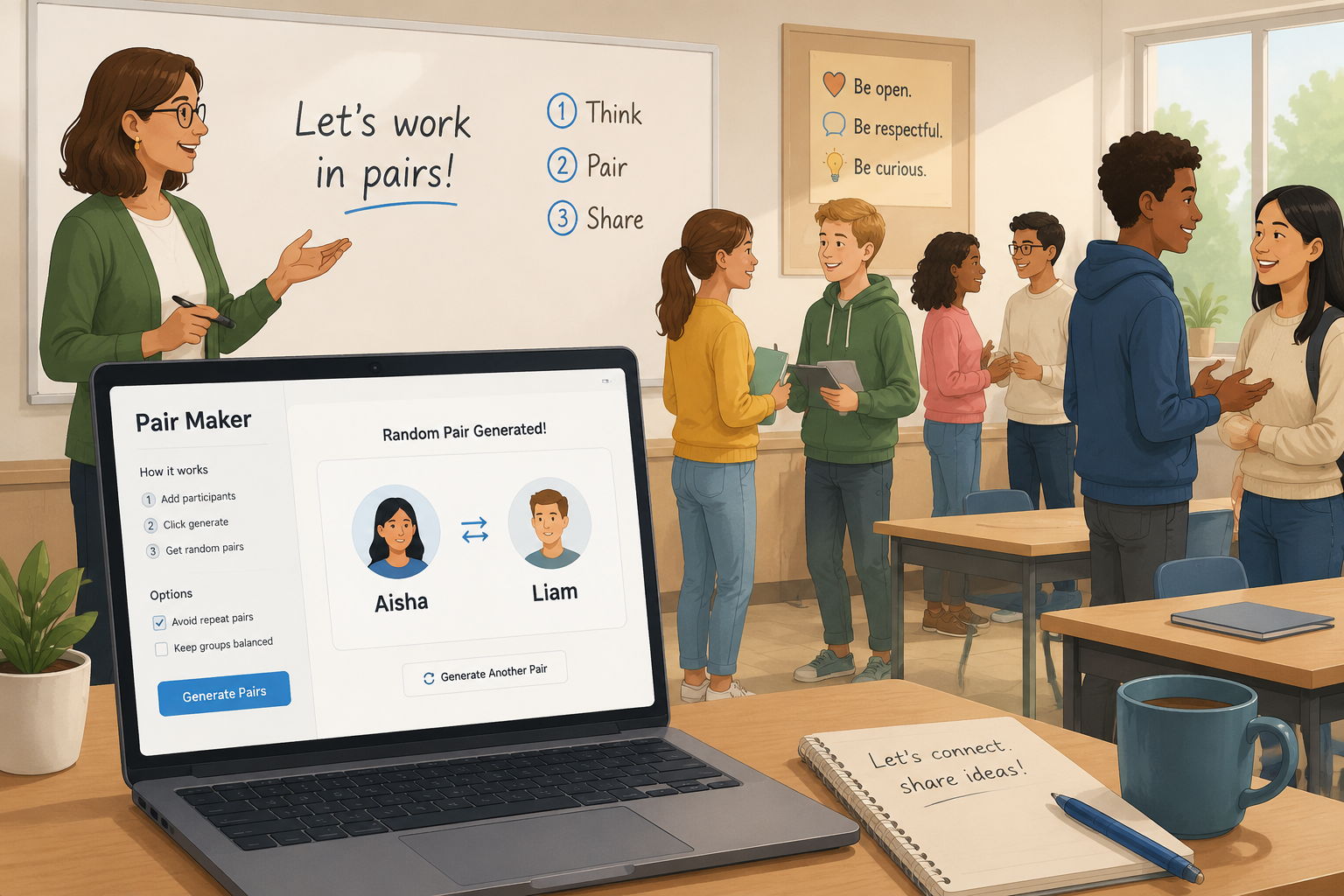
Why Use a Random Pair Maker?
Manually pairing people often recreates the same friendship clusters and leaves quieter individuals on the sidelines. A randomizer removes both teacher bias and social pressure, giving every participant an equal chance to work with someone new. Research on cooperative learning consistently shows that varied partnerships increase engagement, build communication skills, and expose learners to different ways of thinking (Johnson & Johnson, 2009). When you press “generate”, you’re not just saving minutes—you’re designing a more inclusive learning environment.
For classroom teachers using strategies like think-pair-share (Lyman, 1981), a pair maker turns a pedagogically rich activity into a seamless routine. Instead of counting off or drawing names from a hat, you can produce pairs in a single click, display them on the smartboard, or push them to a video-call chat. The speed and consistency make it easy to use pairing daily, whether you’re starting a science lab, facilitating peer review, or kicking off a corporate icebreaker.
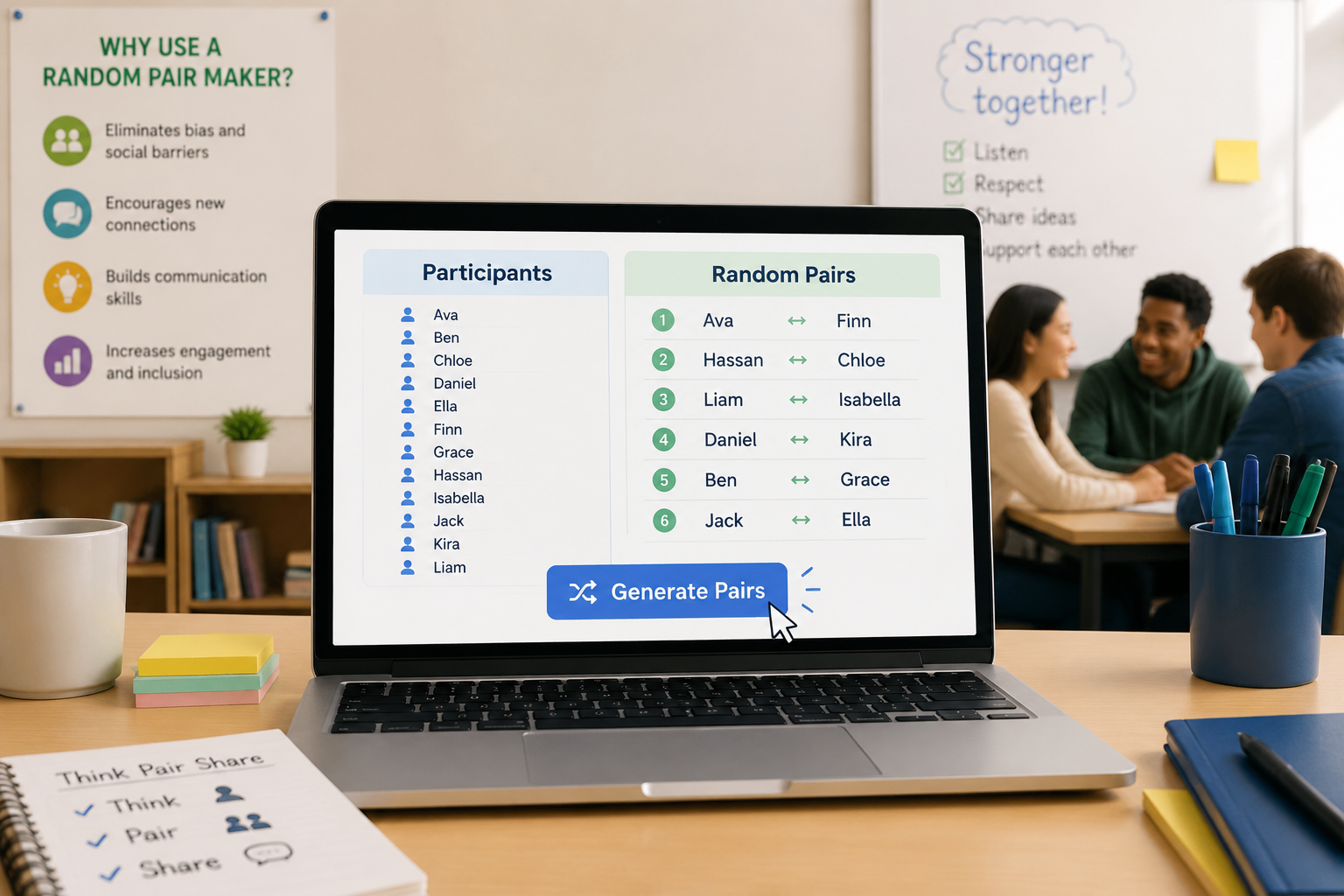
Step-by-Step: How to Use the Random Pair Generator
- Open the tool. Visit the Random Pair Generator on random-group-generator.com. No account or download is needed.
- Enter your participant list. Type names manually, paste them from a spreadsheet, or import a CSV file. The interface instantly shows your list for confirmation.
- Set any restrictions (optional). Use the “Avoid” feature to prevent specific people from being paired together—helpful for separating students who distract each other or ensuring project leads don’t end up on the same team.
- Generate pairs. Click the “Generate” button. The pair maker uses an unbiased shuffle algorithm (similar to the Fisher–Yates shuffle) to assign every person to a partner. If you have an odd number, it automatically creates one trio and notifies you.
- Share the results. Copy pairs to your clipboard, download a CSV, print the list, or send it straight to Google Classroom, Slack, Zoom chat, or Microsoft Teams. The built-in integrations keep the flow smooth for in-person, hybrid, and fully remote groups.
A quick pro tip: if you’ll use the same roster repeatedly, save your list as a CSV. Next time you open the pair maker, import it and click generate again—the tool remembers nothing, but your pre-saved file keeps preparation under ten seconds.
When Pairing Works Better Than Groups
A common question from facilitators is whether to use a pair maker or a full group generator. Pairs are ideal when the task requires deep conversation, mutual accountability, or turn-taking—think peer editing, speaking practice, or reflective debriefs. Groups of three to five, on the other hand, are better for projects that need multiple roles or perspectives. If your activity falls into the latter category, you can easily switch to the Random Group Generator on the same platform.
For remote workshops, pairs often reduce technical friction. Two-person breakout rooms are faster to set up, less prone to audio overlap, and make it harder for someone to stay muted and disengage. Trainers we’ve spoken with use the pair maker to assign breakout sessions in Zoom with the copy-paste option, then announce pairs via chat—all within a minute.
Avoiding Common Pairing Problems
Even with a random tool, facilitators worry about certain outcomes. Here’s how to handle the most frequent challenges:
- Two disruptive students paired again? Use the avoidance feature to exclude that particular combination. The pair maker will respect your restrictions while randomizing everyone else.
- Extreme skill imbalance? If you want to pair a strong student with a weaker one on purpose, you can’t do that randomly. In that case, create a balanced roster list and use the pair maker to shuffle only within those pre-selected groups. Alternatively, let the randomizer run and then manually swap one or two pairs—the tool’s output is just a starting point.
- Odd number of participants? The tool automatically creates one group of three, clearly marked, so you never have to scramble for a volunteer.
- Remote class logistics? Share the pair list via the integrated platforms before you open breakout rooms. Students know exactly where they belong, eliminating the chaos of on-the-spot instructions.
Remember: the pair maker guarantees fair, unbiased allocation, but it does not replace thoughtful facilitation. Feel free to adjust pairs if local context (such as language needs or accessibility requirements) calls for it.
Real-World Example: Middle School Science Lab
Ms. Rivera teaches 8th-grade science with 32 students. Every Friday she runs a paired lab discussion where students analyze data from the week’s experiment. Before adopting the pair maker, she would spend up to five minutes calling out pairs while students stalled. Complaints about “always being with the same person” were constant.
Now, Ms. Rivera opens the Random Pair Generator on the classroom smartboard. She imported her roster once and saved the CSV. Every Friday, she loads the file, clicks “Generate,” and the 16 pairs appear instantly. She projects them for thirty seconds, and the transition to partners takes under a minute. Because the tool’s shuffle is fresh each time, students rotate partners weekly, and Ms. Rivera can check the “avoid last pairing” box when she wants to prevent back-to-back repeats. The result? Ten extra minutes of actual lab talk every week, zero pairing arguments, and students who are noticeably more comfortable collaborating with different peers.
Integrating the Pair Maker into Your Daily Workflow
Beyond the classroom, team leads, HR facilitators, and event organizers use the pair maker to build agendas that mix participants meaningfully:
- Employee onboarding – Randomly pair a new hire with a different buddy each day, so they meet more colleagues.
- Conference workshops – During a networking break, display pairs on screen or push them to the event app chat.
- Language cafés – Use the pair maker to rotate conversation partners every ten minutes without repeats.
- Scrum ceremonies – Let the tool assign pair-programming partners for a sprint, preserving the avoidance rules you’ve set.
All these workflows rely on the tool’s zero-setup design and cross-platform sharing. You can open the pair maker in a browser tab, keep it ready during a live session, and generate a fresh set of pairs in the moment—no installation, no accounts, no data stored. The list you input stays on your device unless you choose to export it.
FAQ
Can I prevent two specific people from being paired together?
Yes. The pair maker includes an avoidance feature that lets you exclude any number of specific pairings. The algorithm will randomize all other names while honoring your restrictions.
How many names can I pair at once?
The tool handles lists of virtually any size that a browser can manage—typically hundreds of names without performance issues. For very large groups, you can split the list into smaller sections and run the generator multiple times.
Is the pair maker truly random?
Yes. The generator uses a standard unbiased shuffle algorithm (Fisher–Yates) that ensures every possible pairing has an equal probability. You can trust it to produce fair, unpredictable results every time.
Can I use the pair maker for online workshops?
Absolutely. The tool lets you copy pairs to your clipboard or send them directly to Zoom chat, Slack, or Google Classroom. You can generate pairs live and share them in a video call in seconds.
What’s the difference between the pair maker and the random group generator?
The pair maker always creates groups of two (with a possible trio for odd numbers), which is perfect for focused dialogue and partner work. If you need teams of three or more, switch to the Random Group Generator. Both tools live on the same platform and use identical randomization logic.
Ready to make pairing painless? Head to the free **Random Pair Generator** and give it a try with your next class or workshop roster.