
random groups
How to Generate Random Groups from a Spreadsheet – No Retyping Needed
Learn how to turn your Excel or Google Sheets class list into random groups instantly. Step-by-step guide for teachers and facilitators using a free online group generator.

If you keep your class lists, workshop attendees, or team rosters in a spreadsheet, you know how tedious it is to retype every name into a website just to form random groups. Copying and pasting a column of names from Excel, Google Sheets, or Numbers should be all it takes—and it can be. This guide shows you exactly how to turn any spreadsheet list into randomized groups without manual entry, using a free online grouping tool that respects your time and your data's structure.
Why a Spreadsheet Is the Perfect Starting Point for Random Groups
Educators and facilitators live in spreadsheets. A grade book, a roster exported from a learning management system, or a simple attendance list is almost always stored as rows of names. Manually retyping those names into a group generator not only wastes minutes you could spend on instruction, it also introduces errors—misspelled names, skipped individuals, or accidental duplicates.
Using a spreadsheet as your source means you always work from the single source of truth. You can maintain columns for full names, preferred names, pronouns, or even performance tiers without ever leaving the file. When it’s time to create random groups for a project, lab, or discussion, you simply copy the name column and paste it into a tool built to understand that format. No extra typing, no exporting, no risk of losing your carefully curated data.
Another often-overlooked advantage is that spreadsheets let you pre-sort or filter before copying. If you want groups balanced by ability level or gender, you can sort your list in the sheet, copy strata separately, and interleave them during the grouping process. The spreadsheet becomes the control panel, and the online group generator becomes the randomizing engine.
Choosing the Right Tool for Random Grouping from Your Spreadsheet
Not every group generator treats pasted data the same way. When evaluating tools for spreadsheet-to-group workflows, look for these essential characteristics:
- Paste-friendly input – The tool must accept a plain-text list where each line represents one participant. This is exactly what you get when you copy a column of cells from any spreadsheet.
- Respect for line breaks – It must treat blank lines as separators or ignore them, not as additional empty groups.
- Group count control – You need to specify how many groups to create, not just the number of members per group, so you can match your classroom stations or team tables.
- No sign-up required – The best school-friendly tools work instantly without accounts, protecting student privacy.
- Balanced output – The algorithm should distribute extra members evenly across groups (e.g., 21 people into 4 groups yields three groups of 5 and one of 6, not random uneven sizes).
The [random group generator](/ ) at Random Group Generator meets all these criteria. You paste names from your spreadsheet, choose how many groups you need, and click a button. The tool automatically balances group sizes and lets you regenerate in one click if you want a different distribution. It also handles special characters and non‑Latin names copied from international spreadsheets, making it suitable for language classes and global teams.
For scenarios where you only need pairs, or you want to pick one student at a time from a spreadsheet, the platform’s random pair generator and random student picker accept the same copy‑paste flow, so your entire toolkit works directly with your roster.
Step-by-Step: Generate Random Groups from a Spreadsheet
This walkthrough assumes you have a column of names in any spreadsheet application and you’re using the free random group generator. The process takes less than a minute once your sheet is open.
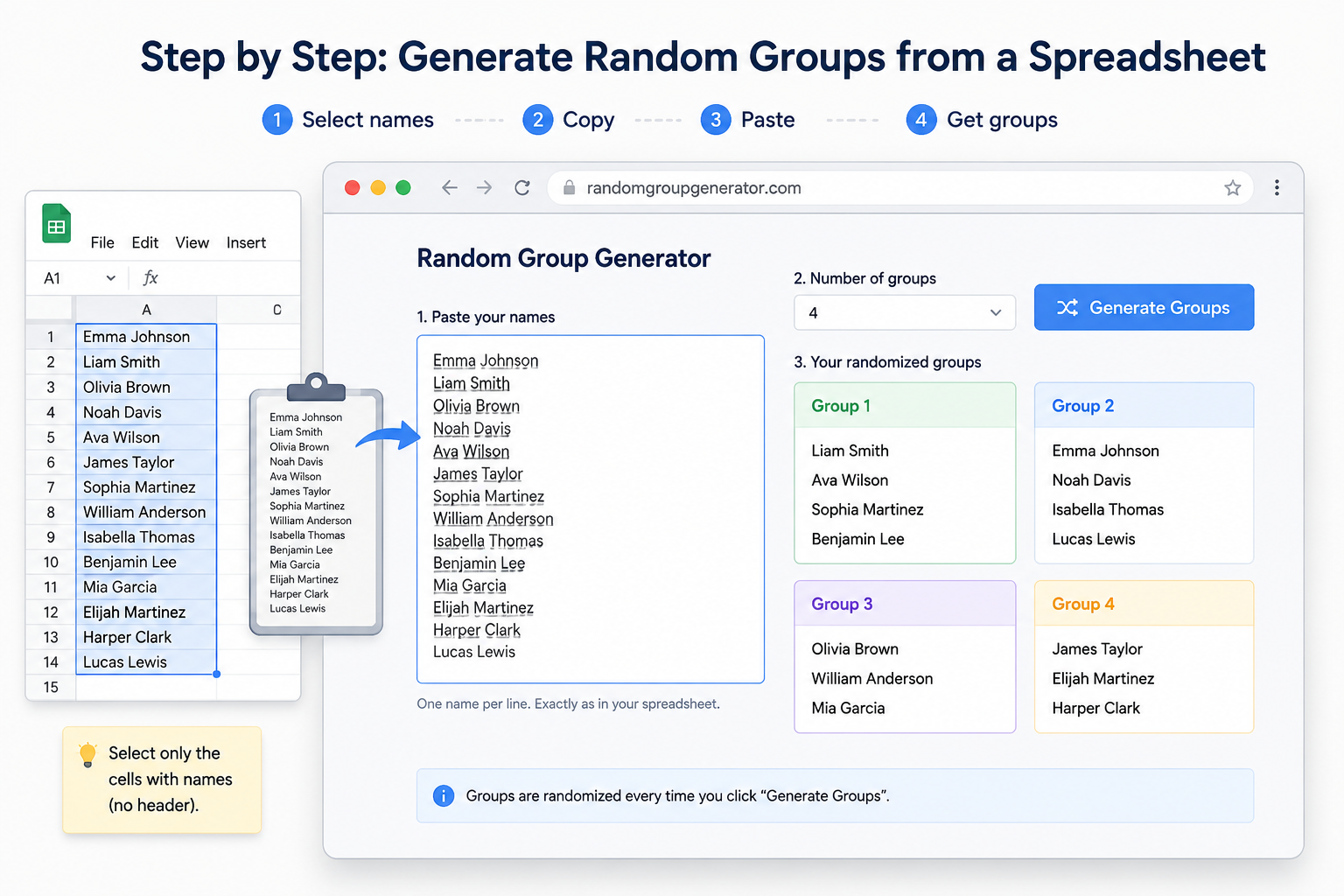
- Open your spreadsheet and select the entire column of names you want to group. Include the header? No—only highlight the cells containing actual names, not the column title.
- Copy the selection (Ctrl+C on Windows, Cmd+C on Mac). Your clipboard now holds each name on a separate line, which is exactly what the tool expects.
- **Visit the random group generator** in your browser.
- Paste the names into the large text area. You’ll see them appear exactly as they did in your spreadsheet column – one name per line. If you see any blank lines at the top or bottom, delete them so the tool counts only real names.
- Select the number of groups from the dropdown. For instance, if you have 28 students and want four groups of seven, pick “4”.
- Click “Generate Groups”. The tool instantly displays randomly assigned groups in labeled sections. Any extra person is distributed to make the last group slightly larger rather than creating a tiny leftover group.
- Review and reuse. If you don’t like the arrangement, just click again to reshuffle. You can even copy the displayed groups and paste them back into your spreadsheet as a quick assignment record.
If your spreadsheet contains more than a simple name column—say a column for roles, skill levels, or homerooms—you can still paste everything. For balanced grouping by attribute, you’ll want to do a little preparation: sort the sheet by the attribute column, copy the high, middle, and low tiers separately, and then paste each tier in sequence with a blank line between them. The tool will still randomize within the pool, but by ordering the input you can control the final distribution more intentionally. After grouping, you can copy the output into a new sheet and use a group name generator to give each group a fun, themed identity.
Tips for Fair and Balanced Groups from Spreadsheet Rosters
Fairness goes beyond random assignment—especially in classrooms where you need to mix ability levels, language proficiencies, or social dynamics. Spreadsheets let you prepare strata that a simple shuffle can’t achieve on its own.
One proven method is stratified random sampling. Suppose you have 30 students rated as Beginner, Intermediate, or Advanced in a language class. In your spreadsheet, sort by level. Now copy the Beginner names, paste them into the generator with one group, note the random order, and then repeat for Intermediate and Advanced. Next, take the first person from each shuffled Beginner list and assign them to Group 1, the second to Group 2, and so on. Do the same for Intermediate, then Advanced. You’ll end up with groups that each contain a mix of levels, yet the order within each level is random. Though this manual interleaving takes a few extra steps, it’s still far faster than handwriting group cards and gives you a documented, defensible grouping rationale.
A simpler approach for large teams is to use the natural extra‑person balancing. If you have a list of 33 participants and need 5 groups, the tool will produce three groups of 7 and two of 6. You can then manually swap one person between a larger and smaller group if, for example, you need exactly 6 in the group that meets in a smaller breakout room. Because you still have the original spreadsheet open, you can verify no one is left out.
Remember that every random grouping should be transparent. When groups are formed from a shared roster, you can show students or colleagues the original list and the final output, demonstrating that the assignment was truly random. This builds trust and reduces complaints about favoritism. The random student picker can also serve as a public verifier: pick a name live, and everyone sees the fairness in real time.
FAQ
Can I directly upload my Excel or Google Sheets file into the group generator?
The random group generator works with copied text, not file uploads. However, copying a column of names from a spreadsheet is just as fast as uploading a file—select the column, copy, and paste. Because no file is ever stored or transmitted, student names stay on your clipboard and inside your browser, respecting privacy policies in K‑12 settings.
What if my spreadsheet has multiple columns—can the tool use them to create balanced groups?
The tool treats your input as a simple list; it doesn’t read multi‑column data. But you can prepare stratified lists: sort by the attribute column (like skill level), copy each tier separately, and then run the tool multiple times. By interleaving the results, you manually build balanced groups that reflect your spreadsheet’s categories while keeping the assignment random.
How do I generate pairs from a spreadsheet column when everyone needs a partner?
Copy the column of names from your spreadsheet and use the random pair generator. Paste the list, and the tool will automatically create pairs. If there’s an odd number, it will note the leftover person so you can decide on a trio or assign a facilitator as the extra partner.
After generating groups, can I save them back to my original spreadsheet?
Absolutely. The output is plain text with clear group headers (e.g., “Group 1”, “Group 2”). Copy the whole result from the browser, return to your spreadsheet, and paste into a new sheet or a designated area. You may want to use “Paste Special” > “Unformatted text” to avoid stray formatting. Then you have a permanent, printable grouping record.
Is there a limit on the number of names I can paste from a spreadsheet?
The tool handles hundreds of names without issue. Very large lists (over 1,000) may cause a slight delay, but the grouping itself is nearly instantaneous. If you’re working with enormous conference attendee lists, consider breaking the sheet into smaller batches to keep the output manageable.
Ready to stop retyping names and start grouping faster? Head over to the free random group generator, paste your spreadsheet list, and get balanced, fair groups in one click. Once you experience the copy‑paste workflow, you’ll wonder why you ever did it any other way.
Sources
- Google Sheets function list — official reference for RAND and related functions
Related Tools
Pick the right generator for the job — every tool runs free in your browser.