
google sheets
Google Sheets vs Online Group Generator: Which Is Right for Your Classroom or Team?
Compare creating random groups in Google Sheets or Excel with a dedicated online group generator. See step-by-step methods, pros and cons, and real classroom examples to choose the best tool for fair, fast grouping.

Every teacher, trainer, and event organizer knows the moment: you need to split a room full of people into groups, and the clock is ticking. Maybe you’ve tried pulling names from a hat, counting off by numbers, or frantically copying and pasting in a spreadsheet. If you’ve ever gone down the Google Sheets route—writing formulas, checking for duplicates, manually tweaking groups—you’ve probably wondered whether there’s a faster, fairer way. That’s exactly what this comparison of a Google Sheets random group generator and a dedicated online group generator will help you decide.
Both approaches can randomize a list of names into teams, but they differ wildly in setup time, fairness features, and ease of reuse. In this article, you’ll learn how each method works, see a step-by-step example for building your own spreadsheet randomizer, and explore how an online tool like the Random Group Generator simplifies the whole process. By the end, you’ll be able to choose the right tool for your next classroom activity, workshop, or team-building event.
The Problem: Why Manual Group Creation Slows You Down
Forming groups manually isn’t just tedious—it introduces unconscious bias. When we eyeball lists, we tend to put friends together or over-correct for perceived skill levels. Even when intentions are good, the result is often groups that aren’t truly balanced or, worse, that cause student complaints about fairness. For corporate trainers, the same issue appears: teams that lack diverse perspectives because the facilitator subconsciously grouped people they knew together.
Then there’s the time sink. Think about a middle school teacher with five classes of 28 students each. Using a spreadsheet to create new groups for every project adds up. And what if a student is absent? You either have to re-run the formulas or shuffle manually on the fly. A tool that can handle last-minute changes without breaking a sweat becomes a lifesaver.
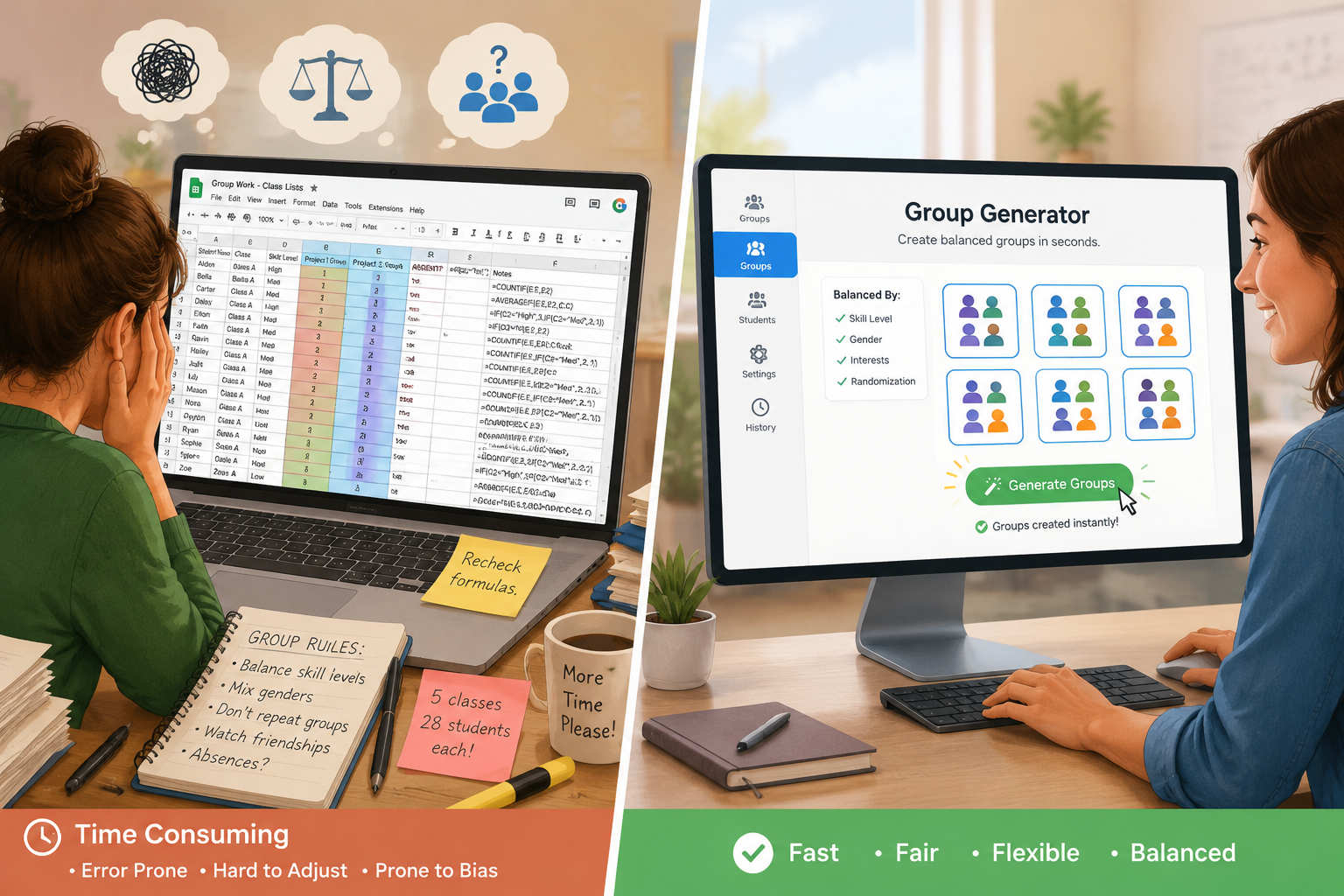
A good grouping tool solves three things at once: it removes bias, saves time, and lets you adapt when plans change. The question is whether a spreadsheet you already know, like Google Sheets or Excel, can do the job or whether a dedicated online group generator is worth the switch.
Option 1: Building a Random Group Generator in Google Sheets (or Excel)
If you’re comfortable with basic spreadsheet functions, building your own random group generator is a viable option. The idea is to assign each person a random number, sort by that number, and then divide the sorted list into equal groups. Here’s the exact process using Google Sheets (the steps work almost identically in Excel).
Step-by-Step: Create an Excel Random Group Generator
- Create your roster. In a new sheet, list all participant names in column A, starting at cell A2. In cell A1, type a header like “Name”.
- Add random numbers. In cell B2, type the formula
=RAND(). This generates a random decimal between 0 and 1. Copy this formula down to every row that has a name. - Freeze the random values. Because
RAND()recalculates every time the sheet changes, you need to freeze the results. Select all the random numbers, copy them (Ctrl+C), then use “Paste special” → “Values only” to replace the formulas with their current static numbers. - Rank the random numbers. In cell C2, use
=RANK(B2, $B$2:$B$end), where$B$2:$B$endis the range of your frozen random values. This assigns each person a unique rank from 1 to the total number of participants. - Assign group numbers. Decide on the number of groups you want, say 4. In cell D2, use
=MOD(C2-1, 4)+1. This formula loops through group numbers 1 to 4 based on the rank. Copy this down. - Audit group sizes. Use
=COUNTIF(D2:D$end, 1)(or 2,3,4) to see how many people are in each group. If the total number of participants isn’t perfectly divisible by your group count, some groups will have one extra member.
You’ve now built a basic spreadsheet team randomizer. To see the groups, sort by column D or apply a filter. If you want to save this setup as a reusable template, you can keep the formulas in place, but remember to re-paste values as static numbers every time you update the roster to avoid the random numbers re-shuffling unexpectedly.
What Spreadsheets Do Well
For a one-off task with a small group, this method works and costs nothing if you already use Google Workspace or Microsoft Office. The logic is transparent—you can see exactly how groups were formed, which might be a requirement in some teaching or research settings.
Where Spreadsheets Fall Short
However, the friction adds up quickly. Manually pasting values every time, adjusting formulas when the number of groups changes, and dealing with uneven group sizes require constant attention. There’s also no built-in way to respect constraints like “don’t put these two together” or “balance by gender or skill level.” You’d have to manually swap names, which undercuts randomness. And if you’re using a mobile device or cast screen in a classroom, manipulating formulas is far from friendly.
Option 2: Using an Online Group Generator
A dedicated online group generator flips the workflow: instead of building logic, you simply paste in names and choose your settings. The Random Group Generator is a free tool purpose-built for educators and facilitators. It takes the same basic input—a list of names—but wraps it in an interface designed for quick, fair grouping.
How to Create Groups with an Online Random Group Generator
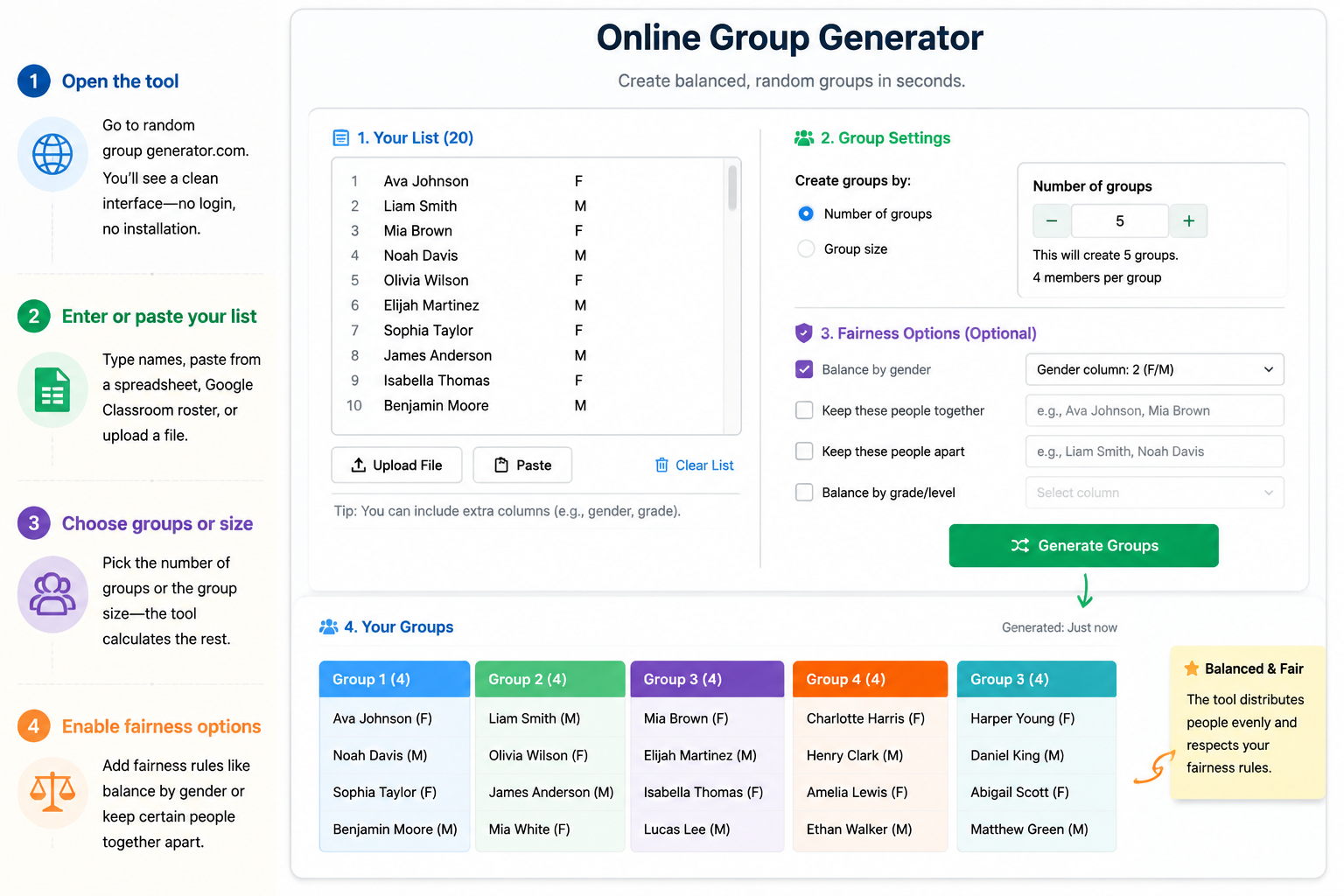
- Open the tool. Go to random-group-generator.com. You’ll see a clean text area and controls. No login, no installation.
- Enter or paste your list. You can type names separated by line breaks or paste from a spreadsheet, Google Classroom roster, or any text file. The tool also supports uploading a file directly.
- Choose the number of groups or group size. You can decide how many groups you want—say 5 groups—or you can specify how many members you want per group. The tool automatically calculates the other value.
- Enable fairness options. This is where the tool pulls ahead. You can check constraints like “Balance by gender” if your list includes a second column of data, or force certain participants to be grouped together or apart. These options produce equitable groups that a basic formula can’t touch.
- Generate groups. Click the button. The result appears instantly, color-coded and easy to project on a screen. If you don’t like the distribution, you can reshuffle with one click.
- Share or export. You can copy the groups, download them as a file, or even share them directly to platforms like Google Classroom, Zoom, or Microsoft Teams.
What an Online Tool Does Better
The biggest practical difference is speed and repeatability. You can keep your master roster in a separate document, paste it into the generator whenever you need new groups, and not worry about broken formulas. When a student is absent, you can delete their name and regenerate without touching a formula. When you need to create pairs instead of full groups, a tool like the Random Pair Generator handles that with its own optimized logic. For activities that require quick individual pickers, the Random Student Picker serves exactly that role. Having a suite of tools under one umbrella means less mental switching.
Key Comparison: Google Sheets vs Online Group Generator
Let’s break down the differences in the areas that matter most for a classroom, training room, or workshop.
Setup Time
With a spreadsheet, you’ll spend 5–10 minutes writing and checking formulas the first time, and you’ll still need to copy-paste values each subsequent use. An online generator requires you to paste a list and click—under 30 seconds for a fresh grouping.
Fairness and Constraints
A basic spreadsheet randomizer is purely random—it can’t respect gender balance, reading level, or team roles. The online group generator supports multiple fairness checks at once. If you upload a list with extra columns for skill level or experience, the tool can rotate group composition so no group is lopsided.
Adaptability
Spreadsheets are flexible but fragile: one accidental edit can break the group numbering. Online tools are built for change. Remove a name, add a latecomer, switch from 4 groups to 6—everything recalculates instantly.
Visual Presentation
When you project a spreadsheet in class, you have to hide or resize columns, and the result still looks like raw data. The online generator displays color-coded cards or lists that are easy to read from the back of the room. You can even switch the interface language to one of nine supported languages if you have non-native English speakers in the room.
Reusability and Templates
Spreadsheets can be saved as templates, but they require manual data entry or import reminders. An online tool doesn’t store your data (for privacy), but the process is so fast that re-pasting a list from your roster file becomes trivial. For many teachers, the psychological benefit of a clean, predictable workflow—without spreadsheets—is the deciding factor.
Real Classroom Example
Imagine a science teacher, Ms. Patel, who runs lab groups twice a week. She maintains a Google Sheet with 32 student names and four columns for science aptitude, communication skill, leadership role, and partner restrictions. Using formulas, she’d need nested VLOOKUP or custom scripts to randomize while respecting these attributes—a project large enough to derail her planning period. With the online generator, she uploads the same CSV, checks “Balance by gender” and “Balance by science aptitude,” and clicks generate. The groups of four appear, with the tool ensuring no group has more than one student from each proficiency band. Total time: one minute.
For quick pair work, she sometimes uses the Random Pair Generator directly. For call-on-someone activities, the student picker is always ready. The consistency among these tools reduces the cognitive load of starting every activity.
When to Use Which: Practical Scenarios
Choose Google Sheets / Excel random group generator when:
- You are already in a spreadsheet-heavy workflow and need a one-off, simple random grouping for a very small team (under 10 people).
- You need to show the raw formula logic as part of a statistics or computer science lesson.
- Internet access is unreliable, and you must work entirely offline.
Choose the online group generator when:
- You group people regularly (daily or weekly) and value speed above all.
- You need to respect fairness constraints like gender balance, skill level, or separation of specific individuals.
- You present groups to a room and want clean, readable, color-coded output.
- You use integrations with Google Classroom, Zoom, or Teams and want to push groups directly to those platforms.
- You prefer a mobile-friendly interface for quick adjustments from a phone or tablet.
In most educational and professional settings where technology is available, the online generator saves enough time and reduces enough friction that it becomes the default choice within a week of use.
FAQ
Can I use Google Sheets to make random groups without any formulas?
Yes, you can use add-ons or manual methods like shuffling a column with the SORT function, but pure no-formula approaches (like pulling names from a digital hat) lack reproducibility and don’t guarantee equal group sizes. A dedicated tool handles both pieces for you automatically.
How does the online group generator ensure fairness compared to a spreadsheet?
The generator can accept extra columns of data (e.g., skill level, gender, experience) and use constrained randomization to distribute these attributes evenly across groups. Standard spreadsheet formulas don’t natively support multi-variable balancing, so you’d need complex custom scripts to approximate it.
Is the Random Group Generator free to use for schools?
Yes, the core group generator tool at random-group-generator.com is free. No student data is ever stored, and there are no ads that interfere with classroom use.
What if I need to create pairs instead of large groups?
You can use the Random Pair Generator for exactly that scenario. It follows the same simple paste-and-generate workflow but optimizes for pairs, including handling odd numbers intelligently.
Can the online tool handle last-minute roster changes?
Absolutely. Add or remove names directly in the tool’s text area and click generate again. Unlike a spreadsheet, there are no downstream formulas to fix; the distribution recalculates instantly.
Ready to Stop Cobbling Together Spreadsheet Formulas?
Both Google Sheets and a purpose-built online group generator can shuffle names, but only one was designed from the ground up for the pace and fairness demands of real classrooms and workshops. If you’re tired of wrangling formulas every time you need new teams, head over to the Random Group Generator and paste your roster. In less time than it takes to write a =MOD formula, you’ll have clean, balanced groups that you can share, project, or download. Give it a try—your next group activity will start smoother and feel fairer from the first moment.
Sources
Sources
- Google Sheets function list — official reference for RAND and related functions
Related guides
- How to Export Random Groups to Google Classroom – Step-by-Step Guide — Learn how to take the random groups you’ve generated and get them into Google Classroom for assignments, gr…
- How to Generate Random Groups from a Spreadsheet – No Retyping Needed — Learn how to turn your Excel or Google Sheets class list into random groups instantly.
- Random Group Generator Google Classroom Integration: How to Create Fair Groups Fast — Learn how to use a free random group generator with Google Classroom to quickly create balanced student tea…
- How to Use Random Group Generator: A Complete Guide for Teachers and Facilitators — Learn how to use Random Group Generator to create fair, balanced groups in seconds.
Related Tools
Pick the right generator for the job — every tool runs free in your browser.