
random group generator
Teacher FAQ: Random Group Generator Questions Answered | Random Group Generator
Get answers to the most common teacher questions about random group generators. Learn how to create fair, balanced groups quickly, integrate with Google Classroom and Zoom, and handle student grouping challenges.

If you’ve ever wondered how a random group generator actually works, whether it’s fair, or how to use it smoothly with your lesson plans, you’re in the right place. Every day teachers face the scramble to form project teams, reading circles, or lab partners in a way that feels equitable and keeps students engaged. This FAQ gathers the real questions educators ask about random group generation—and gives you practical, research-backed answers so you can use the tool with confidence.
How Does a Random Group Generator Work?
A random group generator takes a list of student names—whether typed, pasted, or imported from a class roster—and applies a randomization algorithm to assign each person to a group. The most common method is a variation of the Fisher‑Yates shuffle, which ensures every possible group arrangement is equally likely. When you click “Generate,” the tool does the sorting in milliseconds and displays your balanced groups. You’re not relying on a “magic button”; you’re using a mathematically fair process that removes human guesswork.
On a practical level, the random group generator on our site lets you control whether groups are created by number of groups (e.g., five teams) or by members per group (e.g., four students each). Advanced implementations, like ours, can also remember your class list so you don’t have to re‑enter names every time. Because the algorithm runs locally in your browser, no student data is stored on any server, which protects privacy and complies with school data policies. This same local‑processing principle applies to most respected random group tools, so you can be confident that the groupings stay secure.
Is Random Grouping Really Fair? Addressing Bias Concerns
Teachers often worry that a “random” assignment could still produce imbalanced teams—maybe all the strong readers end up together, or close friends cluster in one group. True randomness doesn’t guarantee evenly distributed skills, but it eliminates the far more common problem of unconscious teacher bias. Research on cooperative learning by Johnson and Johnson shows that when students perceive grouping as fair and arbitrary, they are more likely to cooperate and less likely to complain about their teammates. Random assignment also helps break down social cliques, a benefit highlighted by classroom‑management experts such as those at Edutopia.
If you need to guarantee skill balance, look for a generator that offers constraints or “balanced grouping” based on custom tags (like reading level or English proficiency). While our core random group generator focuses on pure randomization, you can pair it with a separate random student picker to first select individuals for a group and then fill the remaining slots. Many teachers also manually swap one or two names after generation—just be transparent with your class about the reasoning, so students still trust the process. If your primary goal is equity through randomness, a straightforward generator works best and saves you the mental load of engineering “perfect” groups.
Step‑by‑Step: Setting Up Groups in Under a Minute
Here’s how a typical teacher moves from a quiet classroom to lively, ready‑to‑work teams in 60 seconds.
- Open the tool. Go to the random group generator on your laptop, tablet, or phone. It loads instantly and requires no account.
- Enter your roster. Type or paste your student names, one per line. If you’ve saved a class list previously, you can reload it from the stored list. For a quick demo, you can also use placeholder names.
- Choose your grouping style. Decide whether you want a certain number of groups or a certain group size. For instance, if you have 28 students and need six teams, select “Number of groups: 6.” The tool automatically calculates how many students land in each group, with remainders distributed evenly.
- Generate and share. Click “Generate Groups.” The list appears instantly. You can now read the groups aloud, copy them to your clipboard and paste into Google Classroom, Zoom chat, or a Jamboard. If you need pairs for a think‑pair‑share, use the random pair generator instead—it follows the same flow but always forms teams of two.
This process doesn’t just save minutes; it changes the classroom rhythm. When students see the same fair, automated system every time, they stop lobbying for friends and start focusing on the task. You can even add a fun twist by assigning a group name generator label after the groups are formed.
Can I Use It for Different Activities? Pairs, Teams, and More
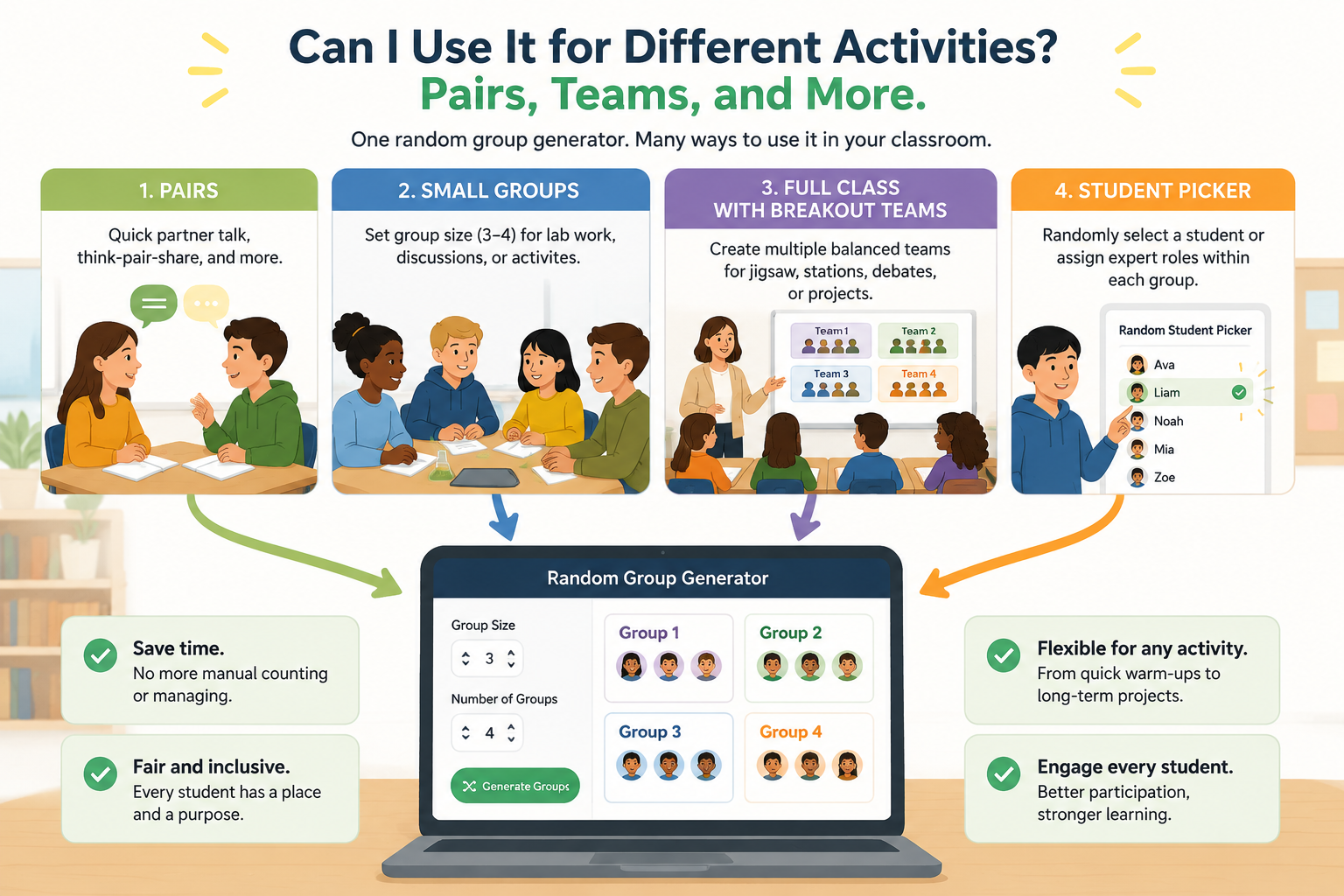
Absolutely. A flexible random group generator is your go‑to for everything from quick partner talk to semester‑long project groups. If you’re launching a think‑pair‑share, the random pair generator creates ready‑made duos, saving you the awkward “find a partner” ritual. For lab work that requires groups of three or four, the main generator lets you set a fixed group size, so no student has to sit out or work alone.
Larger cooperative learning structures also benefit. When using the Jigsaw classroom method, you can first form “home” groups randomly, then use the random student picker to assign expert roles within each group. Similarly, for a classroom debate or literature circle, you can generate groups once and let students rotate roles each session. By keeping the randomization consistent across all these formats, you normalize the practice so it becomes a seamless part of your classroom culture.
Integrations: Google Classroom, Zoom, and Microsoft Teams
The best random group generator doesn’t need a formal integration to work with your favorite platforms—it already plays nicely with them. Because the tool outputs plain text or a copy‑friendly list, you can paste groups directly into a Zoom breakout room assignment or a Microsoft Teams channel message. For Google Classroom, many teachers keep the generator tab open alongside their lesson, then copy‑paste the groups into a class announcement or a shared Google Doc.
If you’re running a hybrid or fully remote classroom, start by pasting your students’ names from the LMS roster into the generator, then share the resulting groups via the chat. To make the process even smoother, save your class list once in the generator; the next time you log in, you’re one click away from fresh groups. Some teachers even embed a link to the generator in their daily slide deck, so students can see the tool and understand the grouping is impartial. This low‑tech integration approach works across any device—Chromebooks, iPads, or even smartphones—so you’re never locked into a single ecosystem.
Handling Student Anxiety and Group Work Resistance
“Do I have to work with them?” Random grouping can trigger anxiety, especially for shy students or those who have had negative group experiences. The key is consistency and transparency. When you use the generator regularly—say, every Monday for a weekly collaboration—students learn it’s not personal; it’s just the routine. You can further ease tension by announcing groups ahead of time on the projector so everyone sees the randomness in real time.
For the first few sessions, consider using the random pair generator instead of larger groups. Pairs are less intimidating and give each student a clear voice. You might also let students propose one “comfort partner” exception per term, which reduces resistance while still keeping the majority of assignments random. Over time, as students experience positive collaboration, the anxiety often fades. Research on cooperative learning underscores that structured interdependency—like giving each group member a specific role—can turn random groupings into a vehicle for social‑emotional growth.
What Are the Benefits Over Manual Grouping?
Manual grouping, whether by counting off or picking sticks, eats up precious instructional time and can inadvertently reinforce existing social divisions. A random group generator eliminates the “teacher’s pet” perception and the mental fatigue of trying to be fair while juggling a hundred other things. The efficiency gain alone is measurable: a 30‑second generator versus five minutes of orchestrated shuffling saves hours over a school year.
Beyond time, the generator promotes equity. Students come to see that your grouping decisions aren’t based on favorites or assumptions. This perception of fairness can boost class morale and engagement. Teachers also report that random grouping often leads to surprisingly productive collaborations—quiet students get a chance in a new dynamic, and high‑achievers learn to mentor. For maximum impact, pair your random groups with clear norms (like “every voice speaks once before anyone speaks twice”) and you’ll see the collaborative benefits that decades of cooperative learning research have documented.
Frequently Asked Questions About Random Group Generators
Can I save my class list for future use?
Yes. The random group generator lets you store your current roster in your browser’s local storage, so it’s available every time you visit the site on the same device. You can also name different lists for different periods or classes. Just be aware that if you clear your browser data, the saved list will be removed—so it’s wise to keep a backup spreadsheet.
Does the generator avoid putting certain students together?
Pure random generators do not have a built‑in “avoid” function, because they prioritize unbiased assignment. However, you can manually swap one or two students after generation if you need to separate specific individuals. Some teachers create a “pairing note” and adjust before sharing groups with the class. If constraining pairs is critical, you might pair the generator with a manual checklist, but remember that random mixing is often the most effective long‑term strategy for building inclusive classrooms.
Is my student data private?
Absolutely. Our generator runs entirely in your web browser; student names are never uploaded or stored on any server. This means your data stays on your device and is protected by your school’s existing security measures. You can use the tool without an account, and no personally identifiable information is ever collected.
How many students can I group at once?
The tool easily handles up to 500 names, which covers even the largest lecture halls or whole‑school assemblies. For extremely large groups, the generation remains near instant because the randomization algorithm is optimized for speed. If you’re running a massive event, you can also split your list into sections and generate subsets independently.
Can I use the generator during a live online lesson?
Yes. Because the tool is web‑based and works on any device, you can share your screen while generating groups in real time. Paste the results into Zoom chat, Google Meet, or your virtual whiteboard. The live visibility reinforces the fairness of the process and reduces pushback from students.
Ready to Try It in Your Classroom?
Start making grouping effortless and equitable. Head over to the random group generator, enter your class list, and see how a few clicks can transform your classroom workflow. For more tips on creating a positive group culture, check out our guide on how random grouping boosts collaboration.
Related Tools
Pick the right generator for the job — every tool runs free in your browser.