
使用隨機抽學生輪盤
課堂點名、答案核對、發言順序和現場互動提問都適合。

輪盤過程更適合課堂投影,也更容易向學生說明點名規則。
開啟記住已選後,已抽中的名字會從下一次抽取中暫時移除。
適合教室大螢幕、線上課堂、會議和工作坊互動。
快速判斷
隨機抽學生輪盤是一個適合全螢幕展示的課堂抽人工具,用來公平抽取 1 名或多名學生、發言人或參與者。
你可以匯入 CSV/TXT 名單,轉動可見輪盤,開啟記住已選來實現重置前不重複,並複製本次結果或已選歷史。
課堂上,您是否經常為了點名回答問題而傷腦筋?傳統的抽籤、紙條或輪盤既費時又容易引發公平性疑慮,有些學生甚至覺得自己被刻意忽略。為了解決這些痛點,隨機學生選擇器(Random Student Picker) 提供了一個免費、即時且完全透明的解決方案。本篇教學將帶您一步步熟悉這款工具,無論您是學校老師、補習班講師,或企業內部訓練師,都能立刻上手,讓每一次的點名都成為學生期待的小驚喜。
隨機學生選擇器是 Random Group Generator 平台旗下的一項專門工具,專為需要公平隨機挑選學員的情境設計。您只需要輸入一份學員名單,點擊按鈕,系統就會在眨眼間選出一位學生,並以明顯的視覺效果呈現在螢幕上。
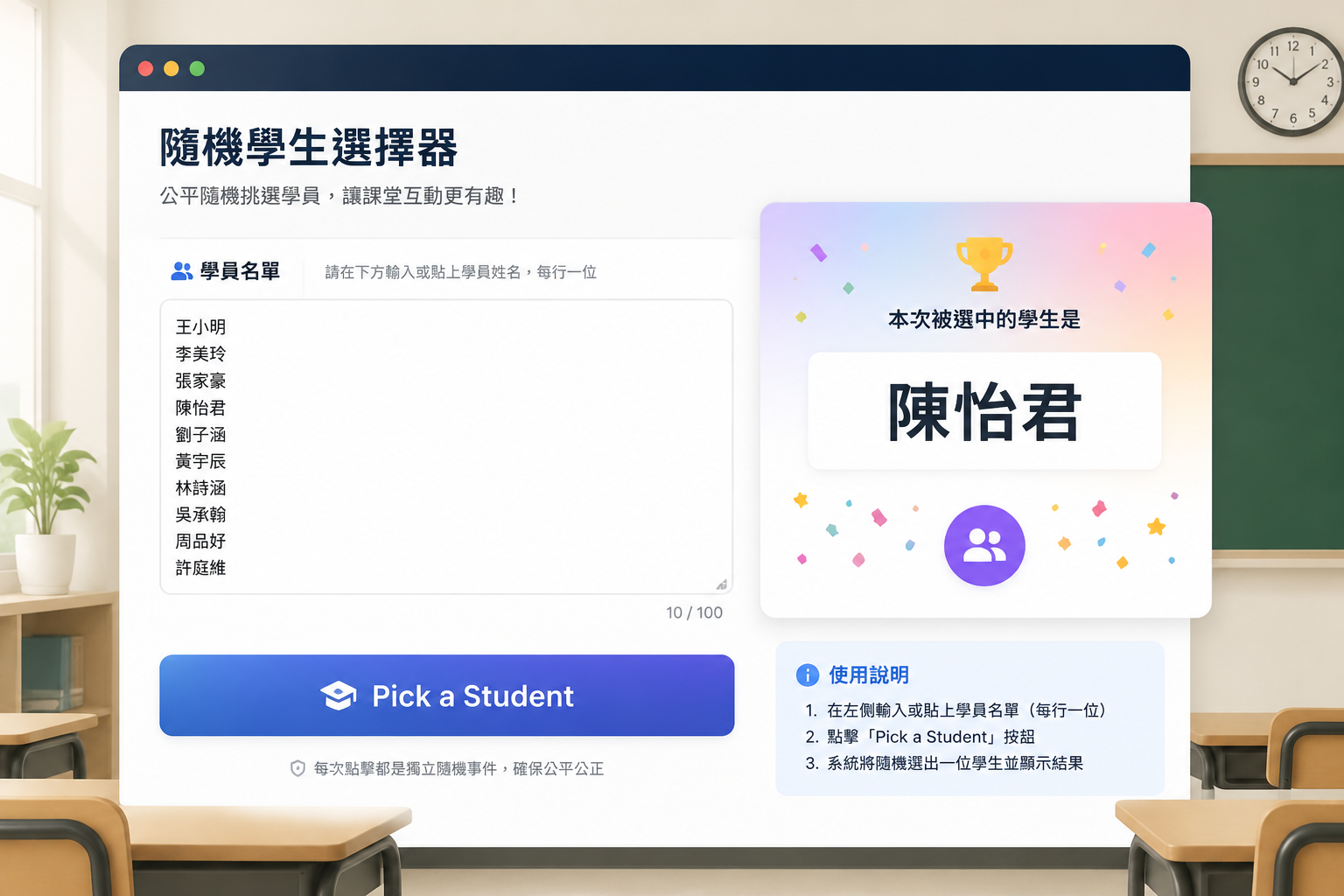
這項工具的核心是標準的隨機亂數演算法,每一次點擊都是獨立事件,每位學員被挑中的機率完全相同。正因為過程透明、結果立即可見,學生能直接看到隨機選擇的過程,再也不會有「老師偏心」的誤解。
當您將挑選的過程公開投影到白板或分享給線上會議的畫面時,所有學生都能親眼見證結果是隨機產生的。這種透明性不僅能消除學生的疑慮,也能鼓勵平常較安靜的學生更願意參與,因為他們知道自己被挑中的機會和其他人一模一樣。
手寫紙條、撕下來摺好、放進籤筒、再請學生抽出——這一連串動作至少花費兩到三分鐘。隨機學生選擇器從點擊到顯示結果只需要一秒,而且您可以連續挑選多位學生,中間完全不需要中斷教學節奏。名單越長,節省的時間就越可觀。
隨機挑選本身就帶有遊戲的性質。當學生的名字在畫面上快速跳動、最後停在某一位幸運兒時,整間教室的氣氛會立刻活絡起來。您還可以搭配工具提供的聲音或動畫效果,把原本枯燥的點名轉化成一種儀式感,讓學生更專注於接下來的問答或活動。
請在瀏覽器中前往 隨機學生選擇器。如果您經常使用,建議將此頁面加入書籤或設為瀏覽器首頁捷徑。頁面採用響應式設計,無論是電腦、平板或手機都能正常顯示,但考量到課堂展示,我們推薦使用筆電或平板連接投影機。
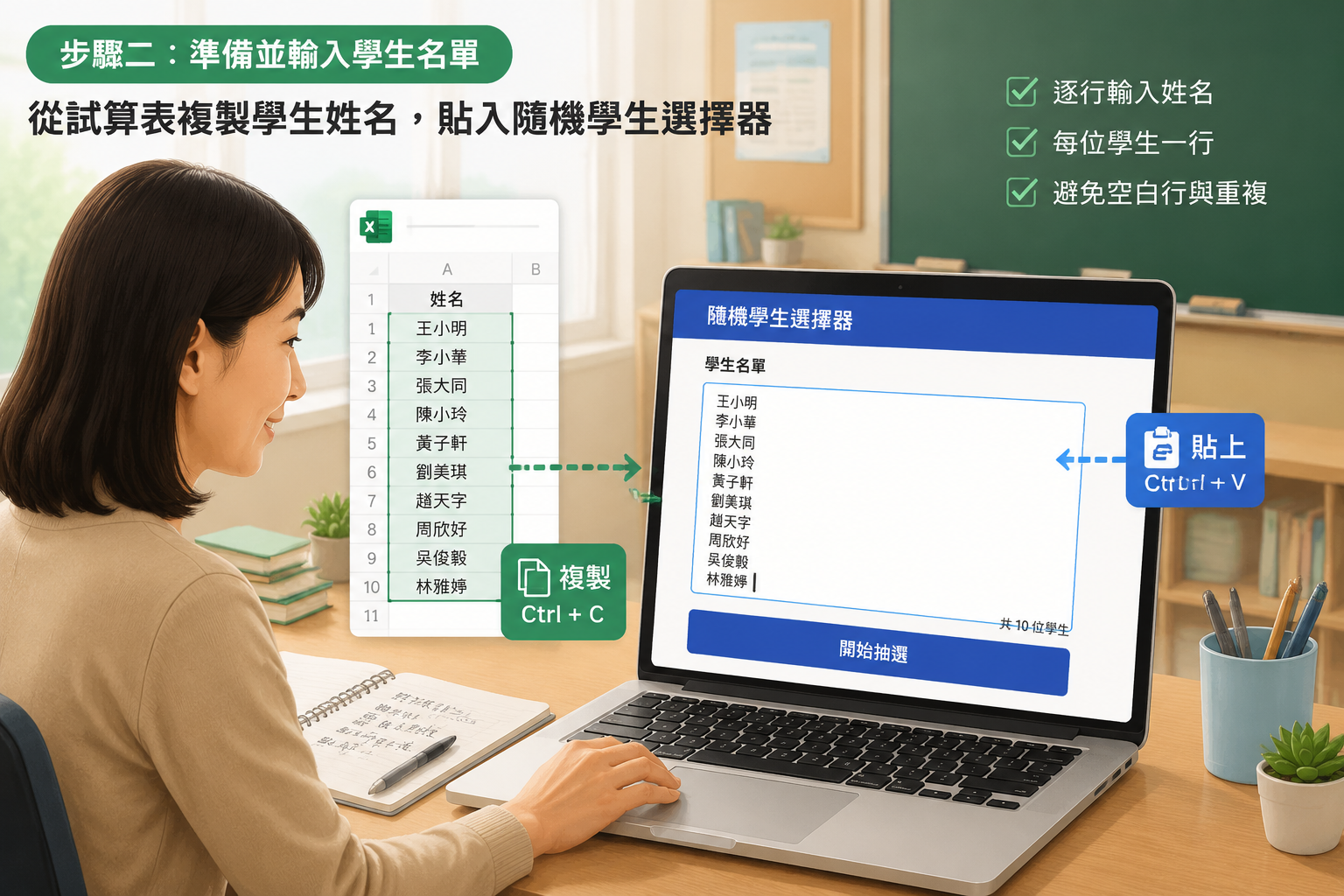
在頁面的「學生名單」文字框中,逐行輸入學生的姓名。工具會以「換行」作為區隔,因此每一位學生的姓名應獨佔一行。您可以手動輸入,也可以直接從其他來源複製貼上。常見的做法包括:
請注意,如果名單中有重複的姓名,系統會將它們視為不同條目,被選中的機率也會隨之增加。因此,請務必確認名單內沒有多餘的空白行或重複輸入。
雖然預設功能已經足夠使用,但工具還提供了幾項選用設定,您可以依照課堂風格自由開關:
確認名單無誤後,點擊「隨機挑選」或「Pick a Student」按鈕。結果會立刻以醒目的字體出現在畫面中央,您可以直接將畫面投影給全班觀看。如果需要再次挑選,只要再次點擊相同按鈕即可;系統會立刻淘汰上一個結果,並產生全新的隨機選擇。
如果您教授好幾個班級,建議為每個班級建立一個獨立的純文字檔(例如 classA.txt),將對應的學生名單儲存起來。上課時直接打開檔案、全選複製、再貼入工具中即可,完全不需要反覆輸入。若想清除當前名單,點擊「清除」按鈕便能回到空白狀態,準備下一回合的挑選。
隨機學生選擇器最經典的用法,就是在拋出一個問題後,讓工具來決定由誰回答。因為挑選的過程完全隨機,每位學生都得隨時做好準備。對於平時很少主動舉手的學生來說,這是一個安全且不帶壓力的表現機會。
舉例來說,一位中學歷史老師在複習課上先問:「誰能簡述一下法國大革命的起因?」接著點擊按鈕,畫面停在「陳小英」。陳小英回答完畢後,老師可以再追問細節,並且再次點擊按鈕,挑選下一位同學補充。整個過程流暢且無偏頗,班上學生也因為不確定下一個會不會是自己,反而更專注聽講。
在進行分組活動之前,您通常需要先決定各組的組長、記錄員或上台報告的人選。與其讓學生自願或互相推派,不如使用隨機學生選擇器來決定。這不僅公平,也能讓學生體驗不同角色。
結合 隨機分組產生器,您可以在兩分鐘內完成分組與職務指派。先利用分組產生器將全班分成四人一組,再用學生選擇器為每一組挑選組長。這樣的操作流程已經在許多學校的 PBL(專題導向學習)課程中被廣泛使用。
遠距教學的互動難度遠高於實體教室,學生的注意力容易分散。當您透過 Zoom、Google Meet 或 Microsoft Teams 上課時,可以將隨機學生選擇器的畫面分享給所有參與者。學生看到自己的名字出現在螢幕上,不僅會感到驚喜,也會更投入於當下的討論。
工具本身不綁定任何視訊軟體,因此只需一個瀏覽器分頁就能運作。您甚至可以在等待學生加入會議的時間裡,就先打開工具、貼好名單,一上線就能立即使用。
除了教育現場,企業培訓、社團聚會或工作坊也很適合使用隨機學生選擇器。比如在開場破冰時,您可以用它來挑選分享自我介紹的人,或是進行小快問快答遊戲。由於工具介面乾淨、沒有廣告干擾,不會讓參與者感到商業氣息過重,更容易融入活動情境中。
| 方法 | 公平性 | 準備時間 | 趣味性 | 視覺展示 | 隱私風險 |
|---|---|---|---|---|---|
| 自願舉手 | 低,總是特定學生回答 | 無 | 低 | 無 | 無 |
| 紙條抽籤 | 中,可能因摺紙痕跡影響 | 高 | 中 | 低 | 無 |
| 轉盤 App | 中,部分程式有付費限制 | 中 | 高 | 適合螢幕 | 可能需安裝權限 |
| 隨機學生選擇器 | 高,獨立隨機演算法 | 低(僅需貼上名單) | 高(可啟用聲光效果) | 極佳,適合投影 | 低(名單不留存伺服器) |
從比較中可以看出,隨機學生選擇器在時間效率與視覺呈現上最具優勢,特別是它完全免費、無廣告,非常適合在課堂環境中長期使用。此外,它與 隨機配對產生器 和 小組名稱產生器 隸屬同一平台,您可以在同一個網站內滿足分組、配對、命名等所有需求,不需頻繁切換不同工具。
雖然工具本身沒有快捷鍵,但您可以利用瀏覽器內建功能提升效率,例如使用 Ctrl+V 貼上名單、F5 重新載入頁面,或將工具頁面固定為瀏覽器分頁群組的一部分,方便隨時切換。
工具需要網路連線才能正常載入。若您經常在網路不穩的教室中教學,建議您事先載入頁面,並保持瀏覽器開啟。同時,準備一份紙本名單當作備案,以備不時之需。
雖然工具未設定嚴格的人數上限,但當名單超過 200 人時,可能因為瀏覽器效能限制而出現輕微延遲。若教授大班課程,不妨先將學生分為若干小組,再用 隨機分組產生器 進行分組,最後在各組內使用學生選擇器挑選回答者,既能維持公平性,又能確保操作流暢。
工具不會在雲端儲存任何學生資料,這是為了保護隱私。建議您將各班名單儲存在電腦的純文字檔或雲端硬碟中,上課前再複製貼上。這樣不但安全,也更換班級最有效率。
是的,系統使用標準的亂數產生函數,每次點擊都是獨立事件,所有學生被選中的機率相等。如果您在短時間內多次選擇,有可能連續選中同一人,這正是隨機的本質,不代表工具出錯。
完全沒問題。只要裝置的瀏覽器能連上網路,都能正常操作。許多老師直接使用 iPad 連接 Apple TV 投放畫面,效果非常好。
Random Group Generator 平台目前支援 9 種語言,包含繁體中文、簡體中文、英文、日文、韓文等。您可以直接使用 繁體中文版,或在頁面右上角隨時切換語言。
目前工具一次只能產生一位學生,但您可以連續點擊按鈕來快速挑選多位。如果您需要一次選出多人(例如挑選 5 位參加比賽的學生),可以先手動點擊五次,並參考歷史紀錄避免重複,或者搭配 隨機分組產生器 先分出一個小組,再從中指派。
不論您是第一次聽過這個工具,還是正在尋找更可靠的點名方式,隨機學生選擇器都能成為您課堂管理的好幫手。它簡單、快速,而且永遠免費,讓您能專注在教學本身,而不是浪費時間在行政瑣事上。
現在就前往 隨機學生選擇器,貼上您的第一份名單,體會一鍵公平點名的便利吧!如果您還需要將全班隨機分成小組,別忘了試試我們最受歡迎的 隨機分組產生器,一次搞定所有分組需求。
名單、抽取人數和是否重複這三件事說清楚,現場體驗會更順。
支援逗號、換行,也支援在瀏覽器本機匯入 CSV/TXT 名單。
可以抽 1 人,也可以一次抽多名學生用於答題、展示或發言順序。
如果希望本輪不重複抽人,保持記住已選開啟,重置本輪後恢復全部名單。
可直接點擊抽取,也可進入全螢幕模式,把輪盤和結果投到課堂大螢幕。
把隨機點名做成學生能看見、老師能說明的輪盤流程。
把名單變成可見輪盤,適合點名、抽答、展示順序和發言抽取。
隱藏輸入表單,只保留輪盤、抽取按鈕、結果、剩餘人數和重置控制。
支援 CSV/TXT 本機匯入,名單只在瀏覽器中用於本次抽取。
透過本輪狀態讓更多學生獲得參與機會。
被抽中的名字會暫時移出下一次輪盤,直到你重置本輪。
可抽 1 人,也可從同一次引擎結果中逐個展示多名被選對象。
可複製本次選中名單或已選歷史,方便課堂紀錄、會議紀要和後續跟進。
抽人和分組是兩種任務,頁面語義要明確分開。
本頁專注課堂點名、抽答和發言抽取,不混入完整分組場景。
可以按一輪名單逐步抽取,避免總是抽到同一批人。
如果下一步要把全班拆成討論組或專案組,可回首頁繼續分組。
在 30 分鐘討論中減少舉手壟斷
高中教師發現每次隨機點名總是同一六人回答。討論時段把班級名單貼進隨機點名器,開啟本節簡單的不重複抽取,並投影轉盤或姓名反白,讓抽取公開。
抽三次後,更安靜的學生也發過一次言,卻不會被標成「老師針對的內向生」。對明顯未準備的學生仍可跳過,並記為教師覆寫,而不是無聲重抽、看起來像作弊。
公正點名,不做假隨機
點名器在清理空項後的有效名單中抽樣。若有不重複或「已點過」模式,抽出的名字會離開池子直到耗盡,再可重設輪次。這比只靠記憶更接近短期公平。
轉盤或反白是呈現輔助,不改變底層隨機選擇。公平主張是「本抽每位合格姓名機會均等」,不是「本學期每人發言量相同」。
何時隨機點名是錯誤介入
隨機點名可能加重部分學習者的焦慮。對無退出規範的創傷敏感課堂、有言語便利安排的學生,或真正需要自願專長的問題,並不合適。
單次隨機抽取修不好準備不均或座位權力結構,也擋不住教師一直重抽到偏好名字——學生看得見,會削弱工具。
相比手工點名或記憶抽問,輪盤更適合高頻課堂和公開互動場景。
“在隨機抽選前給每個人一點準備時間,讓學生更接受這個流程。”
幾個課堂與遠距參與的範例流程。










相關工具
這些文章說明如何把隨機點名當成真正的參與流程,而不只是新奇的一鍵功能。
關於隨機抽學生輪盤最常見的疑問和判斷標準整理如下。
是。頁面會把名單顯示成可見輪盤,最終結果仍由現有隨機抽取引擎決定。
可以。在抽取人數中設定數量即可,多人結果會從同一次引擎結果中逐個展示。
可以。開啟記住已選後,被抽中的名字會暫時移出輪盤,直到你重置本輪。
會。全螢幕展示模式只保留輪盤、抽取、結果、剩餘人數、重置和退出控制。
不會。貼上名單和 CSV/TXT 匯入都在瀏覽器本機處理,用於目前抽取會話。
隨機抽學生解決「誰先來」;首頁隨機分組生成器解決「大家怎麼分」。兩者分工不同。
不會。它只是提供一個可見、可說明的預設公平規則,老師仍然可以根據課堂情況調整。
可以。逐一抽出名字,依序填入教室座位。若需要內建行列、座位編號並可列印的座位表,請使用隨機座位表產生器。