
breakout room randomizer
Breakout Room Randomizer Definition: What It Is and How It Works
Learn what a breakout room randomizer is, how it distributes participants into smaller groups, and how teachers and facilitators can use random grouping for online meetings.

Imagine you are teaching an online class with 30 students. You want everyone to participate in a short discussion, so you need to divide the class into six smaller groups. You could assign students one by one, but that takes time and may lead to the same students working together repeatedly. A breakout room randomizer solves this problem by helping you distribute participants into smaller groups randomly. It makes organizing virtual discussions easier for teachers, trainers, meeting hosts, and workshop facilitators. Understanding what this tool does and how to use it can help you run more organized and inclusive online sessions.
What Is a Breakout Room Randomizer?
A breakout room randomizer is a tool or assignment feature that distributes meeting participants into smaller groups using a random selection process. Instead of asking a host to decide who belongs in each room, the tool creates participant assignments automatically. The resulting groups can then be used for discussions, collaborative activities, problem-solving exercises, or team projects.
The term combines two related ideas. A breakout room is a smaller meeting space created within a larger online meeting. A randomizer is a tool that makes selections or assignments without requiring the organizer to choose each participant manually. Together, these functions provide a convenient way to organize people into smaller working groups.
For example, a teacher hosting an online science lesson might have 24 students. The teacher wants six breakout rooms with four students in each room. A random assignment tool can distribute the class list into six groups, reducing the need for individual decisions. The teacher can then use those assignments when creating the corresponding rooms in the meeting platform.
A breakout room randomizer does not necessarily create or open virtual meeting rooms itself. Some tools generate participant lists, while video conferencing platforms provide their own room creation and assignment features. Understanding this distinction helps you choose the right workflow.
How Does a Breakout Room Randomizer Work?
Most random grouping tools follow a straightforward process: they receive a participant list, apply the selected group settings, and produce a set of assignments. Depending on the tool, you may organize participants by the number of groups you need or the number of people you want in each group.
The underlying assignment process distributes names among the available groups. A random arrangement reduces the amount of manual decision-making involved, although random assignment does not automatically guarantee equal ability, experience, or participation across groups. If those factors matter, you may need to review the results before starting the activity.
Here is a simple example. Suppose a corporate trainer has 20 employees attending a remote communication workshop. The trainer wants five discussion groups. A randomizer can distribute the 20 names into five groups of four. The trainer can review the assignments, prepare discussion questions, and transfer the names into the meeting platform.
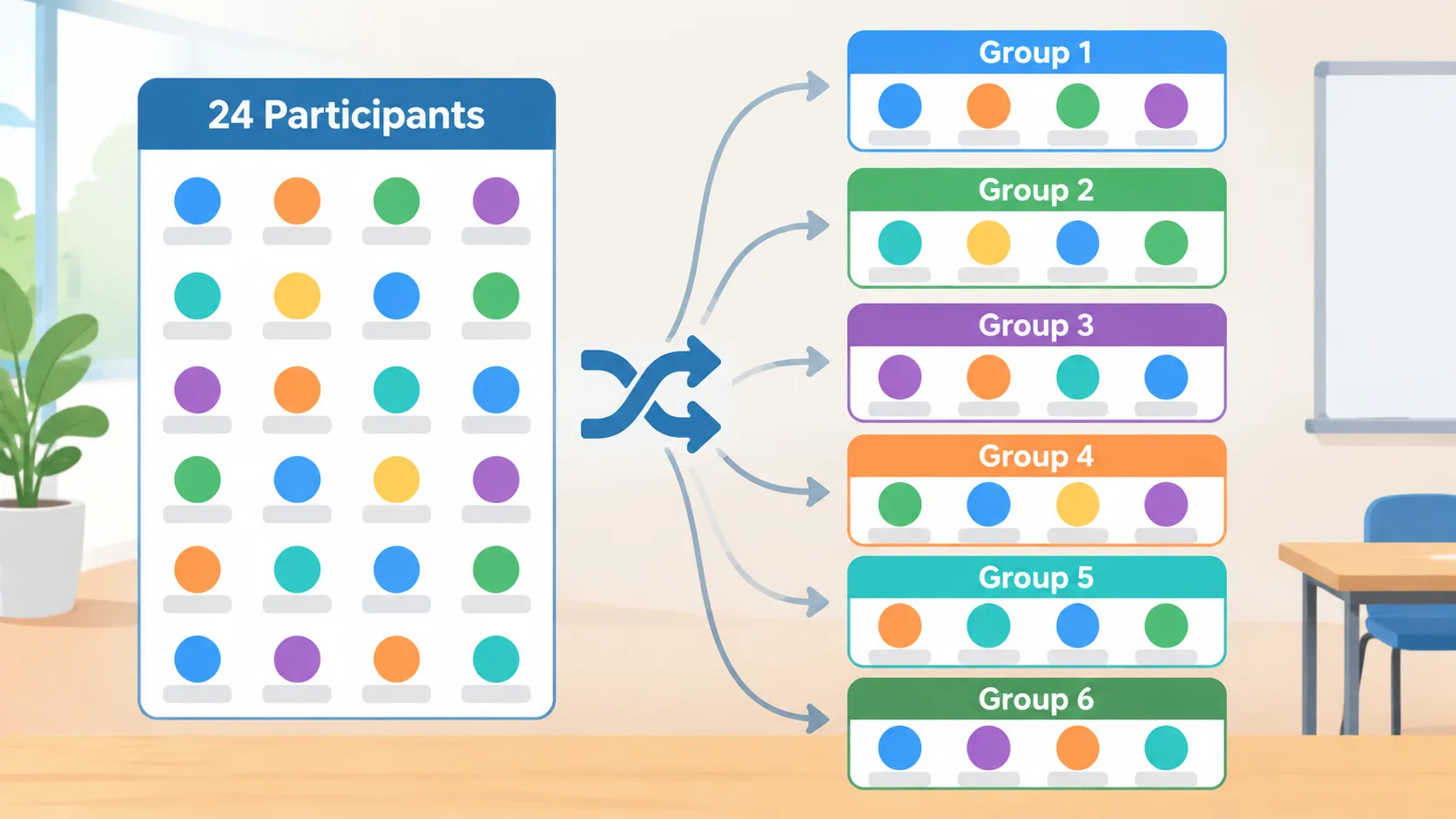
A typical workflow looks like this:
- Enter participant names: Add the students, employees, or attendees who will participate.
- Choose your grouping method: Select the number of groups or the desired number of people per group, depending on the available settings.
- Generate assignments: Run the random grouping process to distribute participants.
- Review the results: Check group sizes and make any necessary adjustments for accessibility, attendance, or activity requirements.
- Create virtual rooms: Use the assignments to organize breakout rooms in your video conferencing platform.
- Share instructions: Explain the activity, time limit, expected outcome, and how participants should return to the main meeting.
This process is useful because it separates the task of deciding who works together from the task of managing the online meeting itself.
Why Do Teachers and Facilitators Use Breakout Room Randomizers?
Organizing small-group activities can become difficult when a class or meeting has many participants. Manually creating groups requires attention, especially when people arrive late, leave early, or need to be reassigned. A breakout room randomizer reduces this administrative work and gives organizers a repeatable process.
Another reason to use random assignment is to introduce variety. Students and employees often become comfortable working with familiar people. Random grouping can create opportunities to exchange ideas with classmates or colleagues they might not normally choose. However, it should be viewed as a way to vary group composition, not as a guarantee of better learning or stronger teamwork.
For educators, this approach can support activities such as peer discussions, reading comprehension, collaborative problem-solving, and review sessions. For corporate trainers, it can help organize role-playing exercises, brainstorming sessions, and small-group feedback activities.
Consider a professional development workshop with 36 teachers. The facilitator wants participants from different departments to exchange classroom strategies. Rather than spending several minutes assigning each person manually, the facilitator can generate six groups of six and then review the assignments to avoid obvious departmental imbalances.
Random assignment is not appropriate for every activity. A group project requiring specific technical skills, language support, or carefully planned student accommodations may benefit more from deliberate grouping. The facilitator should decide whether random selection supports the learning objective before using it.
Breakout Room Randomizer vs. Manual Group Assignment
Both random and manual assignment have a place in classroom management and online facilitation. The difference is how participants are selected and how much control the organizer has over group composition.
With random assignment, the organizer provides the participant list and grouping requirements. The tool produces an arrangement without requiring the host to select every person individually. This is particularly useful for short activities, repeated discussions, and situations where participants should have opportunities to work with different people.
Manual assignment gives the organizer more control. A teacher might intentionally place students with different skill levels together, while a corporate trainer might combine people from different departments. This approach takes more planning but can be necessary when an activity has specific requirements.
For instance, a teacher running a language practice activity may want students with different proficiency levels to collaborate. Random assignment alone cannot guarantee that outcome. The teacher could first create suitable groups manually and then use a random process for a separate activity where participant balance is less important.
| Feature | Random assignment | Manual assignment |
|---|---|---|
| Participant selection | Generated randomly | Selected by the organizer |
| Preparation | Usually quicker | Requires more planning |
| Group composition | Less predictable | More controlled |
| Variety between activities | Easy to introduce | Depends on organizer decisions |
| Specialized learning needs | Requires review | Easier to accommodate deliberately |
The right choice depends on your objective. Use random grouping when variety and reduced administrative effort matter. Choose manual assignment when participant characteristics or specific learning goals require deliberate group composition.
How to Use a Breakout Room Randomizer for Online Meetings
A breakout room randomizer can be used alongside popular video conferencing platforms. The important point is to understand which task belongs to the random grouping tool and which task belongs to the meeting software. A separate generator may prepare the groups, while the platform handles room creation, participant movement, and communication.
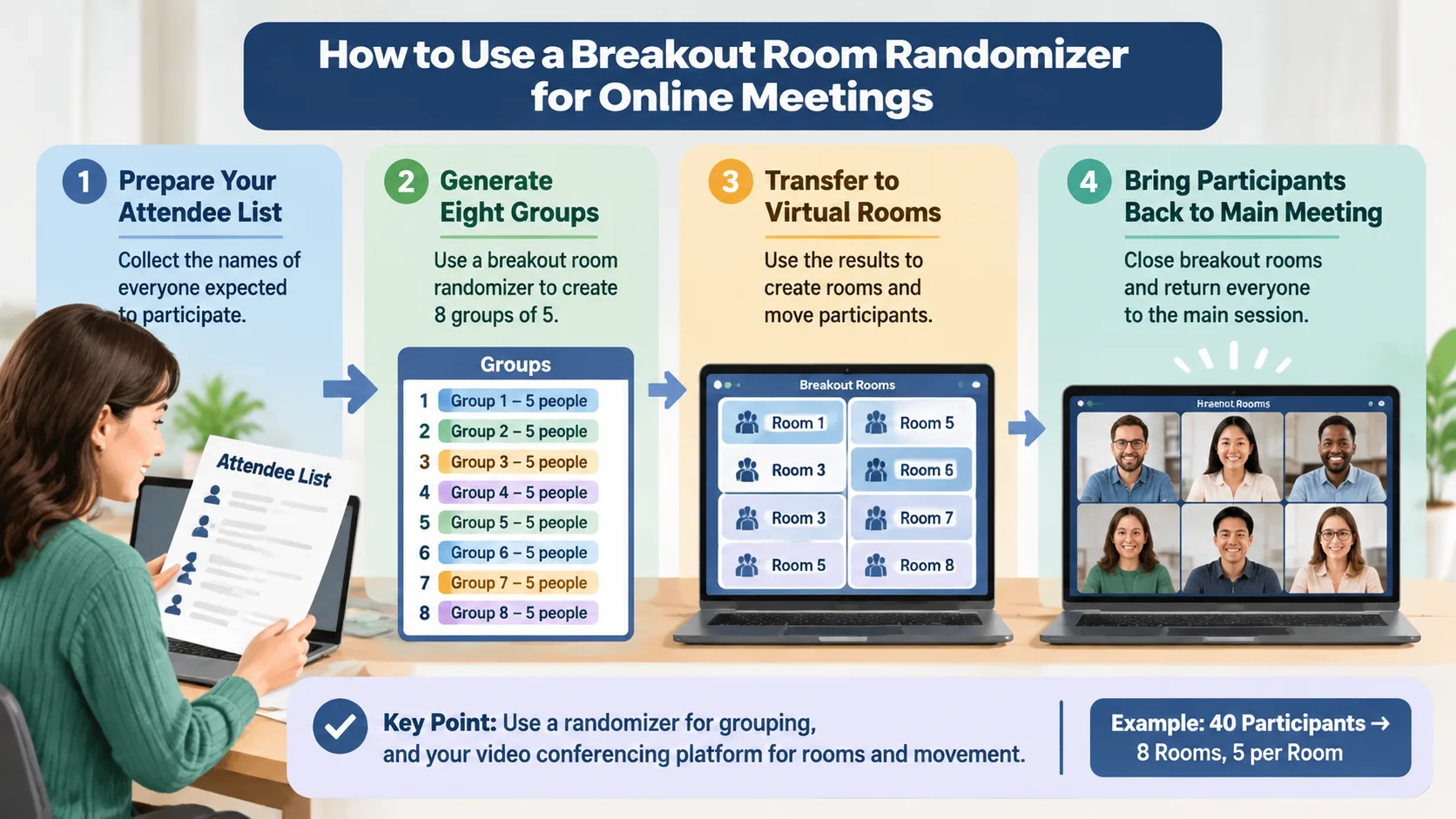
For a practical example, imagine that you are organizing a 40-person online training session. You want eight rooms with five participants in each. You can generate eight groups, review the names, and then use the results to organize the rooms.
Follow these steps:
- Prepare your attendee list. Collect the names of everyone expected to participate. Remove duplicate entries and account for anyone who cannot join the activity.
- Decide the room structure. For 40 participants, eight groups of five provide a straightforward arrangement.
- Generate the groups. Use a Random Group Generator to distribute the names into groups.
- Review the assignments. Confirm that everyone is included and that the group sizes match your requirements.
- Open your meeting software. Create the required breakout rooms and assign participants according to the generated lists.
- Explain the task. Share the discussion question, expected deliverable, and time available.
- Bring everyone back together. Close the breakout sessions and invite each group to share its findings.
Using Random Assignments in Zoom
Zoom includes built-in breakout room management features. According to Zoom's official documentation, hosts can create breakout rooms and choose automatic assignment, manual assignment, participant room selection, or previously prepared assignments. Automatic assignment distributes participants across the rooms without requiring the host to select every name.
To use the built-in approach, start or schedule a meeting, open the breakout room controls, select the number of rooms, and choose automatic assignment. Review the room configuration before opening the rooms. You can also use a separate generator if you want to prepare and review group lists independently before the meeting.
For current instructions and account requirements, consult Zoom's official breakout room guide. Available controls can depend on the meeting environment and software version.
Using Random Assignments in Microsoft Teams
Microsoft Teams also supports random participant assignment. Its breakout room controls include a Shuffle option that can randomly distribute participants across rooms. Organizers can use this feature during a meeting and, in supported workflows, prepare assignments before the meeting.
To use it during a meeting, open the breakout room controls, select Assign participants, and choose Shuffle. You can then select the applicable shuffle option and save the updated assignments. This is useful when a facilitator wants to reorganize people between activities without preparing every assignment manually.
Microsoft also provides controls for opening and closing rooms and managing participant assignments. See the Microsoft Teams assignment instructions for current steps and limitations.
What Makes a Good Breakout Room Randomizer?
Not every random grouping workflow is equally convenient. The most useful option depends on the size of your participant list, how frequently you organize group activities, and how much control you need over the final arrangement.
First, look for flexible group-size settings. Some activities work best with pairs, while others require groups of four or five. A useful tool should let you organize participants according to the structure of the activity rather than forcing one fixed arrangement.
Second, consider whether the results are easy to review and share. Organizers should be able to check group membership before the activity begins. Clear group labels and readable lists make it easier to transfer assignments into meeting software or communicate them to participants.
Third, consider the ability to regenerate groups. If someone leaves the meeting or a participant joins late, you may need to update the arrangement. Regenerating all groups is one option, but it can disrupt existing discussions. In some situations, adding the late participant to a smaller group is more practical.
For example, a teacher with 28 students may initially create seven groups of four. If two students are absent, the teacher can generate a revised arrangement or manually adjust a few groups to avoid leaving one group significantly smaller than the others.
A good workflow should also account for privacy. Avoid entering sensitive personal information into an external tool when names or participant identifiers are sufficient. Check the tool's privacy information and your organization's data-handling requirements before uploading student or employee information.
Practical Examples of Breakout Room Randomizer Activities
A breakout room randomizer can support many different learning and collaboration activities. The key is to choose a group structure that matches the task and give participants a clear reason to work together.
Classroom discussion: A high school teacher has 30 students and wants six groups of five. Each group receives a different question about a reading assignment. After a short discussion, one representative shares the group's main ideas with the class. Random assignment gives students an opportunity to hear different perspectives rather than always discussing with the same classmates.
University study sessions: A lecturer has 32 students attending an online review session. The lecturer creates eight groups of four and gives each group a different problem to solve. Students compare their approaches and prepare a short explanation. The lecturer can use a fresh random arrangement for a later session to introduce different working relationships.
Corporate training: An HR facilitator is running a communication workshop for 24 employees. Six groups of four receive a workplace scenario and discuss possible responses. Random assignment helps the facilitator organize the activity without spending time selecting every participant.
Virtual conferences: An event organizer wants attendees to meet people outside their existing professional networks. The organizer creates small discussion rooms and uses random groups for short networking rounds. Each round can use a new assignment, provided the event platform and participant list support the changes.

These examples show that random assignment is most useful when the activity benefits from different combinations of participants. The facilitator still needs to prepare relevant questions, explain expectations, and provide enough time for meaningful discussion.
Common Limitations and Mistakes to Avoid
Although a breakout room randomizer simplifies group creation, it does not solve every meeting-management problem. Random assignment does not measure ability, personality, communication skills, or subject knowledge. Two groups may have different levels of experience even when they contain the same number of participants.
Another common mistake is assuming that generating groups automatically creates actual virtual rooms. A standalone generator may only produce lists. The host may still need to open Zoom, Microsoft Teams, or another meeting platform and transfer the assignments manually. Check the tool's available integrations rather than assuming that room creation is automatic.
Late arrivals can also create challenges. If someone joins after the assignments have been generated, the original groups may need updating. Instead of regenerating every group immediately, consider placing the late participant into a room that has space. This can preserve existing discussions and reduce interruptions.
Finally, avoid using random assignment when it conflicts with participant needs. Activities involving accessibility accommodations, confidential discussions, language support, safeguarding concerns, or carefully balanced expertise may require organizer-led decisions. Randomization should support your facilitation plan, not replace professional judgment.
Frequently Asked Questions
What is a breakout room randomizer used for?
A breakout room randomizer distributes meeting participants into smaller groups automatically. Teachers, trainers, and event organizers use it to prepare discussions, collaborative activities, and virtual workshops without assigning every participant manually.
Is a breakout room randomizer the same as a breakout room feature?
No. A randomizer generally creates group assignments, while a breakout room feature creates and manages smaller meeting spaces within a video conference. Some platforms combine both functions, while separate generators may require you to transfer the assignments manually.
Can I use a breakout room randomizer with Zoom?
Yes. You can use a separate random grouping tool to prepare participant lists and then assign those participants to Zoom breakout rooms. Zoom also offers its own automatic participant assignment feature, so a separate tool is not always necessary.
Does Microsoft Teams support random breakout room assignments?
Yes. Microsoft Teams provides a Shuffle feature that allows meeting organizers to randomly distribute participants across breakout rooms. The available assignment options depend on the meeting setup and supported Teams features.
Does random assignment guarantee balanced groups?
No. Random assignment can distribute participants across groups, but it does not guarantee equal skill levels, experience, or participation. If your activity requires a specific balance, review the generated groups and make adjustments before opening the rooms.
How many people should be in each breakout room?
The ideal group size depends on the activity. Pairs work well for short exchanges, while groups of three to five often provide room for discussion and collaboration. Larger groups may be appropriate for brainstorming, but facilitators should make sure everyone has an opportunity to contribute.
Can I use a breakout room randomizer for classroom activities?
Absolutely. Teachers can use random grouping for reading discussions, peer feedback, revision exercises, problem-solving tasks, and collaborative projects. Before generating the groups, consider attendance, accessibility, learning objectives, and whether any students need specific accommodations.
Make Your Next Group Activity Easier
A breakout room randomizer provides a practical way to organize online discussions and collaborative sessions. By reducing manual assignment work, it gives teachers and facilitators more time to prepare instructions, support participants, and guide meaningful conversations.
Whether you are organizing a virtual classroom, employee workshop, or online networking event, start with a clear participant list and decide how many people each group should contain. Review the results, transfer the assignments into your meeting platform, and make adjustments when the activity requires them.
Ready to organize your next activity? Try the free Random Group Generator to create participant groups quickly and prepare your next breakout session with less manual work.
Related Tools
Pick the right generator for the job — every tool runs free in your browser.