
Excel RAND function
Excel RAND() for Groups: Better Alternatives for Fair Team Assignments
Looking for an alternative to Excel RAND() for groups? Compare RANDARRAY, SORTBY, and random group generators to create balanced teams without spreadsheet hassles.
You have a class list, a workshop attendance sheet, or a spreadsheet of employees who need to be divided into teams. Excel's RAND() function seems like an easy solution: generate random numbers, sort the names, and assign everyone to a group. But there is a catch. Random values can change when Excel recalculates, formulas can become complicated, and keeping groups balanced takes extra work. If you regularly organize classroom activities or team exercises, there are better alternatives to Excel RAND() for groups. This guide explains your options, shows practical formulas, and helps you choose the right approach for your next activity.
Why Excel RAND() Is Not Always the Best Way to Create Groups
Excel's RAND() function generates a random decimal between 0 and 1. You can place it beside each person's name, sort the spreadsheet by the generated numbers, and get a randomized list. For a small activity, this method works reasonably well.
The main problem is that RAND() is a volatile function. Excel generates new random values when the worksheet recalculates. That means your carefully prepared groups might change after you edit another cell, enter new information, or press F9. Microsoft documents this behavior in its RAND function reference. It is useful for generating random numbers, but it requires extra care when you need assignments to remain consistent.
Consider a teacher preparing four discussion groups for a lesson. The teacher generates random numbers, sorts the class list, and announces the assignments. A few minutes later, an unrelated spreadsheet edit causes the numbers to change. The original assignments may no longer match the spreadsheet. Even if nobody notices immediately, the teacher now has a record that could be different from the groups actually working together.
There is another limitation: randomizing a list is not the same as creating balanced groups. If you have 25 students and want four teams, a random order alone does not automatically guarantee equal group sizes unless you deliberately distribute the names. You also need to consider absences, existing partnerships, accessibility needs, and other classroom requirements.
The goal should therefore be more than producing random numbers. You need a repeatable workflow that creates groups, keeps assignments together, and makes it easy to share the final result.
1. Use RANDARRAY and SORTBY Instead of Individual RAND() Formulas
If you want to stay in Excel, RANDARRAY() combined with SORTBY() is a useful alternative. Rather than entering one random formula in every row, you can generate an entire array of random numbers and use it to shuffle a list.
Microsoft's documentation explains that RANDARRAY() can return multiple random values in one formula. SORTBY() then sorts an existing range using another array as its sorting criteria. Together, these functions provide a cleaner way to randomize a list while keeping related information together.
For example, imagine student names are in cells A2 through A21. In an empty cell, enter:
excel
=SORTBY(A2:A21,RANDARRAY(ROWS(A2:A21)))
Excel returns the names in a randomized order. Each name appears once, assuming the original list contains no duplicate entries. You do not need to create and manage a separate random-number formula for every student.
This approach is especially useful for teachers who regularly shuffle classroom participation lists, trainers who randomize workshop participants, and event organizers who want to mix attendees before assigning activities.
However, remember that this formula can also produce a new order when Excel recalculates. It improves the randomization workflow, but it does not automatically make the result permanent.
2. Create Balanced Groups with an Excel Formula
Once you have a randomized list, the next step is dividing it into teams. A common mistake is assuming that a shuffled list automatically produces balanced groups. It does not. You must decide how to distribute the names across the requested number of teams.
One practical approach is to assign people in a repeating sequence. For example, the first person goes to Group 1, the second to Group 2, and so on. After reaching the last group, the sequence starts again. This distributes the difference in group sizes as evenly as possible.
If you use a recent version of Excel that supports dynamic arrays, LET(), and HSTACK(), you can combine randomization and group assignment in one formula.
Assume:
- Student names are in A2:A100.
- Cell D1 contains the number of groups you want.
- Your output formula will go into an empty area of the worksheet.
Enter:
excel
=LET(n,FILTER(A2:A100,A2:A100<>""),s,SORTBY(n,RANDARRAY(ROWS(n))),HSTACK(s,"Group "&MOD(SEQUENCE(ROWS(s))-1,$D$1)+1))
The formula performs several tasks:
FILTER()removes empty cells from the original list.RANDARRAY()generates one random value for each remaining name.SORTBY()uses those values to shuffle the names.SEQUENCE()creates a numbered list matching the shuffled names.MOD()distributes the names across the requested number of groups.HSTACK()displays each name alongside its assigned group.
For example, if you have 23 students and enter 4 in D1, Excel creates four groups with sizes of 6, 6, 6, and 5. The group sizes differ by no more than one person.
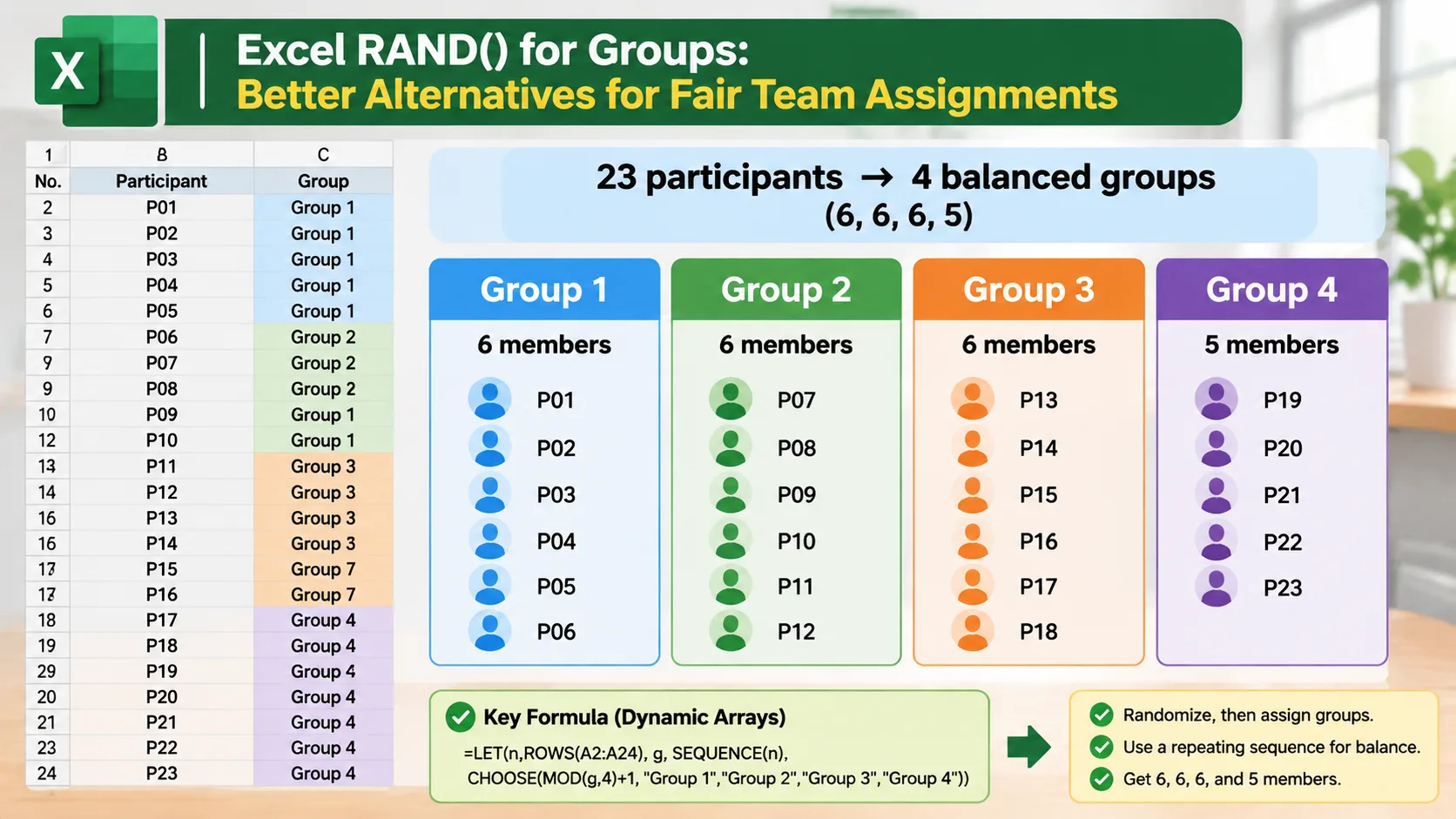
This method is helpful when group size matters more than preserving a particular sequence. It also makes it easier to repeat the process with a different class or workshop roster.
There are still limitations. The formula requires a relatively recent Excel version, and it does not account for special grouping rules such as separating certain participants or distributing skill levels evenly. Those requirements need additional planning or a different grouping method.
3. Keep Your Randomized Groups from Changing
One of the most important steps in any Excel randomization workflow is saving the result once you are happy with it.
Because RAND() and RANDARRAY() can generate new values during recalculation, leaving the original formulas in place may create confusion. You should convert the final assignments into fixed values before distributing them.
Follow these steps:
- Generate your randomized list and group assignments.
- Review the results to confirm that everyone appears exactly once.
- Select the complete output range, including names and group labels.
- Copy the selected cells.
- Right-click the destination area and choose Paste Special → Values.
- Use the pasted values as your final group assignment record.
The copied results are now ordinary cell values rather than live random formulas. Editing unrelated cells will not regenerate those assignments.
For example, a corporate trainer might prepare six workshop teams on Monday and distribute the assignments before a Wednesday session. Pasting the results as values creates a stable reference for the attendance sheet, presentation, and participant instructions.
You can also keep a separate worksheet containing the original participant list and another worksheet containing the finalized assignments. This makes it easier to repeat the activity later without accidentally replacing the previous results.
A useful additional habit is to record the date and activity name beside the saved assignments. If a participant questions their team placement, you can refer to the same finalized record rather than generating a new set of groups.
4. Use a Random Group Generator Instead of Managing Spreadsheet Formulas
Excel is flexible, but not every teacher or facilitator wants to manage formulas, sorting rules, and recalculation settings. When your main objective is simply to divide people into teams, a dedicated random group generator can make the process more straightforward.
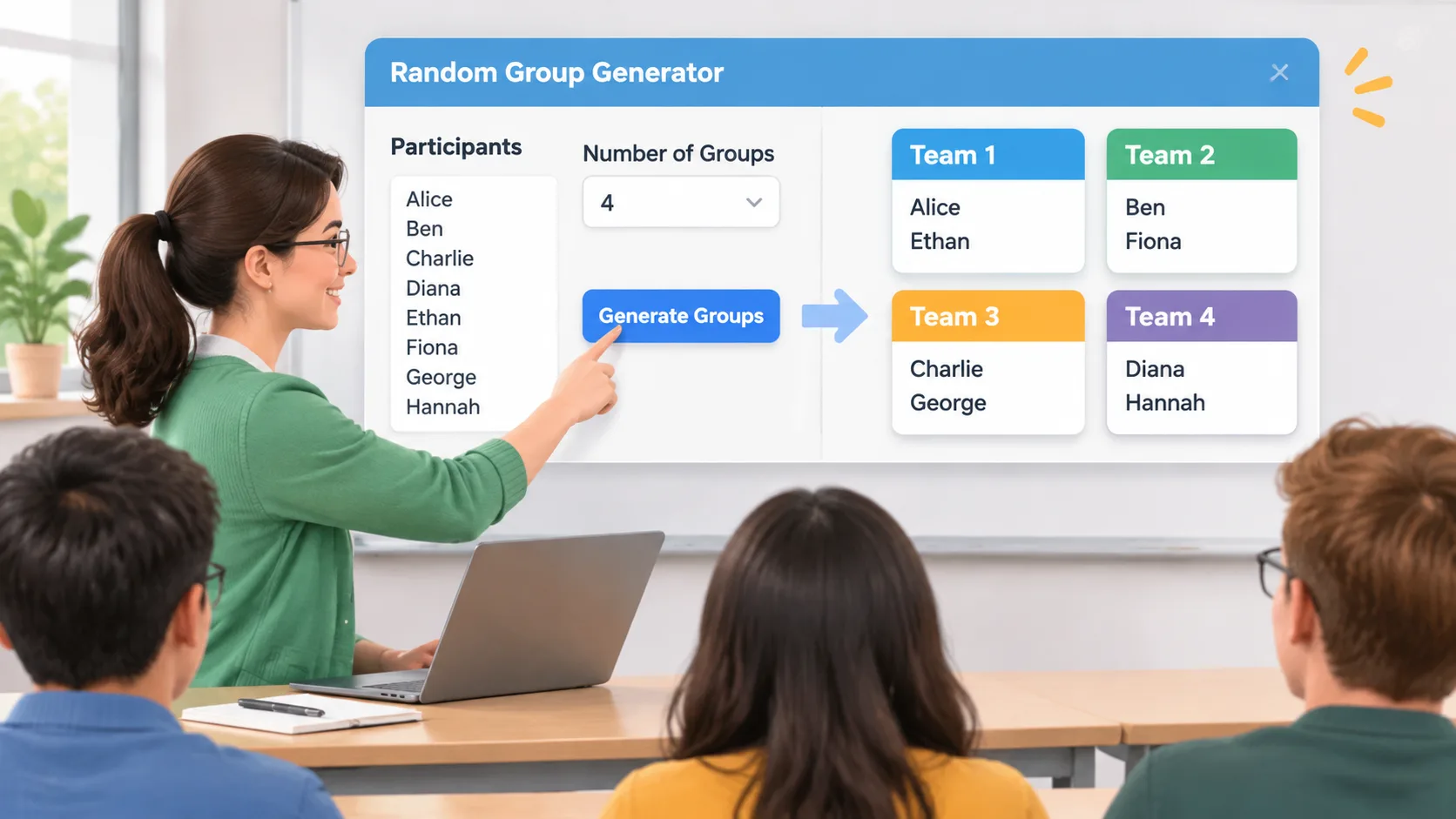
A Random Group Generator is designed specifically for creating groups from a participant list. Instead of building a spreadsheet workflow, you can focus on entering names, choosing how many groups you need, and reviewing the resulting assignments.
This is particularly useful in situations such as:
- Teachers dividing students into discussion or project teams.
- University instructors organizing seminar activities.
- Corporate trainers creating small breakout teams.
- HR facilitators mixing employees for collaborative exercises.
- Event organizers dividing attendees into activity groups.
The advantage is the simpler workflow. You do not need to understand volatile formulas or remember to convert random results into permanent spreadsheet values before using them.
A dedicated tool is not automatically the right choice for every situation. If you need advanced spreadsheet calculations, complex participant data, custom reporting, or detailed statistical analysis, Excel may remain the better option. Likewise, a random grouping tool should not be treated as a substitute for reviewing sensitive classroom or workplace requirements.
For straightforward team assignments, however, a purpose-built tool can reduce the number of steps between having a participant list and starting the activity.
5. Choose the Right Alternative for Your Situation
There is no single best method for every grouping task. Your choice depends on how often you create teams, how much control you need, and whether you want to manage the results inside a spreadsheet.
Here is a practical comparison of the main approaches:
| Method | Main advantage | Main limitation | Best use |
|---|---|---|---|
| Individual RAND() formulas | Works in many Excel versions | Requires helper columns and careful saving | Basic spreadsheet randomization |
| RANDARRAY() + SORTBY() | Shuffles a list with one formula | Requires newer Excel features | Quickly randomizing participant lists |
| LET() with group assignment | Randomizes and distributes participants together | More complex formula and compatibility requirements | Spreadsheet-based balanced groups |
| Random Group Generator | Dedicated workflow for team creation | Less suitable for complex spreadsheet analysis | Everyday classroom and workshop grouping |
| Random Pair Generator | Creates pairs instead of larger teams | Not intended for arbitrary team sizes | Partner discussions and two-person exercises |
The difference between a group generator and a pair generator is worth considering. A teacher organizing a debate activity may want two-person partnerships rather than teams of five. In that case, a Random Pair Generator is more directly suited to the task.
Similarly, if your activity requires participants to be assigned names after the teams are created, a Group Name Generator can provide an additional step for making teams easier to identify.
Think about the actual activity before choosing your method. A spreadsheet may be ideal for a one-time administrative task, while a dedicated grouping tool may be more convenient for a teacher who creates new teams several times each week.
6. Real-World Examples: When to Move Beyond Excel RAND()
Consider three common situations where a different grouping approach can save preparation time.
Example 1: A teacher organizing collaborative learning
A teacher has 28 students and needs four teams for a science project. Using Excel, the teacher can shuffle the class list with SORTBY() and RANDARRAY(), then distribute the names across four groups. The result is four teams of seven students. If the teacher wants to avoid repeating previous partnerships, additional tracking and adjustment are necessary.
A dedicated group generator offers a simpler starting point for creating the teams. The teacher can then review the assignments against classroom requirements before sharing them.
Example 2: A corporate trainer preparing breakout sessions
A trainer has 19 employees attending a communication workshop. The goal is to create four small discussion teams. A random order followed by round-robin distribution creates teams of five, five, five, and four participants.
The trainer can use Excel when the participant list is part of a larger reporting workbook. Alternatively, a dedicated generator can simplify the preparation when the only requirement is creating the breakout teams.
Example 3: An event organizer creating activity partners
An event organizer has 30 attendees and wants everyone to work with one other person during an introductory activity. A regular group generator could create larger teams, but a pair generator matches the activity more closely.
The organizer can use a Random Pair Generator to create the partnerships instead of manually matching names or modifying spreadsheet formulas.
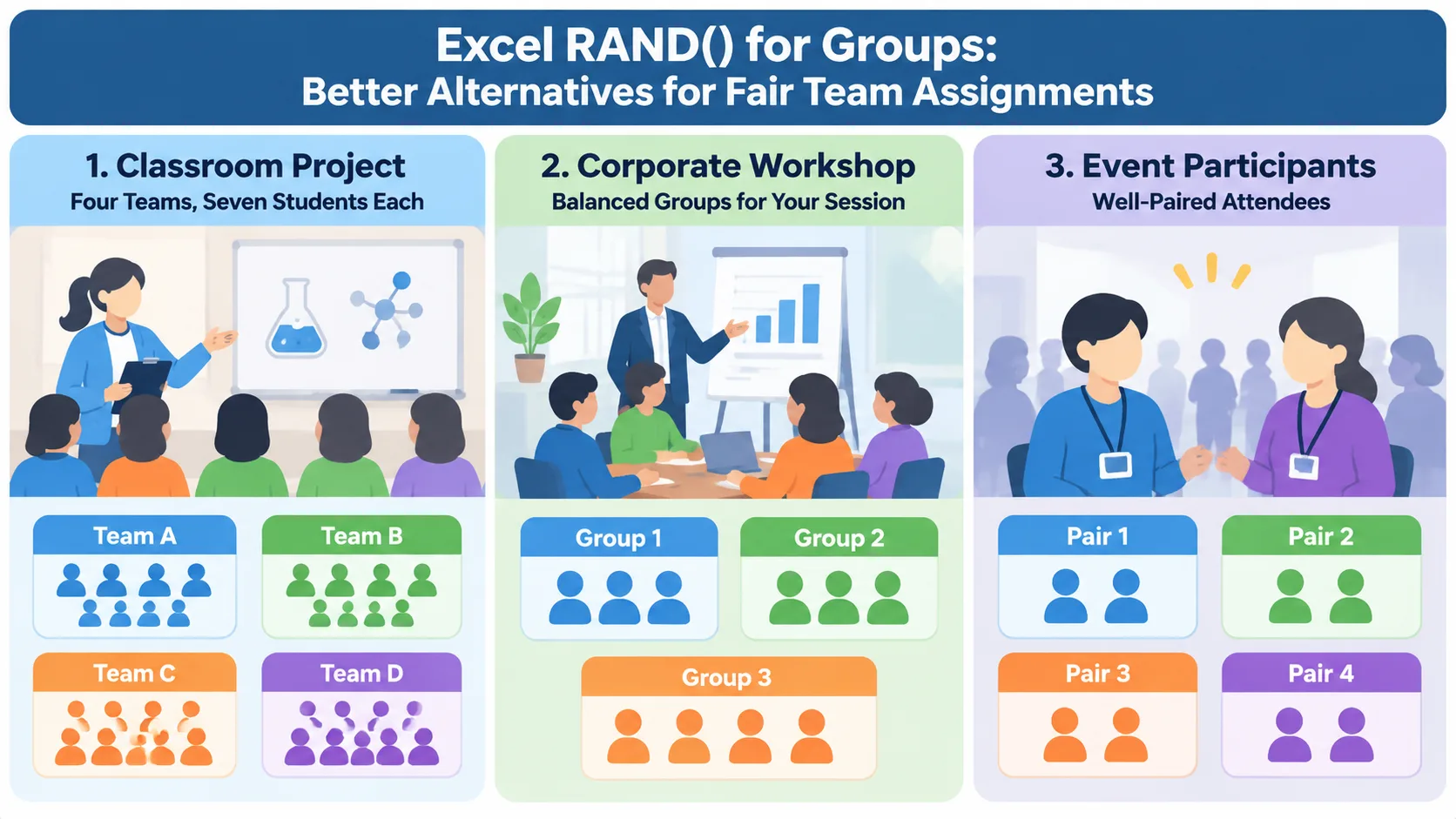
These examples demonstrate an important principle: choose the grouping method based on the activity, not simply on which random function is easiest to remember.
7. Common Mistakes to Avoid When Randomizing Groups
Even a good randomization method can produce confusing results if the participant list or workflow is not prepared properly. Before creating your teams, check the original data and decide how the final assignments will be used.
First, remove unnecessary blank rows and check for duplicate names. If two participants have the same name, consider including an identifier such as a student number or department. Otherwise, you may have difficulty distinguishing between two different people in the final results.
Second, avoid sorting only the names column when other information needs to stay attached. If your spreadsheet contains names, departments, or skill levels, sort the complete data range together. Otherwise, a person's name could become separated from their associated information.
Third, do not assume that random means balanced in every sense. Random assignment can distribute participants fairly without considering experience, existing relationships, accessibility requirements, or other important factors. A teacher may need to review the final teams to make sure an activity is appropriate for everyone.
Finally, do not distribute a live formula-based result without checking whether it can change. Save a fixed copy of the assignments before sharing them with students or employees. This small step prevents confusion and gives everyone a consistent reference.
Frequently Asked Questions
Is Excel RAND() good for creating random groups?
Excel RAND() can be used to shuffle a participant list by generating random numbers for each person. However, the values can change when Excel recalculates, so you need to save the final assignments as fixed values. For repeated group creation, RANDARRAY() with SORTBY() or a dedicated random group generator may be easier to manage.
What is the best Excel alternative to RAND() for groups?
For modern Excel versions, RANDARRAY() combined with SORTBY() is a convenient way to shuffle a list. If you also need to assign group labels, you can combine these functions with LET(), SEQUENCE(), and MOD(). If you do not want to manage formulas, a dedicated group generator is another option.
How do I create equal-sized groups in Excel?
First, shuffle the participant list. Then distribute the names across your chosen number of groups using a repeating sequence. If the total number of participants cannot be divided evenly, the resulting group sizes will differ by one person at most when you use this round-robin approach.
How do I stop Excel random groups from changing?
Select the completed group assignments, copy them, and use Paste Special → Values to create a permanent copy. The pasted results no longer depend on the original random formulas. Keep the saved assignments in a separate worksheet if you need a record of the activity.
Can I create random groups without Excel?
Yes. A dedicated online random group generator lets you create teams without writing spreadsheet formulas. This can be useful for teachers, trainers, and event organizers who want a simpler way to prepare participant groups. For ordinary team assignments, it can also reduce the need to manage changing spreadsheet calculations.
Should I use a random group generator or a random pair generator?
Choose a random group generator when your activity requires teams of three or more people. Choose a random pair generator when participants need partners for interviews, discussions, peer reviews, or other two-person exercises. Matching the tool to the activity makes the assignment process more straightforward.
Create Your Next Teams Without Complicated Excel Formulas
Excel RAND() remains a useful function for generating random numbers, and RANDARRAY() with SORTBY() makes spreadsheet randomization more convenient. But if your main goal is creating classroom teams, workshop groups, or project teams, you may not need another complicated formula.
A dedicated tool can help you spend less time managing spreadsheet calculations and more time preparing the activity itself. Start with your participant list, choose your grouping requirements, and review the assignments before sharing them.
Ready to create your next set of teams? Try the free Random Group Generator and simplify your group assignments.
Related Tools
Pick the right generator for the job — every tool runs free in your browser.