
random group generator virtual meetings
Random Group Generator for Virtual Meetings: A Practical Guide
Learn how to use a random group generator for virtual meetings to create balanced breakout groups, encourage participation, and simplify online workshops, classes, and team activities.

You have 25 people in an online meeting, an activity ready to go, and only a few minutes to organize everyone into smaller teams. Manually assigning participants can waste valuable meeting time, especially when people join late or you need to create new groups several times. A random group generator for virtual meetings makes this process easier by distributing participants into smaller groups without requiring you to assign every person individually. Whether you teach an online class, lead a remote workshop, or organize a corporate training session, random grouping can help make participation more manageable and give people opportunities to work with different colleagues.
Why Use Random Groups in Virtual Meetings?
Virtual meetings create different challenges from traditional face-to-face sessions. Participants may be joining from different locations, using different devices, or balancing several tasks at once. When the organizer also has to manage attendance, presentations, chat messages, and breakout rooms, manually creating groups becomes another task competing for attention.
A random group generator for virtual meetings reduces that administrative work. Instead of deciding who belongs in each team, you provide a participant list and choose how many groups you need or how many people should be in each group. The generator creates a proposed arrangement that you can review before sharing it with participants.
Random assignment can also introduce variety into recurring meetings. For example, a remote training team that always works with the same colleagues may gradually develop familiar routines. Changing group membership gives people opportunities to hear different perspectives and collaborate beyond their usual working relationships. Random assignment does not guarantee better collaboration, but it provides a straightforward way to avoid repeatedly relying on the same self-selected teams.
Consider a teacher running a weekly online science lesson with 24 students. Instead of spending several minutes assigning students to breakout rooms, the teacher can generate six groups of four before the activity begins. The saved preparation time can go toward explaining the task, checking that everyone understands the instructions, and preparing the shared worksheet.
How a Random Group Generator for Virtual Meetings Works
A random group generator takes a list of participant names and organizes those names into groups according to your selected settings. Depending on the tool, you can specify a group count or a target group size. The resulting arrangement gives you a clear list of who belongs together.
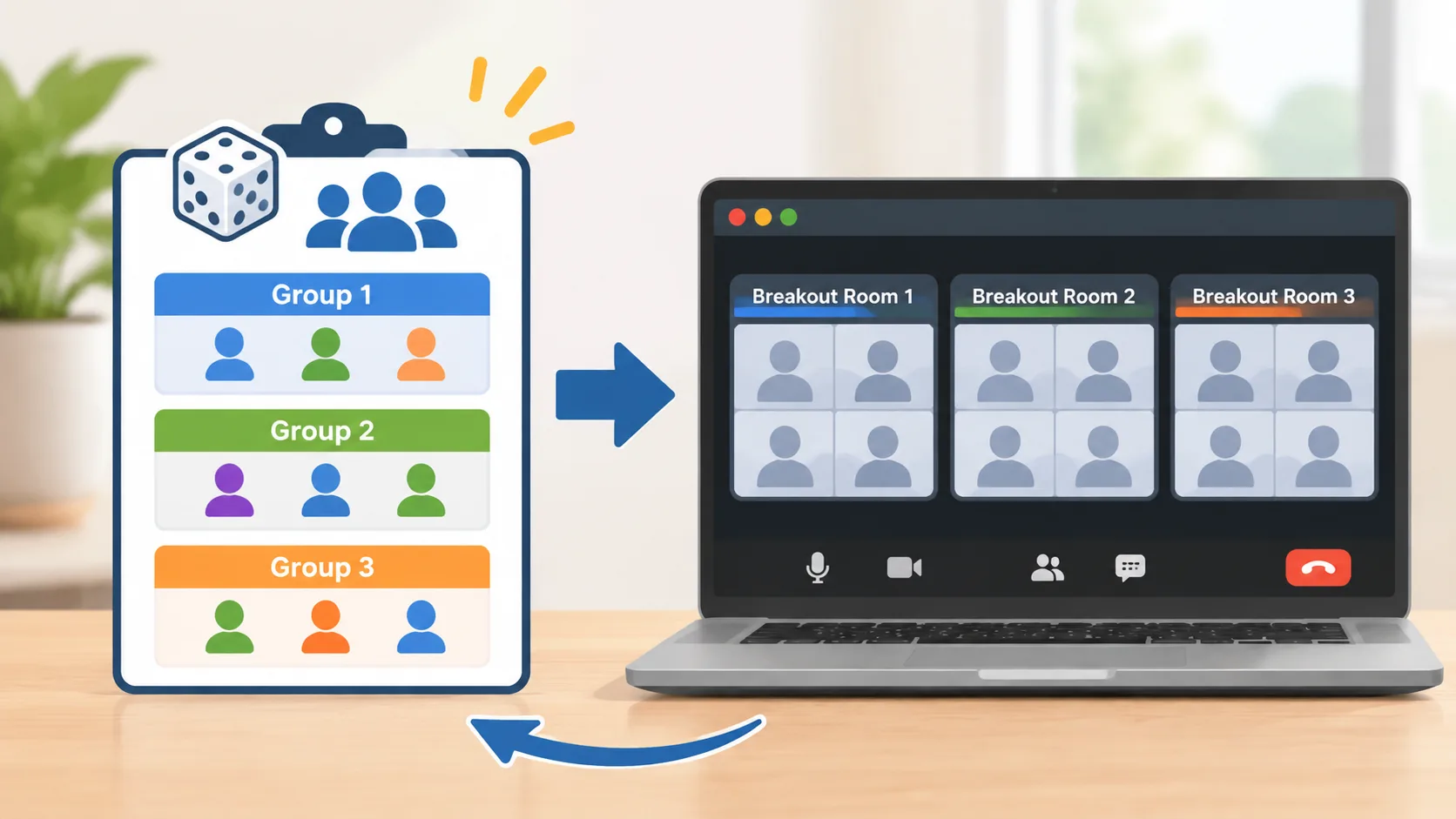
The important distinction is that generating groups and opening breakout rooms are two separate activities. A grouping tool helps decide who should work together. Your video meeting platform provides the communication space where those participants meet. You can use the generated assignments as a reference when configuring your online rooms.
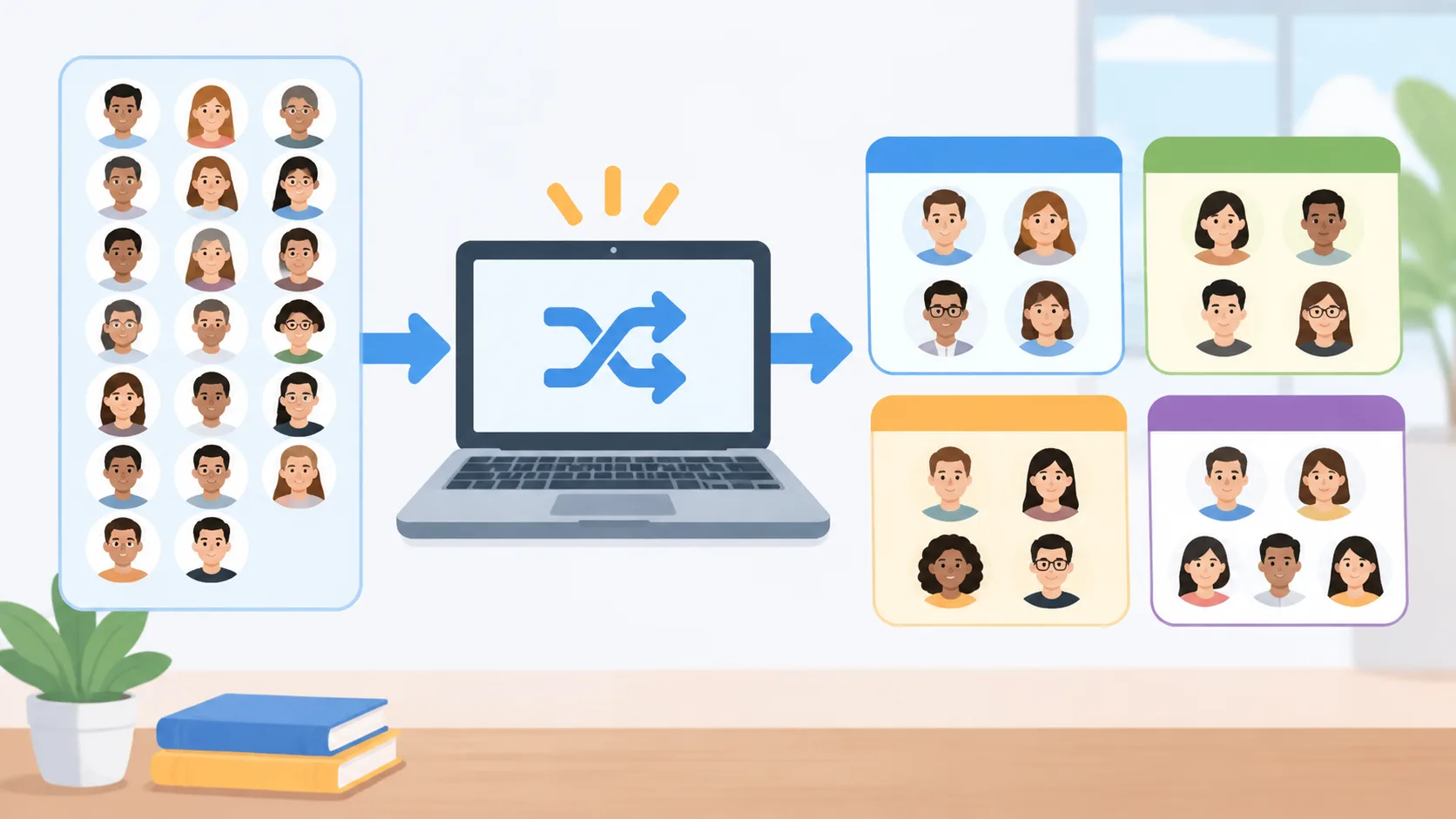
For example, imagine a remote workshop with 17 participants. You want four discussion groups. A balanced arrangement would contain one group of five and three groups of four. This keeps the group sizes close rather than creating one very large group and several small ones.
Before using any generated arrangement, check the participant list. Duplicate names, spelling differences, and people who registered but did not attend can affect the result. A generator can organize the information you provide, but it cannot automatically determine whether your attendance list is accurate unless the tool has a supported connection to that information.
How to Create Breakout Groups for an Online Meeting
The easiest approach is to prepare your participant list before the meeting starts. This gives you time to check the assignments and decide how they will be transferred into your meeting platform.
Follow these steps:
- Collect participant names. Prepare a list of everyone expected to attend. Use consistent names so participants can identify themselves easily.
- Decide the group size. Consider the purpose of the activity. Smaller groups may work well for quick discussions, while larger groups can accommodate collaborative exercises that need several perspectives.
- Open the Random Group Generator. Visit the Random Group Generator and enter your participant names.
- Choose your grouping settings. Select the number of groups or the desired group size, depending on the available options.
- Generate the groups. Review the results and check that everyone appears in the correct arrangement.
- Transfer assignments to your meeting platform. Create the corresponding breakout rooms and place participants according to the generated list.
- Explain the activity before opening rooms. Share the task, expected outcome, time limit, and instructions for returning to the main meeting.
A practical example is a 30-person professional development workshop. The facilitator wants six groups of five to discuss different approaches to customer communication. The facilitator generates the six groups before the meeting, prepares six breakout rooms, and shares a discussion question in the main session. Once participants enter their assigned rooms, each group chooses someone to summarize its discussion.
This preparation keeps the meeting organized without requiring the facilitator to invent group assignments while everyone is waiting. It also makes it easier to repeat the process during another activity.
Choosing the Right Group Size for Virtual Activities
Group size affects how an online discussion feels. If a group is too large, some participants may remain quiet while a few people dominate the conversation. If it is too small, the activity may not provide enough perspectives or may become difficult when someone disconnects.
There is no single ideal group size for every virtual meeting. The right arrangement depends on the task, the time available, and the participants' experience with online collaboration.
For a short introductory discussion, pairs or groups of three can help everyone contribute. For brainstorming, groups of four or five often provide room for several ideas without making coordination too complicated. Larger groups may be appropriate when participants are reviewing a shared document, planning a project, or dividing responsibilities across several tasks.
Here are some practical examples:
| Virtual activity | Suggested group size | Example task |
|---|---|---|
| Icebreaker | 2–3 | Share one professional goal |
| Quick discussion | 3–4 | Discuss a question from the presentation |
| Brainstorming | 4–5 | Generate ideas for a new project |
| Case study | 4–6 | Analyze a workplace scenario |
| Collaborative planning | 4–5 | Create a short action plan |
These are starting points rather than strict rules. A complex case study may need more people, while a sensitive discussion may benefit from smaller groups. Test the arrangement against the actual activity instead of choosing group sizes simply because they divide evenly.
For example, a university instructor with 22 students might choose five groups. Two groups would have five students and three groups would have four. This creates a reasonably balanced structure while keeping the number of breakout rooms manageable.
Using Random Groups With Zoom and Microsoft Teams
A random grouping tool and a video conferencing platform serve different purposes, but they can work together in a simple workflow. Generate the assignments first, then use the meeting platform to create the actual breakout sessions.
Using Zoom: Zoom supports automatic and manual breakout room assignment, as well as participant self-selection in supported meeting configurations. According to Zoom's official instructions, hosts can create rooms, choose an assignment method, adjust room settings, and open the rooms when ready. If you already generated a particular group arrangement, manual assignment gives you a way to reproduce that arrangement rather than relying on a separate automatic shuffle.
For a prepared workshop, follow this general process:
- Generate the participant groups before the meeting.
- Start the Zoom meeting and open the Breakout Rooms controls.
- Create the required number of rooms.
- Assign participants according to your generated list.
- Check the room assignments before opening all rooms.
- Set an appropriate time limit and explain how participants should return.
Zoom's available settings and permissions can vary by client and meeting configuration, so check the current controls before an important session. See Zoom's official breakout room instructions for details.
Using Microsoft Teams: Teams also provides breakout room management for eligible meeting organizers and room managers. Organizers can create rooms, assign participants, rename rooms, send announcements, and set time limits. These options are useful when a facilitator wants to organize several discussion activities within one meeting.
A practical Teams workflow is to generate the groups first, create the corresponding rooms, and then assign each participant to the appropriate room. You can also give rooms descriptive names based on their discussion topics. For example, a training session might use room names such as Planning, Communication, Feedback, and Problem Solving.
Check Microsoft's official guide to managing breakout rooms for current requirements and instructions. Feature availability can depend on account type, meeting role, and organizational settings.
Keeping Virtual Group Activities Fair and Productive
Random assignment is useful for distributing participants, but fair grouping involves more than selecting names at random. The facilitator should consider accessibility, participation needs, language differences, and the purpose of the activity.
For routine discussions, random assignment can help prevent the same people from always working together. However, some activities require intentional grouping. A language exercise may benefit from participants with different proficiency levels, while a technical workshop may need each group to include someone familiar with the software being discussed. In those situations, consider using a planned arrangement rather than relying entirely on chance.
It is also important to explain why groups are being assigned randomly. Participants are more likely to understand the process when they know that the goal is to create varied conversations rather than evaluate individual performance. Avoid presenting random placement as a judgment about someone's ability or contribution.
Try these practical facilitation habits:
- Share the activity instructions before participants enter breakout rooms.
- Give every group a specific question or task.
- Ask groups to choose a discussion leader or note-taker when appropriate.
- Provide a clear time limit and explain what participants should produce.
- Visit rooms when possible to check whether groups need assistance.
- Allow reasonable adjustments when accessibility or technical problems arise.
- Ask for a short report from each group when everyone returns.
For instance, an HR facilitator running a remote communication workshop might randomly distribute 20 employees into four groups of five. Each group receives the same workplace scenario and identifies two ways to improve the conversation. After the breakout session, a representative shares the group's suggestions. The random arrangement provides a starting point, while the shared task gives everyone a reason to contribute.
What to Do When Participants Join Late or Leave Early
Attendance changes are common in virtual meetings. Someone may lose an internet connection, arrive after the breakout rooms have opened, or leave before the activity ends. A prepared grouping plan makes these situations easier to handle.
First, decide how you will manage late arrivals. For a short activity, you might place a late participant into the smallest group. For a longer workshop, you could create a temporary group or assign the person to a room where the discussion has not progressed too far. The goal is to include the participant without disrupting the activity for everyone else.
Second, consider what happens when someone leaves. If a group of four becomes a group of three, it may still be able to complete the task. Reorganizing every room is not always necessary. For activities that depend on equal team sizes, however, you may need to move one participant or generate a revised arrangement.
A useful example is an online class with 19 students divided into four groups. One student joins ten minutes late. Rather than reshuffling all 19 students, the teacher checks the group sizes and places the student in a group with fewer members. This small adjustment keeps the activity moving.
For recurring sessions, you can also prepare a backup plan. Keep a copy of the original group assignments, note who actually attended, and make small changes when needed. Do not assume that an initial assignment will automatically update when attendance changes. Check the participant list and the meeting platform separately.
Random Group Generator vs. Manual Group Assignment
Manual assignment and random generation are both useful. The better option depends on what you are trying to achieve.
Manual assignment gives the organizer more control. It is appropriate when participants need specific roles, when a task depends on particular skills, or when certain people should not be placed together for practical reasons. The disadvantage is that organizing larger lists can take time and may unintentionally repeat familiar group patterns.
A random group generator is useful when the goal is to distribute people without selecting every combination yourself. It works especially well for recurring classroom discussions, introductory exercises, general brainstorming, and workshops where varied interaction is welcome.
| Consideration | Random grouping | Manual grouping |
|---|---|---|
| Preparation time | Usually less for larger lists | Can require more planning |
| Organizer control | Based on grouping settings | High |
| Variety | Introduces changing combinations | Depends on organizer choices |
| Specialized roles | May need adjustments | Easier to plan deliberately |
| Repeated activities | Useful for refreshing teams | Useful for maintaining continuity |
You can also use a mixed approach. Generate random groups first, then make limited adjustments to accommodate accessibility requirements, specialist knowledge, or attendance changes. This keeps the process efficient while recognizing that a facilitator sometimes needs to make informed decisions.
If your activity only needs two people working together, a Random Pair Generator may be more convenient than creating larger teams. If you want to select one participant for a demonstration or question, the Random Student Picker is designed for that different task.
Frequently Asked Questions
What is a random group generator for virtual meetings?
A random group generator for virtual meetings is a tool that organizes a list of participants into smaller teams using selected group sizes or group counts. Facilitators can use the generated assignments to organize breakout rooms in a video conferencing platform. It helps reduce manual preparation, but it does not replace the breakout room features of the meeting platform.
Can I use a random group generator with Zoom?
Yes. You can generate participant groups separately and then transfer the assignments into Zoom breakout rooms. Zoom also offers its own automatic and manual room assignment options. Use manual assignment when you want the meeting rooms to match a previously generated group arrangement.
Can I use random groups in Microsoft Teams meetings?
Yes. Microsoft Teams supports breakout rooms that organizers can create and manage during eligible meetings. You can use an external grouping tool to decide the membership first, then assign participants to the corresponding Teams rooms. Available controls depend on your meeting role and organization settings.
How many people should be in each virtual breakout group?
The appropriate number depends on the activity. Pairs or groups of three can work for short discussions, while groups of four or five are useful starting points for brainstorming and collaborative exercises. Consider the time available, the complexity of the task, and whether everyone has an opportunity to participate.
Are randomly generated groups always fair?
Random assignment can reduce personal selection and help vary group membership, but it does not guarantee that every group has identical skills, experience, or participation needs. Review the results and make reasonable adjustments when an activity requires specific roles or accommodations.
What should I do if someone joins a virtual meeting late?
Check the current group sizes and place the late participant in a suitable room. If the activity is nearly finished, consider giving the person a separate follow-up task instead. You usually do not need to reorganize every group because one participant arrives late.
Make Your Next Virtual Meeting Easier to Organize
Successful online group activities start with clear instructions, sensible group sizes, and a simple assignment process. Instead of spending valuable meeting time deciding who should work together, prepare your participant list and generate the groups before the activity begins.
Whether you are teaching an online lesson, facilitating employee training, or organizing a remote brainstorming session, a random group generator for virtual meetings can help you create varied teams and keep preparation manageable. Review the assignments, transfer them into your breakout rooms, and make adjustments when the activity requires them.
Ready to organize your next online session? Try the free Random Group Generator to create participant groups and prepare your virtual breakout activities in less time.
Related Tools
Pick the right generator for the job — every tool runs free in your browser.