
random group generator online class
Random Group Generator for Online Classes: A Practical Teacher's Guide
Learn how to use a random group generator for online classes to create balanced student teams, organize breakout rooms, improve participation, and save preparation time.
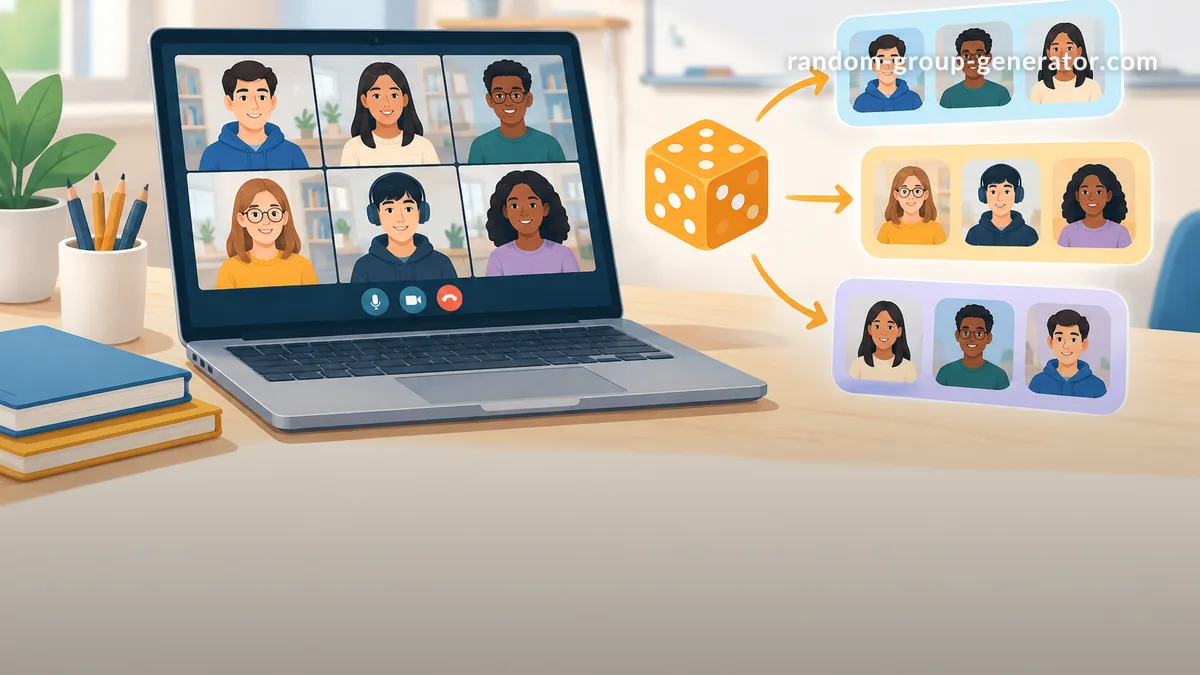
Teaching online creates a familiar challenge: how do you divide students into small groups without spending valuable lesson time arranging names, checking numbers, and making repeated adjustments? Whether you teach a live video lesson, lead a remote training session, or organize an online workshop, creating groups can quickly become an administrative task. A random group generator online class workflow gives teachers and facilitators a practical way to assign participants to teams without manually sorting every student. Instead of repeatedly choosing names or counting participants, you can generate groups and focus on the activity itself.
Random grouping is especially useful when students need opportunities to work with different classmates, discuss questions, solve problems, or complete short collaborative tasks. It can also reduce the perception that group assignments always favor certain students. However, random selection is not automatically the same as balanced grouping. Understanding when to use it, how to prepare your participant list, and when to make adjustments will help you get better results from online group activities.
Why Online Classes Need a Random Group Generator
In a physical classroom, teachers can ask students to count off, move their chairs, or form groups by standing in different areas. Online classes do not offer the same flexibility. Participants may be spread across different locations, some may join late, and everyone needs clear instructions about where to go and what to do. Even a simple activity can become complicated when the teacher has to organize the groups manually.
A random group generator online class workflow simplifies this process by turning a participant list into smaller teams. For example, imagine a teacher preparing a live science lesson for 28 students. The class needs seven teams of four to discuss an experiment. Manually dividing the students takes attention away from preparing the lesson. A random grouping tool can create the initial assignments much faster, leaving the teacher more time to explain the task and support student discussion.
There is also a participation benefit. Students often become comfortable working with the same classmates, which can limit opportunities to hear different viewpoints. Random assignments introduce variety and can encourage students to communicate with people they might not normally choose. Collaborative learning research emphasizes the importance of meaningful interaction, shared tasks, and clear expectations rather than simply placing students together.
Random assignment does have limits. It does not know which students have complementary skills, which participants need additional support, or which combinations may create accessibility challenges. Teachers should treat generated groups as a useful starting point, not an automatic replacement for professional judgment.
How to Use a Random Group Generator for Online Classes
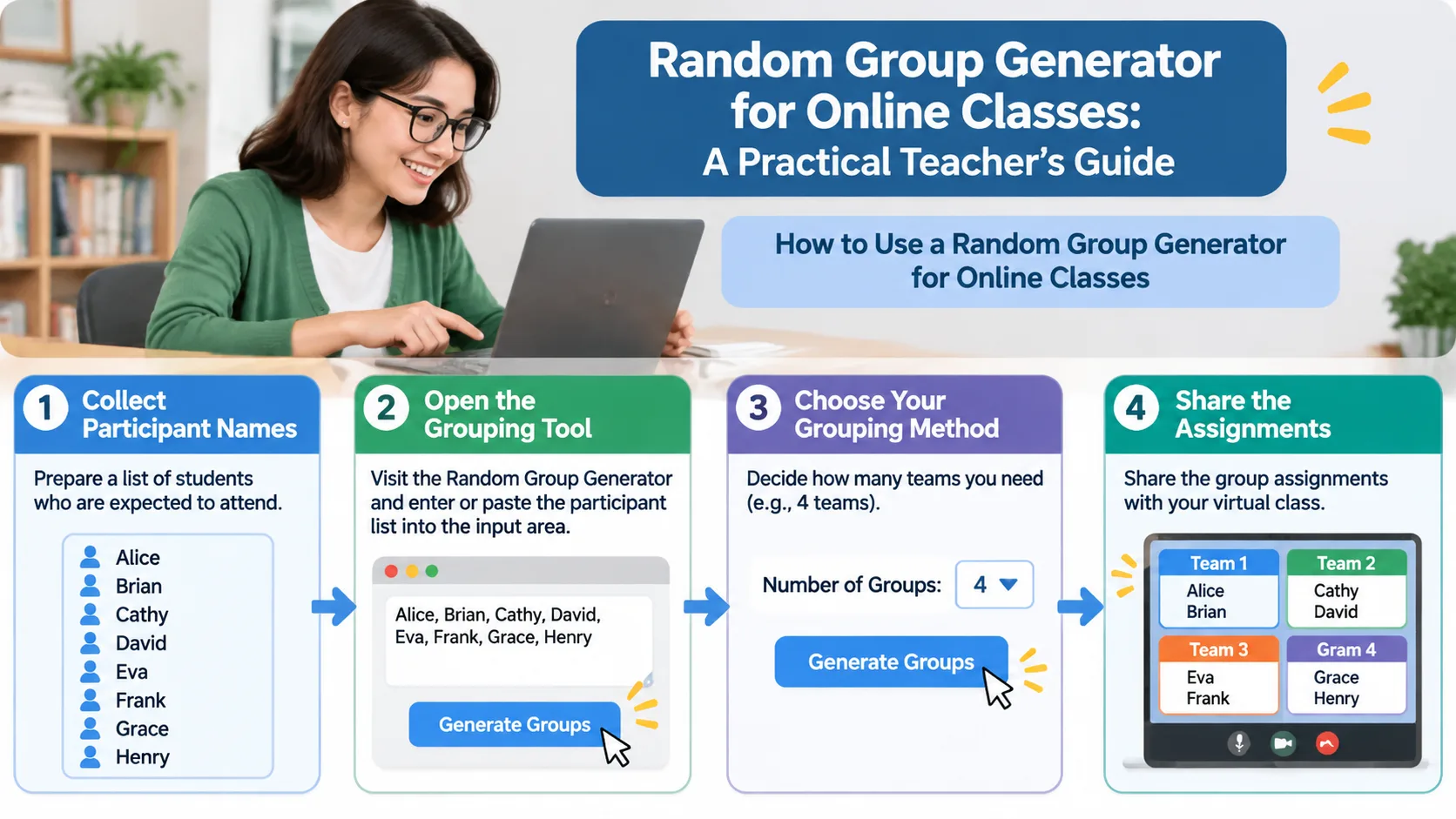
The easiest approach is to prepare your participant list before the lesson and decide how many people should work together. Once those details are ready, generating groups becomes a short, repeatable process. The Random Group Generator can help organize participants into separate teams for discussions, assignments, and virtual activities.
Follow these steps:
- Collect participant names. Prepare a list of students who are expected to attend. Use consistent names or identifiers so everyone can recognize their assignment.
- Open the grouping tool. Visit the Random Group Generator and enter or paste the participant list into the available input area.
- Choose your grouping method. Decide whether you want a specific number of groups or a particular number of students per group, depending on the available settings and your activity.
- Generate the teams. Run the random assignment and review the resulting groups.
- Check the assignments. Look for missing participants, duplicate entries, or students who should not be grouped together for a specific reason.
- Share the results. Display the assignments, copy them into your lesson notes, or communicate them through your usual classroom platform.
- Open the activity. Explain the task, the expected result, the time limit, and how students should report back.
Consider a practical example. A university instructor has 24 students attending a live seminar. The planned activity requires six discussion groups of four. The instructor enters the 24 names, generates six groups, checks that every name appears once, and shares the assignments before opening the discussion rooms. Students can then move directly into the activity instead of waiting while the instructor manually rearranges names.
For a class with an unpredictable attendance pattern, generate groups after checking who has actually joined. This avoids assigning absent students to active teams. If participants arrive late, decide whether to add them to the smallest groups or create a temporary adjustment. The best approach depends on the activity and how much disruption a change would cause.
How to Choose the Right Group Size for Virtual Activities
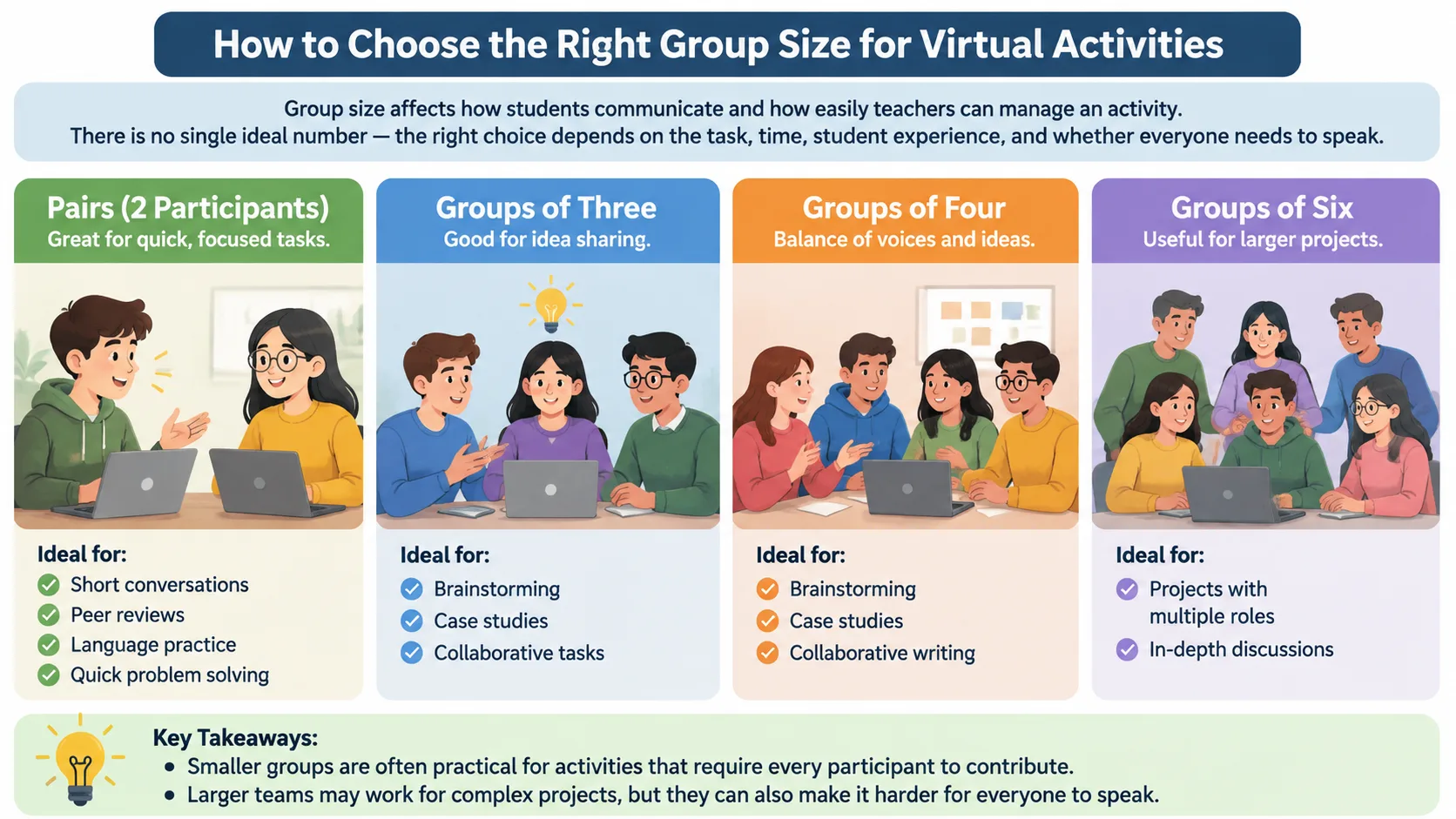
Group size affects how students communicate and how easily teachers can manage an activity. There is no single ideal number for every online lesson. The right choice depends on the complexity of the task, the available time, student experience, and whether everyone needs an opportunity to speak.
Smaller groups are often practical for activities that require every participant to contribute. Pairs work well for short conversations, peer reviews, language practice, and quick problem-solving exercises. Groups of three or four can support brainstorming, case studies, and collaborative writing. Larger teams may be useful for projects that need several responsibilities, but they can also make it easier for some students to remain silent.
Here are some examples of how to approach different activities:
- Two-person groups: Use for interview practice, peer feedback, vocabulary exercises, and short debates.
- Three-person groups: Use for comparing answers, analyzing a reading, or discussing different solutions to a problem.
- Four-person groups: Use for case studies, project planning, science discussions, and collaborative presentations.
- Five or six-person groups: Consider these for longer projects with clearly assigned roles, such as researcher, note-taker, presenter, and discussion leader.
For example, an English teacher running a 15-minute speaking exercise might create pairs so each student has enough time to talk. During a later lesson, the same teacher might create groups of four for a discussion about a reading assignment. The tool does not need to change; the teacher simply selects a grouping structure that matches the learning objective.
When the number of participants does not divide evenly, some groups may contain one additional person. This is not necessarily a problem. A class of 26 students, for instance, could form six groups of four and one group of two, or use another distribution depending on the activity. If every team must have the same size, the teacher may need to adjust the participant count or choose a different activity structure.
Using Random Groups with Zoom and Other Online Classroom Platforms
Generating groups and placing students into virtual rooms are two different tasks. A random group generator helps decide who belongs together. Your video conferencing or classroom platform provides the communication space where those participants complete the activity. Keeping these functions separate makes it easier to understand the workflow and avoid assuming that generating teams automatically creates breakout rooms.
For a Zoom lesson, teachers can use the generated assignments as a reference when organizing breakout rooms. Zoom provides breakout room functionality for separating meeting participants into smaller sessions. Depending on the available meeting settings and account permissions, hosts may have different options for assigning participants automatically or manually. Consult the current Zoom instructions for the exact process in your account.
A practical workflow looks like this:
- Prepare the student list before the meeting.
- Generate the required groups using the random grouping tool.
- Keep the results visible in your teaching notes.
- Open the breakout room controls in your video meeting.
- Assign students according to the generated teams using the available room controls.
- Announce the activity instructions and time limit.
- Visit the rooms to monitor progress and answer questions.
- Bring everyone back together for a short report or reflection.
For example, a corporate trainer leading a remote onboarding session might have 20 new employees. The trainer generates five groups of four, then uses the meeting platform's breakout room controls to create five discussion spaces. Each group discusses a workplace scenario and chooses one recommendation to present when the main session resumes.
The same general approach can support lessons delivered through Microsoft Teams or Google Classroom. However, platform features and permissions differ, so teachers should check their current account settings rather than assume that every platform supports identical room-management functions. A generated list can still serve as the source of truth for assignments even when room creation must be completed separately.
Practical Online Classroom Activities That Benefit from Random Grouping
A random group generator online class routine is most valuable when group assignments are repeated. Teachers can use it for regular discussions, rotating peer activities, and short collaborative exercises. Rather than spending time choosing teams every time, the instructor can establish a consistent process that students understand.
Virtual think-pair-share: Ask students to consider a question individually, discuss their answers with a randomly assigned partner, and share one conclusion with the class. The Random Pair Generator is useful when the activity specifically requires two-person teams. For example, a history teacher can ask students to compare two explanations of an important event and identify the strongest supporting evidence.
Small-group problem solving: Divide a mathematics or science class into groups of three or four. Give every group the same problem and ask them to explain their reasoning, not just submit an answer. Each team can appoint a spokesperson to present its solution. Random assignment gives students opportunities to hear different approaches.
Virtual project planning: Ask teams to prepare a short proposal, presentation, or research summary. Randomly generated groups can provide a fresh mix of participants for each project cycle. Give members specific responsibilities so the workload does not fall on one person.
Professional development discussions: Trainers can present a workplace scenario and ask groups to identify possible responses. For instance, a customer service training session could assign participants to discuss how they would respond to a difficult customer interaction. Each team then shares its preferred approach and reasoning.
The activity should always have a clear output. A question to answer, a shared document, a short presentation, or a list of recommendations gives participants a reason to collaborate. Without a defined outcome, students may spend most of their breakout time deciding what they are supposed to do.
How to Make Random Groups Fair and Balanced
Random assignment helps reduce the influence of personal preferences, but fairness requires more than selecting names without a pattern. Teachers should consider attendance, accessibility, language needs, participation expectations, and the purpose of the activity. A generated result is fairer when everyone has a clear opportunity to contribute and the rules are applied consistently.
Start by deciding whether completely random groups are appropriate. For a casual review discussion, they may be a good fit. For an assessed project that requires specific expertise, a teacher may need to create balanced teams based on relevant skills or previous work. A random group generator does not automatically evaluate academic performance, personality, language proficiency, or learning needs unless a tool explicitly provides those features.
Use these practical guidelines:
- Include only students who are participating in the activity.
- Use the same assignment process for everyone.
- Avoid changing groups repeatedly without a clear reason.
- Check whether group sizes are appropriate for the task.
- Provide clear individual and team responsibilities.
- Offer alternative participation methods when accessibility requires them.
- Review sensitive grouping decisions privately and respectfully.
Imagine a teacher has 30 students, including several students who need additional time to communicate. A completely random arrangement might still be suitable for a general brainstorming activity, but a graded oral presentation may require additional planning. The teacher can use random assignments as a starting point and make thoughtful adjustments to ensure every group can participate effectively.
It is also helpful to rotate group membership across lessons. Students should not always work with the same people simply because an earlier assignment was convenient. A fresh random assignment can introduce new perspectives, while occasional teacher-designed groups can address specific instructional goals. Both methods have a place in effective classroom management.
Common Mistakes to Avoid When Creating Online Student Groups
One frequent mistake is generating groups before confirming attendance. If a class has 25 registered students but only 21 attend, the original arrangement may leave empty places or require several changes. For live lessons, check the attendance list first and generate groups using the participants who are actually present.
Another mistake is choosing group sizes without considering the activity. A six-person group might be manageable for a long-term research project but unnecessarily large for a quick speaking exercise. Think about how many people need to contribute, how much time is available, and whether the teacher can reasonably monitor all the rooms.
A third problem is sharing assignments without explaining what happens next. Students need to know where to go, how long they have, what they should produce, and how they will return to the main session. Teachers should also explain what to do if someone cannot access a room or loses their connection.
Finally, do not confuse random assignment with a guarantee of equal participation. A tool can distribute names, but it cannot make every student speak or ensure that team members share responsibilities. Assigning roles, setting expectations, and asking each participant to contribute a specific part of the final result are more reliable ways to support engagement.
For example, a teacher might ask every group to submit one shared answer and also require each student to write a short individual reflection. This creates both a team outcome and an individual record of participation. It is a practical way to make group work more accountable without making the activity unnecessarily complicated.
Frequently Asked Questions
What is a random group generator for online classes?
A random group generator for online classes is a tool that distributes a list of participants into smaller teams. Teachers can use it to organize virtual discussions, breakout activities, peer reviews, and collaborative projects. It reduces the need to assign every student manually.
How do I divide students into breakout groups online?
First, prepare a list of students who are attending the lesson. Generate the required teams, review the assignments, and then use your video conferencing platform's breakout room controls to place participants into the corresponding rooms. Explain the activity and time limit before students begin.
Can I create groups with an uneven number of students?
Yes. When the total number of students cannot be divided equally, some groups may have one more participant than others. For example, 22 students could be divided into four groups with five or six members. Choose the arrangement that best supports the activity.
Is random grouping better than letting students choose their own partners?
Neither method is always better. Random grouping is useful when you want to introduce variety, reduce repeated partner selection, or organize teams quickly. Student-selected groups can be appropriate for certain projects, but teachers should consider whether everyone has a comfortable opportunity to participate.
Can I use a random group generator for Zoom, Microsoft Teams, and Google Classroom?
You can use generated group assignments as a reference when organizing activities across these platforms. The grouping tool determines team membership, while each platform provides its own communication and classroom features. Room creation, participant assignment, and available integrations depend on the platform and account settings.
Should I change randomly generated groups after creating them?
You can make adjustments when there is a clear educational, accessibility, or attendance-related reason. For ordinary discussions, keeping the original assignments helps maintain a consistent process. For specialized projects, teacher adjustments may be necessary to support the learning objectives.
Start Creating Online Class Groups in Less Time
Organizing virtual activities should not require a complicated manual process. A random group generator online class workflow helps teachers prepare student teams, organize discussions, and make better use of live lesson time. The most effective approach combines quick random assignment with thoughtful decisions about group size, attendance, accessibility, and activity instructions.
Before your next online lesson, prepare your participant list, decide how many students should work together, and generate your assignments. Review the results, share the teams through your classroom platform, and give every group a clear task to complete.
Ready to organize your next virtual activity? Try the free Random Group Generator and create student teams for your next online class.
Related Tools
Pick the right generator for the job — every tool runs free in your browser.