
randomize groups in Excel
How to Randomize Groups in Excel with ChatGPT: A Step-by-Step Guide
Learn how to randomize groups in Excel using ChatGPT. Follow practical steps, create balanced teams, use Excel formulas, and check your results.

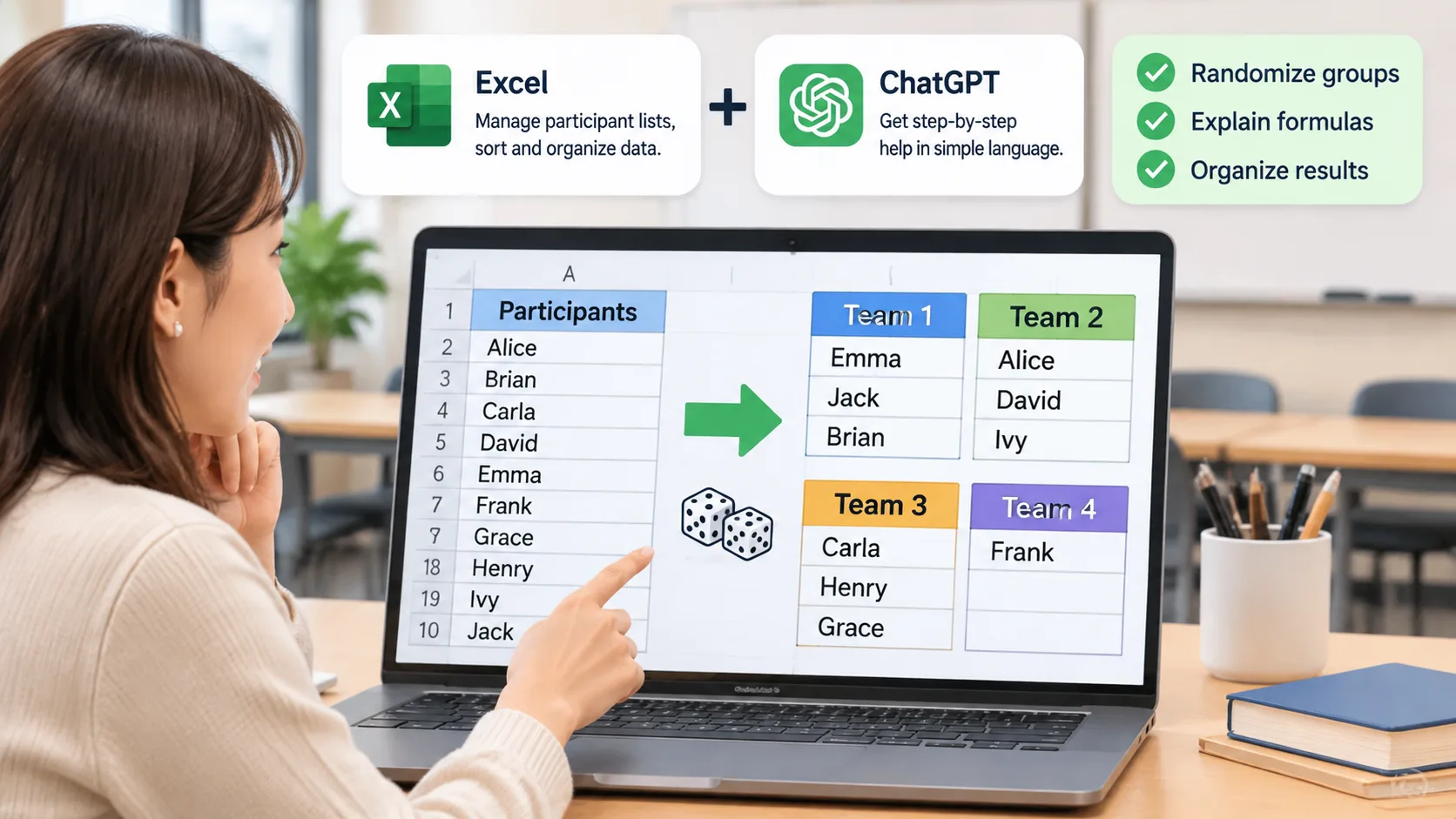
You have a list of students, employees, or workshop participants, and you need to divide everyone into random groups. Doing this manually takes time, especially when the participant list changes or you need several different team combinations. Learning how to randomize groups in Excel with ChatGPT can make the process easier. Excel organizes your participant data, while ChatGPT helps create formulas, generate instructions, and check group assignments. This guide explains how to combine both tools, with practical examples for teachers, trainers, and team facilitators.
Why Use Excel and ChatGPT to Randomize Groups?
Excel is useful for managing participant lists because it stores names in rows and makes it easy to sort, filter, and organize information. However, creating random groups can involve formulas and several manual steps. If you are unfamiliar with Excel functions, even a simple grouping task may take longer than expected.
ChatGPT can help explain those steps in everyday language. You can describe the number of participants, the desired group size, and any special requirements. It can suggest formulas, explain how to apply them, and help organize the resulting assignments. You can also upload a supported spreadsheet and ask ChatGPT to analyze or transform its contents, depending on the features available in your account.
For example, imagine a teacher with 28 students who needs seven groups of four for a science activity. Instead of drawing names individually, the teacher can use Excel to shuffle the names and ChatGPT to explain the process or generate a suitable formula.
There is an important distinction: random assignment and balanced assignment are not always the same thing. Random grouping distributes participants without deliberately selecting particular combinations. Balanced grouping may require additional information, such as skill levels, experience, or learning needs. If you need both, tell ChatGPT which constraints matter and check the result carefully.
Step 1: Prepare Your Participant List in Excel
Before using ChatGPT, organize your participant information. A clean spreadsheet makes randomization easier to understand and reduces the chance of assigning someone incorrectly.
Start by opening a blank Excel workbook. Enter each participant's name in column A, with a descriptive heading in the first row. If you want to consider additional information, use separate columns for relevant attributes.
For example, a teacher might create this table:
| Participant | Experience | Preferred role |
|---|---|---|
| Alex | Beginner | Research |
| Jordan | Advanced | Presentation |
| Taylor | Intermediate | Research |
| Morgan | Beginner | Design |
| Casey | Advanced | Design |
| Riley | Intermediate | Presentation |
Keep one participant per row. Remove empty rows, check for duplicate names, and make sure everyone who should participate appears exactly once.
Follow these preparation steps:
- Open a new Excel workbook.
- Enter
Participantin cell A1. - Add one participant per row, starting in A2.
- Add optional information in separate columns if you need balanced teams.
- Check for spelling mistakes and duplicate records.
- Save a copy of the original participant list before making changes.
For a classroom activity, you might include reading levels or subject experience if those details are appropriate to use. For a corporate workshop, relevant columns might include department or professional experience. Avoid including unnecessary personal or sensitive information.
A well-organized list is particularly useful when you ask ChatGPT to work with your spreadsheet. Clear headings and one record per row make it easier to identify which information belongs to each participant.
Step 2: Ask ChatGPT to Help Create Your Randomization Method
Once your participant list is ready, you can ask ChatGPT to explain how to randomize groups in Excel. You do not need to know every spreadsheet formula before starting. A clear description of your intended result is usually enough to get useful instructions.
For example, copy this prompt into ChatGPT:
I have a list of 28 participants in an Excel spreadsheet, with names in column A starting at A2. I want to create 7 random groups of 4 participants. Explain how to use Excel formulas to shuffle the names and assign each participant to a group. Include the exact formulas and instructions for copying them down. Make sure every participant appears exactly once.
A useful response should explain how to generate random values, sort the participant list, and distribute the resulting names into groups.
You can also upload your XLSX or CSV file to ChatGPT when file analysis is available. Ask it to inspect the column headings, identify the participant count, and recommend a grouping method. OpenAI documents spreadsheet uploads and data-analysis capabilities in its ChatGPT data analysis guide.
For better results, include these details in your prompt:
- Number of participants: How many people are on your list?
- Number of groups: How many teams do you need?
- Group size: Should every group contain the same number of people?
- Special requirements: Must certain participants be separated or placed together?
- Output format: Do you want a table, separate worksheets, or a numbered list?
For example, a corporate trainer might request five groups from 23 employees, with the group sizes as evenly distributed as possible. ChatGPT can explain that three groups will contain five people and two groups will contain four.
Treat ChatGPT's suggested method as something to review, not an automatic guarantee. Check the formulas and assignments in Excel before sharing the results.
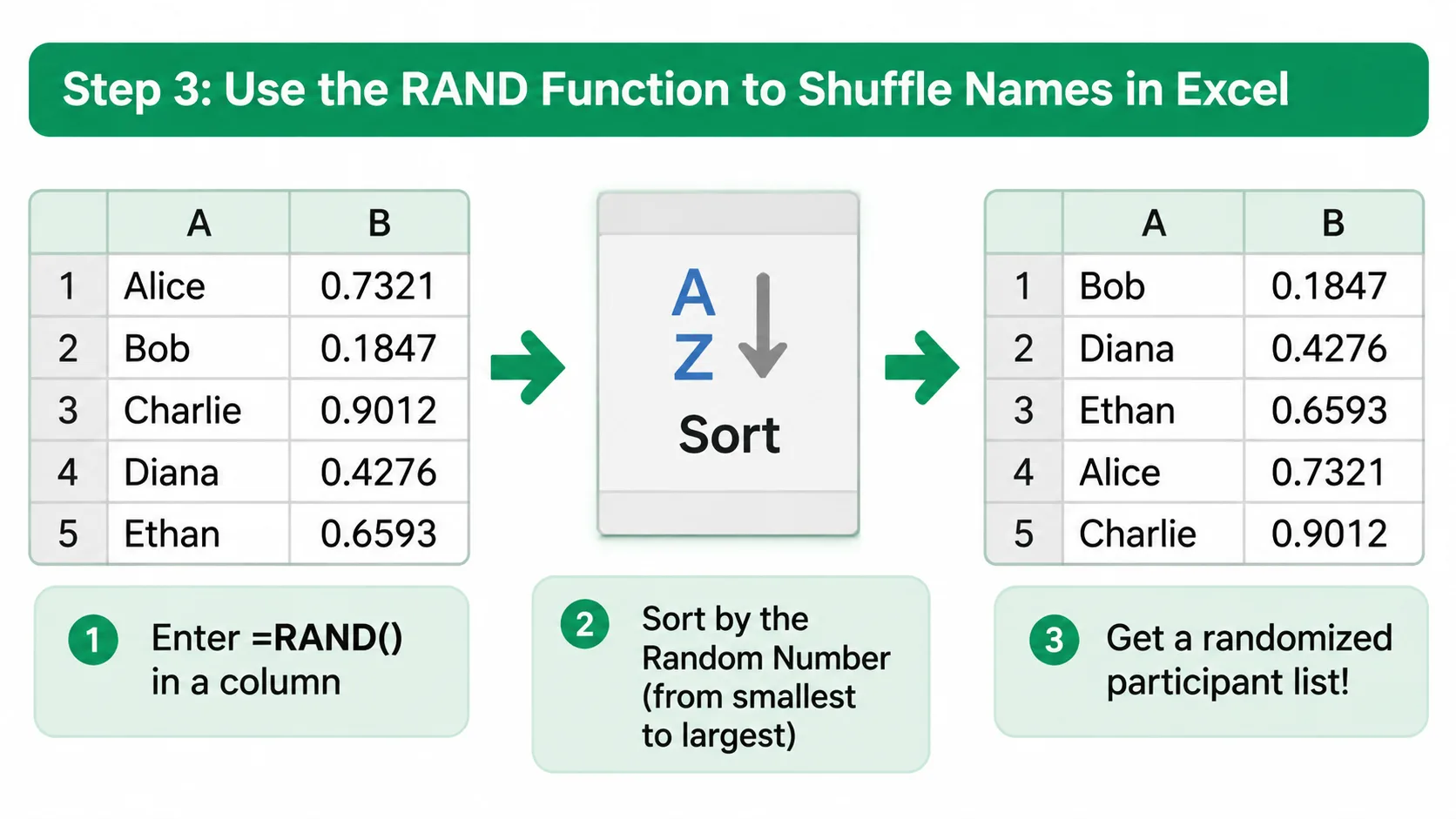
Step 3: Use the RAND Function to Shuffle Names in Excel
One straightforward way to randomize groups in Excel is with the RAND function. It generates a random decimal number greater than or equal to zero and less than one. Microsoft explains that the function recalculates when the worksheet is recalculated, so its values can change over time.
Here is how to use it:
- Open your participant spreadsheet.
- Enter
Random Numberin cell B1. - Type
=RAND()in cell B2. - Press Enter.
- Drag the formula down until every participant has a random number.
- Select both the participant names and random numbers.
- Open the Data tab and choose Sort.
- Sort by the Random Number column, from smallest to largest.
Your participant list is now in a randomized order.
For example, the original list might contain Alex, Jordan, Taylor, Morgan, Casey, and Riley. After sorting by the random values, the order could become Morgan, Riley, Alex, Casey, Jordan, and Taylor. The actual result will depend on the generated values.
Important: RAND values can change whenever Excel recalculates the worksheet. If you want to preserve a particular shuffle, copy the random-number column and use Paste Special to replace the formulas with their current values. Alternatively, copy the randomized participant list into a separate worksheet as values.
This step is important for teachers who need to display group assignments on a projector or trainers who need to distribute team lists before a session. Without preserving the results, a later recalculation could produce a different order.
If you need help understanding the function, Microsoft's official RAND function documentation explains its behavior and syntax.
Step 4: Divide the Randomized List into Groups
After shuffling the names, you can assign participants to groups. The simplest approach is to distribute the sorted list in sequence.
Suppose you have 24 participants and need six groups of four. After randomizing the names, assign the first four to Group 1, the next four to Group 2, and continue until everyone has a team.
You can create a new column called Group and use a formula to calculate the assignment. If the first participant is in row 2 and you want groups of four, enter this formula in C2:
=INT((ROW()-2)/4)+1
Copy the formula down alongside your participant list. The first four participants receive group number 1, the next four receive group number 2, and so on.
Your results might look like this:
| Participant | Group |
|---|---|
| Morgan | 1 |
| Riley | 1 |
| Alex | 1 |
| Casey | 1 |
| Jordan | 2 |
| Taylor | 2 |
| Sam | 2 |
| Jamie | 2 |
Continue until every participant has a group number.
If you have a participant count that cannot be divided evenly, Excel will create groups with different sizes. For example, 26 participants divided into six groups will produce four groups of four and two groups of five when using this sequential method.
You can ask ChatGPT to adapt the formula to your actual participant count and preferred number of groups. Be specific about whether you want a fixed group size or a fixed number of teams. These are different requirements, and the resulting formulas may differ.
For an easier alternative that does not require spreadsheet formulas, try the Random Group Generator. It is designed to divide participant lists into random teams and is useful when you want to complete the grouping process without building a separate Excel formula workflow.
Step 5: Ask ChatGPT to Check and Improve Your Group Assignments
Getting a randomized list is only part of the task. Before distributing the results, check that everyone has been assigned correctly and that the group sizes match your requirements.
ChatGPT can help review a table of group assignments or inspect an uploaded spreadsheet. Ask it to count participants, identify missing names, detect duplicate assignments, and compare group sizes.
Try this prompt:
Review my Excel group assignments. Check that every participant appears exactly once, that no participant is missing, and that the groups have the expected sizes. Show a summary table of the number of participants in each group and flag any problems you find. Do not change the original participant names.
You can also ask ChatGPT to review specific grouping constraints. For example, a workshop facilitator may want participants from different departments distributed across teams rather than concentrated in one group.
However, be clear about what you mean by balanced. Random grouping does not automatically guarantee equal experience levels, departmental representation, or other characteristics. If you have these requirements, ask for a proposed distribution and review it yourself.
Use this final verification process:
- Compare the total number of assigned participants with the original list.
- Check that no name appears twice.
- Check that nobody is missing.
- Confirm that each group has the intended number of participants.
- Review any special separation or placement requirements.
- Save the final assignments as a separate worksheet or workbook.
For example, a teacher organizing a mixed-ability classroom activity might check that each group has a suitable range of experience. A corporate facilitator might review department distribution to ensure that the intended cross-functional collaboration is possible.
Remember that the person organizing the activity remains responsible for deciding whether the final assignments are appropriate.
When Excel and ChatGPT Are Not the Easiest Option
Excel and ChatGPT are useful when you already manage participant information in spreadsheets or need a customized grouping process. They are particularly helpful when you want to learn formulas, review data, or preserve assignments alongside other workshop information.
However, this combination may be more complicated than necessary for a simple classroom activity. You may need to prepare a workbook, generate random values, sort rows, add formulas, and verify the output. If you only need random groups, a dedicated grouping tool can reduce these steps.
The Random Group Generator offers a direct way to organize names into teams without first creating a spreadsheet formula. If your activity requires pairs instead of larger teams, the Random Pair Generator is another option.
Here is a practical comparison:
| Method | Best for | Main consideration |
|---|---|---|
| Excel RAND function | Users comfortable with spreadsheets | Requires sorting and preserving results |
| Excel with ChatGPT | Customized formulas and spreadsheet assistance | Requires checking AI-generated instructions |
| Random Group Generator | Quickly creating random teams | Less suited to complex spreadsheet analysis |
| Random Pair Generator | Partner activities and two-person assignments | Designed specifically for pairs |
For a teacher assigning students to temporary discussion teams, a dedicated random group generator may be sufficient. For an HR trainer combining participant assignments with other spreadsheet information, Excel and ChatGPT may fit the existing workflow better.
The right choice depends on the task. You do not need a complicated process when a simple grouping tool will achieve the same practical result.
Practical Examples: Randomizing Groups for Different Activities
The best grouping method depends on the setting and the number of participants. Here are three situations where combining Excel and ChatGPT can help.
Example 1: Classroom discussion groups
A teacher has 30 students and wants five groups of six for a literature discussion. The teacher enters the names into Excel, generates random values with RAND, sorts the list, and assigns the first six students to each group. ChatGPT can explain the formulas and help check the final assignments.
For future lessons, the teacher can repeat the shuffle to give students opportunities to work with different classmates. If particular students need specific classroom accommodations, the teacher should review those requirements before finalizing the assignments.
Example 2: Corporate training workshops
An HR facilitator has 22 employees attending a communication workshop. The goal is to create four teams with reasonably even sizes. After randomizing the names, the facilitator assigns six employees to two teams and five to the remaining two teams.
ChatGPT can help calculate the group sizes and produce a clean table for sharing. If the facilitator wants employees from different departments to collaborate, department information can be included as a grouping constraint, subject to appropriate data-handling practices.
Example 3: Event activity teams
An event organizer has 37 attendees and wants eight teams for a networking challenge. A randomized list can be divided into five groups of five and three groups of four. Excel makes it easy to preserve the participant list, while ChatGPT can help create a formatted assignment table.
In each situation, the basic process remains the same: prepare the names, randomize the order, assign group numbers, and check the results before sharing them.
Frequently Asked Questions
Can ChatGPT automatically randomize groups in Excel?
ChatGPT can help create formulas, analyze uploaded spreadsheets, and generate group assignments when the necessary file and data-analysis features are available. You can ask it to divide a participant list into a specified number of teams. Always review the results to confirm that everyone appears exactly once.
What is the easiest Excel formula for randomizing names?
The =RAND() formula is a simple option. Enter it beside each participant's name, copy it down, and sort the complete participant list by the random-number column. Remember that RAND recalculates, so preserve the results as values when you want to keep the same assignments.
How do I create equal-sized random groups in Excel?
First, randomize the participant list using RAND and sort the results. Then divide the shuffled names into groups using a fixed-size formula or sequential assignment. If the total number of participants is not divisible by the number of groups, some teams will need one additional participant.
Can ChatGPT create balanced groups instead of completely random groups?
Yes, ChatGPT can help propose assignments based on information such as experience levels or departments. However, this is different from unrestricted randomization. Explain your constraints clearly, review the suggested combinations, and avoid assuming that an AI-generated arrangement automatically meets every requirement.
How do I prevent Excel groups from changing after randomization?
The RAND function recalculates when Excel recalculates the worksheet. To preserve your assignments, copy the generated random values and paste them as values, or copy the final participant list into a separate worksheet as values. Save the workbook after checking the results.
Is a random group generator easier than using Excel and ChatGPT?
For straightforward group assignments, a dedicated random group generator is often more direct because you do not need to create formulas or sort spreadsheet columns. Excel and ChatGPT are useful when you also need spreadsheet analysis, customized instructions, or additional participant information.
Create Your Random Groups Without the Extra Spreadsheet Work
Learning how to randomize groups in Excel with ChatGPT gives you a flexible way to manage classroom teams, employee workshops, and event activities. Excel provides control over your participant data, while ChatGPT can help explain formulas, suggest grouping methods, and check assignments.
But if your main goal is simply to divide a list into random teams, you can skip the spreadsheet setup. Use the Random Group Generator to organize participants into groups and get your activity ready. Whether you are planning a classroom exercise or a collaborative workshop, choosing a grouping method that matches your actual needs makes preparation easier.
Related Tools
Pick the right generator for the job — every tool runs free in your browser.