
random groups in google sheets
How to Make Random Groups in Google Sheets: Step-by-Step Guide
Learn how to make random groups in Google Sheets using RAND and SORT formulas. Create balanced student teams, organize participants, and save your results.

Dividing a class, workshop, or team into smaller groups can take more time than expected, especially when you want everyone to have a fair chance of working with different people. Making random groups in Google Sheets is a practical solution. With a participant list and a few built-in spreadsheet functions, you can shuffle names, organize participants into teams, and save the results for later.
This guide explains two ways to create random groups in Google Sheets: using a simple random-number formula and using a more structured grouping process. It is designed for K-12 teachers, college instructors, corporate trainers, and event organizers who want a repeatable way to assign participants without manually drawing names.
Why Use Google Sheets to Make Random Groups?
Teachers and facilitators often need to divide people into groups at short notice. A teacher might need five discussion teams for a classroom activity, while a corporate trainer might need smaller breakout teams for a virtual workshop. Manually assigning people can create unnecessary delays and may lead participants to question whether the process was fair.
Google Sheets offers a familiar way to organize names and use random values to change their order. Its RAND function generates a random decimal, while SORT can arrange a range according to another column. Together, these functions provide a straightforward way to shuffle a participant list. Google's official documentation explains how these functions work and how spreadsheet formulas can automate calculations.
Another advantage is flexibility. You can keep additional information alongside each participant, such as department, class period, or experience level. You can also save a completed assignment as fixed values so that your groups do not change when the spreadsheet recalculates.
For example, a teacher with 24 students can create six groups of four. A workshop facilitator with 17 participants can create four groups with slightly different sizes. The spreadsheet keeps the participant information organized while the facilitator focuses on the activity.
However, Google Sheets does not automatically guarantee educationally balanced teams. Random assignment treats participants as entries in a list. If you need to account for learning needs, specialist skills, accessibility requirements, or existing conflicts, you should review the results before using them.
Step 1: Prepare Your Participant List
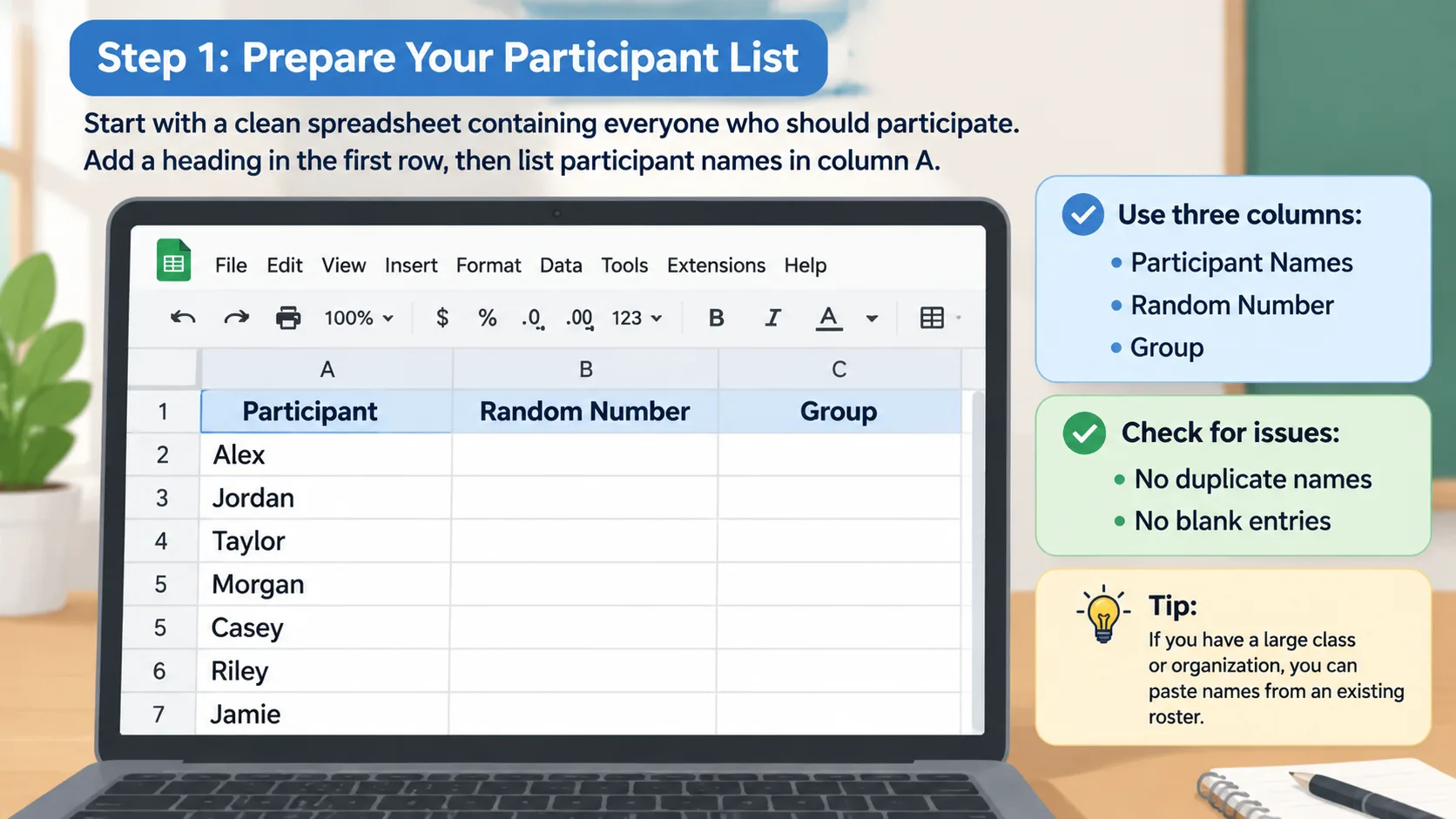
Start with a clean spreadsheet containing everyone who should participate. Open Google Sheets, create a blank spreadsheet, and enter a heading in the first row. Put participant names in column A, beginning with cell A2.
For example, your spreadsheet might look like this:
| A: Participant | B: Random Number | C: Group |
|---|---|---|
| Alex | ||
| Jordan | ||
| Taylor | ||
| Morgan | ||
| Casey | ||
| Riley | ||
| Jamie | ||
| Avery |
The names above are examples. Replace them with your actual participant list. If you are working with a large class or organization, you can paste names directly from an existing roster.
Before generating groups, check that the list contains no accidental duplicates or blank entries. Duplicate names can result in the same person appearing twice, while empty rows can interfere with your group counts. If two participants share the same name, consider adding an identifying detail, such as a student number or department, in a separate column.
Preparation steps:
- Create a new Google Sheets spreadsheet.
- Enter
Participantin cell A1. - Add one participant per row, starting at A2.
- Add
Random Numberin B1. - Add
Groupin C1. - Check the list for missing names and duplicates.
Step 2: Generate Random Numbers with RAND
The next step is to assign a random number to every participant. Google Sheets includes a function called RAND that generates a random decimal between zero and one. You can use these values as temporary sorting keys.
Click cell B2 and enter:
excel
=RAND()
Press Enter. Google Sheets will display a decimal number. Next, copy the formula down the column so every participant has a corresponding random value.
You can do this by selecting B2 and dragging the small square in the bottom-right corner of the selected cell down to the last participant's row. Alternatively, copy B2 and paste it into the remaining cells in column B.
Each participant should now have a different random-number entry, although duplicate values are theoretically possible. The numbers determine the order of participants when you sort the spreadsheet.
Example: If your first four participants receive values of 0.72, 0.15, 0.89, and 0.34, sorting from smallest to largest changes their order. Alex would move behind Jordan, while Taylor would move ahead of both.
One important detail is that RAND is a volatile function. Its values can change when the spreadsheet recalculates. This means your participant order may change even after you have generated it once. Do not assume that the first set of random numbers will remain permanent.
For a one-time classroom activity, this behavior is usually manageable. For a formal workshop, assessment, or documented assignment, you should save the random values before continuing.
Step 3: Shuffle Participants Using SORT
Once every participant has a random number, you can rearrange the list. Google Sheets provides the SORT function, which sorts rows according to values in a specified column.
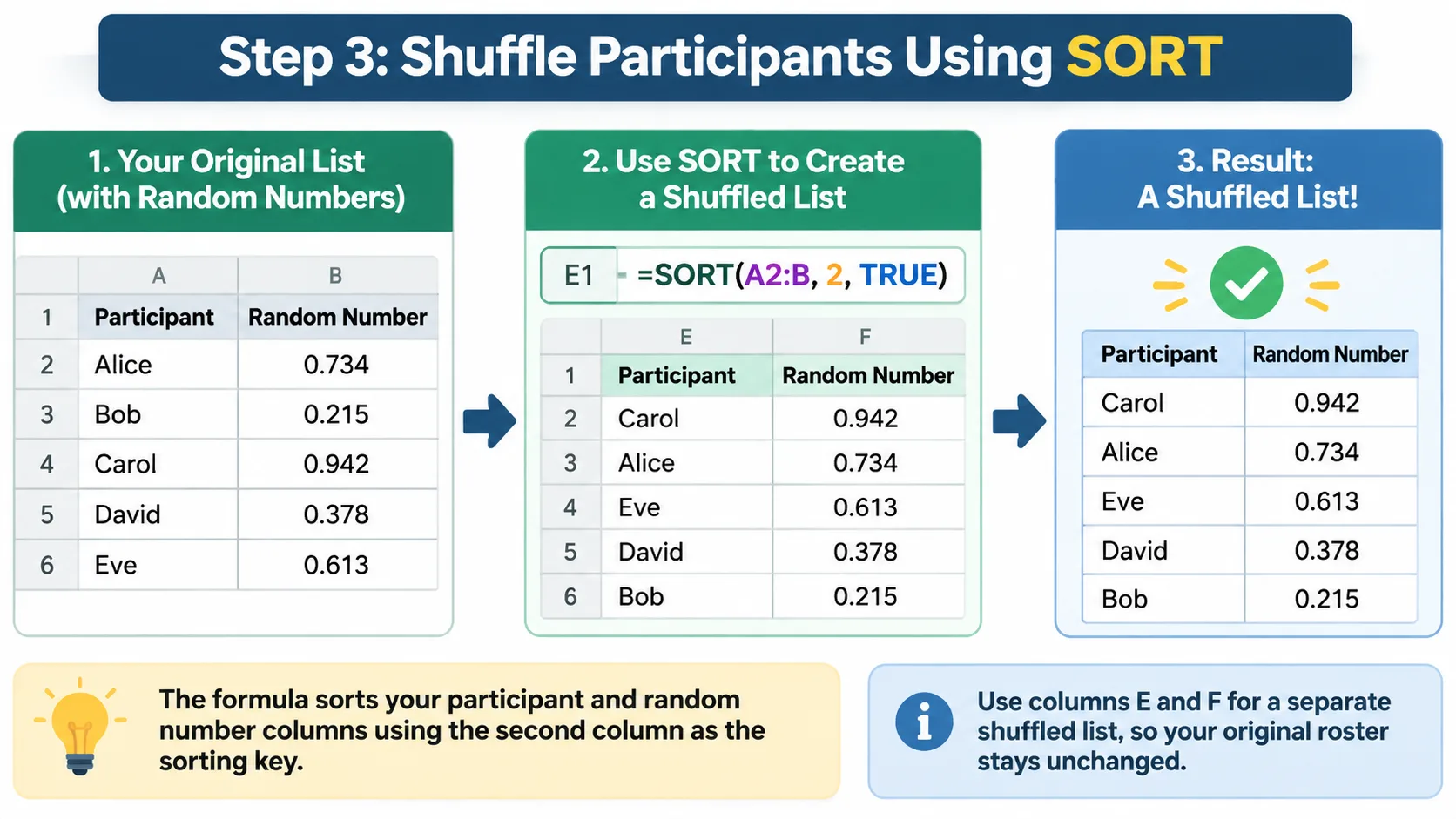
There are two practical ways to do this. The first is to sort your existing participant table. The second is to create a separate shuffled list with a formula. The separate-list approach is useful because it leaves your original roster untouched.
To create a separate shuffled list, select an empty area of your spreadsheet, such as columns E and F. Enter this formula in E1:
excel
=SORT(A2:B, 2, TRUE)
This formula sorts the participant and random-number columns using the second column as the sorting key. The result is a shuffled list, with the original names and their corresponding random values kept together.
If you only want to display names, you can use a formula such as:
excel
=INDEX(SORT(A2:B, 2, TRUE),,1)
This returns the first column of the sorted result. Make sure the destination cells are empty so the formula can display its results without a spill conflict.
The separate-list method is particularly helpful when you want to preserve the original class roster for attendance or recordkeeping. You can generate a new shuffled result without changing the source data.
For more information about sorting ranges and selecting sort columns, see Google's SORT function documentation.
Step 4: Assign Participants to Groups
After shuffling the names, decide whether you want a fixed number of groups or a fixed number of participants per group. These are different approaches, and choosing the right one makes your results easier to manage.
For this example, assume your shuffled names appear in column E, beginning at E2. You want groups of four participants each. Add Group in F1 and enter this formula in F2:
excel
=IF(E2="","","Group "&ROUNDUP((ROW()-1)/4,0))
Copy the formula down alongside your shuffled participant list. It assigns the first four names to Group 1, the next four to Group 2, and so on.
The formula works by using the participant's row position to determine the group number. ROUNDUP rounds the result upward to the next whole number, which makes the group assignment advance after every four participants.
For example, with 16 participants, the results will look like this:
| Participant | Group |
|---|---|
| Alex | Group 1 |
| Jordan | Group 1 |
| Taylor | Group 1 |
| Morgan | Group 1 |
| Casey | Group 2 |
| Riley | Group 2 |
| Jamie | Group 2 |
| Avery | Group 2 |
| Sam | Group 3 |
| Drew | Group 3 |
| Cameron | Group 3 |
| Quinn | Group 3 |
| Robin | Group 4 |
| Parker | Group 4 |
| Reese | Group 4 |
| Skyler | Group 4 |
You can replace the number 4 in the formula with another group size. For groups of three, use:
excel
=IF(E2="","","Group "&ROUNDUP((ROW()-1)/3,0))
If you prefer a fixed number of groups rather than a fixed group size, you can distribute participants across that number of groups by using a repeating sequence. For example, with four groups, use:
excel
=IF(E2="","","Group "&MOD(ROW()-2,4)+1)
This assigns participants in a repeating sequence: Group 1, Group 2, Group 3, Group 4, and then back to Group 1. The resulting groups will be as evenly sized as possible when the participant count cannot be divided equally.
Step 5: Make Group Sizes as Balanced as Possible
Not every participant count divides evenly into the number of groups you want. For example, 19 students cannot be divided into four groups of exactly the same size. A practical solution is to distribute the extra participants across different groups.
With 19 participants and four groups, a balanced result would contain three groups of five and one group of four. The repeating MOD formula above produces this kind of distribution when the shuffled list is assigned in sequence.
Consider a classroom activity where students need to prepare short presentations. If the teacher has 19 students, four teams make sense because each team can work on one presentation topic. Giving three teams five students and one team four students is more practical than leaving several students without a group.
To check the group sizes, you can use COUNTIF. If the group assignments are in F2:F20, enter:
excel
=COUNTIF(F2:F20,"Group 1")
Change Group 1 to another group name to count the remaining teams. You can also place these formulas in a separate summary table to check all group sizes at once.
Balanced group size does not necessarily mean balanced group composition. A spreadsheet can distribute the number of people evenly while still placing all participants with a particular skill or background in the same team. If that matters for your activity, review the assignments and make appropriate adjustments.
For more controlled classroom activities, you may also want a dedicated Random Group Generator that lets you organize participants into groups without building a spreadsheet workflow from scratch.
Step 6: Save Your Random Groups So They Do Not Change
One of the most common problems with random groups in Google Sheets is that the results can change unexpectedly. Because RAND recalculates, a new random order may appear when you edit the spreadsheet or when another recalculation occurs.
If you have already shared your assignments with students or colleagues, an unexpected change can cause confusion. The safest approach is to convert your completed results into fixed values.
Follow these steps:
- Select the completed shuffled participant list and group assignments.
- Copy the selected cells.
- Choose an empty area or a new worksheet.
- Right-click the destination cell.
- Select Paste special, then Values only.
- Check that the copied names and group assignments remain unchanged.
You now have a static version of your group assignments. The saved values will not change when the original RAND formulas recalculate.
For example, a teacher can create groups on Monday, save the final assignments, and share the fixed results through Google Classroom or another communication channel. The original worksheet can remain available for generating future groups.
It is also helpful to name each worksheet clearly. Use names such as Original Roster, Randomized Groups, and Saved Assignments. This makes it easier to distinguish working data from the final version.
Real-World Examples: Using Random Groups in Google Sheets
The same spreadsheet method can support different educational and workplace situations. The important thing is to decide how many groups you need, how many people should be in each group, and whether the assignment should be completely random or subject to additional requirements.
Example 1: Elementary classroom collaboration
A teacher has 24 students and wants six teams for a science activity. The teacher enters all student names, generates random numbers, sorts the list, and assigns four students to each group. After checking the results, the teacher saves the assignments as values and displays the team list.
This approach is useful when students need to work with different classmates instead of choosing their usual partners. The teacher can generate another arrangement for a later activity, while keeping the previous assignments for reference.
Example 2: College discussion groups
A college instructor has 31 students and wants eight discussion groups. Using a repeating group assignment formula produces seven groups of four and one group of three. The instructor can then add discussion topics beside each group name.
This is particularly useful for seminars where the instructor wants students to discuss a topic in smaller teams before sharing their ideas with the entire class. The instructor should still consider attendance and any accessibility or participation needs before finalizing the assignments.
Example 3: Corporate training workshops
A training manager has 20 employees attending a communication workshop. The manager uses Google Sheets to shuffle the participant list and create five groups of four. A separate column records each group's assigned discussion topic.
The final spreadsheet can be shared with the training team, while a fixed copy preserves the original assignments. For virtual workshops, the facilitator can use the group list to prepare breakout-room assignments in the meeting platform.
These examples demonstrate why random assignment can be useful, but they also highlight an important distinction: randomization determines who is grouped together, while the facilitator remains responsible for deciding whether the arrangement meets the activity's goals.
Google Sheets vs. an Online Random Group Generator
Google Sheets is a good option when you already manage participant information in a spreadsheet or need to combine group assignments with other records. You have control over the formulas, can add custom columns, and can preserve the results in the same document.
However, a spreadsheet approach requires several steps. You need to prepare the list, enter formulas, sort the data, assign groups, and save the results. If you repeat the process regularly, maintaining formulas and checking for accidental changes can become inconvenient.
An online random group generator offers a more direct workflow. Instead of managing random-number columns and sorting formulas, you can enter a participant list and create groups using a dedicated tool. This can be more convenient for teachers who need quick classroom assignments or facilitators who organize several activities in one day.
The Random Group Generator is designed for creating groups, while the Random Pair Generator is a better fit when participants need to work in pairs. If you want to choose one participant at a time rather than divide the entire class, the Random Student Picker serves a different purpose.
| Feature | Google Sheets | Online group generator |
|---|---|---|
| Random ordering | Requires RAND and SORT | Built into the grouping workflow |
| Group size control | Requires formulas | Depends on the available tool settings |
| Custom participant data | Flexible spreadsheet columns | Depends on the tool |
| Saving results | Save as fixed values | Depends on available export or copy options |
| Repeated assignments | Requires repeating the process | Designed for quick group creation |
| Additional analysis | Supports spreadsheet formulas | Usually more limited |
Neither option is best for every situation. Choose Google Sheets when you need a flexible recordkeeping system or want to combine group assignments with other data. Choose a dedicated tool when speed and a straightforward grouping workflow are more important than spreadsheet customization.
Common Mistakes to Avoid When Creating Random Groups
Even a simple spreadsheet can produce confusing results if the participant list or formulas are not handled carefully. A few checks before sharing the assignments can prevent most common problems.
1. Forgetting that RAND recalculates. A group arrangement may change after you have generated it. Always paste the final results as values before distributing them.
2. Sorting only the participant names. If your spreadsheet contains departments, student IDs, or other details, sorting only one column can separate names from their associated information. Sort the complete participant range using the random-number column as the sorting key.
3. Including blank rows. Empty entries can affect your group counts and create incomplete assignments. Check the source list before generating the random order.
4. Using the wrong group-size formula. A formula that assigns four people per group will not automatically produce five-person groups. Review the group-size setting before copying formulas down the sheet.
5. Assuming random means educationally balanced. Random assignment does not consider academic performance, experience, communication preferences, or accessibility needs. Review the results when the activity requires specific participant combinations.
A useful final check is to count the total assigned participants and compare it with the number of names in the original roster. Confirm that nobody is missing, duplicated, or assigned to an unintended group. This simple review makes your results easier to trust and share.
Frequently Asked Questions
Can Google Sheets automatically create random groups?
Yes. You can use RAND to generate random values, SORT to shuffle participant rows, and a group-assignment formula to divide the shuffled list. Once the formulas are set up, you can reuse the process with a different participant list.
How do I make groups of four in Google Sheets?
First, shuffle your participant list using a RAND column and SORT. Then use =IF(E2="","","Group "&ROUNDUP((ROW()-1)/4,0)) beside the shuffled list, starting in row 2. Copy the formula down to assign four consecutive participants to each group.
How do I create random groups of different sizes?
You can use the MOD function to distribute participants across a fixed number of groups. For example, =MOD(ROW()-2,4)+1 creates a repeating sequence of four group numbers. This distributes participants as evenly as possible, even when the total number cannot be divided equally.
Why do my random groups keep changing in Google Sheets?
The RAND function can recalculate and generate new random values. Since your shuffled order depends on those values, the group assignments can change too. Copy the completed results and use Paste special followed by Values only to preserve a permanent version.
Is Google Sheets better than a random group generator?
Google Sheets is useful when you need custom participant information, formulas, and spreadsheet-based records. A dedicated random group generator is often more convenient when you simply want to create groups quickly without setting up formulas. The right choice depends on how frequently you create groups and how much customization you need.
Can I use Google Sheets to create random pairs instead of groups?
Yes. You can shuffle the participant list and assign two consecutive participants to each pair. For a faster approach, use a dedicated Random Pair Generator to organize participants into pairs without manually adjusting spreadsheet formulas.
Create Random Groups Without the Spreadsheet Work
Google Sheets gives teachers and facilitators a flexible way to shuffle participants and create balanced group sizes. With RAND, SORT, and a simple assignment formula, you can build a repeatable process that works for classroom activities, college discussions, and corporate workshops.
The main limitation is that spreadsheet formulas require maintenance, and random values can change when the sheet recalculates. Remember to save your final assignments as fixed values and review the group composition before sharing the results.
If you want a quicker way to organize participants without managing formulas, try the Random Group Generator. Enter your participant names, create your groups, and spend less time organizing lists and more time focusing on the activity.
Related Tools
Pick the right generator for the job — every tool runs free in your browser.