
google sheets
Google Sheets vs. Random Group Generator: Which Is Faster?
Compare Google Sheets vs. random group generator tools for creating classroom and workplace teams. Learn which method saves time and makes group assignments easier.

You have 28 students waiting for a classroom activity, or 20 coworkers ready for a team workshop. Everyone needs a group, and you want the assignments to feel fair. Should you open Google Sheets and build groups yourself, or use an online random group generator? Both methods can create random assignments, but they involve different amounts of setup, checking, and ongoing work. This comparison explains how each approach works, where time is spent, and which option makes sense for teachers, trainers, and event organizers.
1. Why choosing the right group assignment method matters
Creating groups sounds simple until you have a full class list, an uneven number of participants, and an activity that needs to start on time. A teacher might need seven groups from 27 students, while a corporate facilitator might need five project teams from 23 employees. In both situations, the assignments should be reasonably even, easy to understand, and ready to share.
The traditional approach is to use a spreadsheet, write names on paper, or ask participants to count off. These methods can work well, especially for small activities. However, repeating the process every lesson or workshop creates extra administrative work. You may need to check group sizes, move names, correct mistakes, and communicate the final assignments.
The method also affects the experience of participants. Random assignment can help people work with classmates or colleagues they might not normally choose. The University of Waterloo's Centre for Teaching Excellence discusses counting off and random assignment as practical ways to vary classroom group composition. Its guidance also recognizes that instructors sometimes need to consider student preferences and other factors when forming teams.
The important distinction is between creating a random arrangement and creating a group structure that supports a particular task. A random method is useful for quick discussions and short activities. A carefully planned method may be more appropriate for a long-term project where skills, schedules, and individual needs matter.
2. Creating random groups with Google Sheets
Google Sheets is a flexible spreadsheet application that can turn a participant list into randomly ordered names. You can use its built-in formulas to generate random values and sort the list. This gives you control over the data and makes it possible to reuse the same spreadsheet for future activities.
The basic process involves three elements: a participant column, a random-number column, and a sorting operation. The RAND() function generates a random number between zero and one. Once each participant has a random value, you can sort the rows using that value as the sorting key. Google's official function documentation lists RAND among its available mathematical functions, while its SORT documentation explains how to sort a range using one or more columns.
Here is a practical setup:
- Open a new Google Sheets spreadsheet.
- Enter participant names in column A, starting in cell A2.
- Enter
=RAND()in cell B2. - Fill the formula down alongside every participant.
- Select both columns so that names stay connected to their random values.
- Sort the selected rows by column B in ascending order.
- Assign the sorted names to groups of your chosen size.
- Copy the finished assignments into your lesson plan or communication document.
For example, imagine you have 24 students and want six groups of four. After randomizing the list, assign the first four names to Group 1, the next four to Group 2, and continue until all six groups are complete.
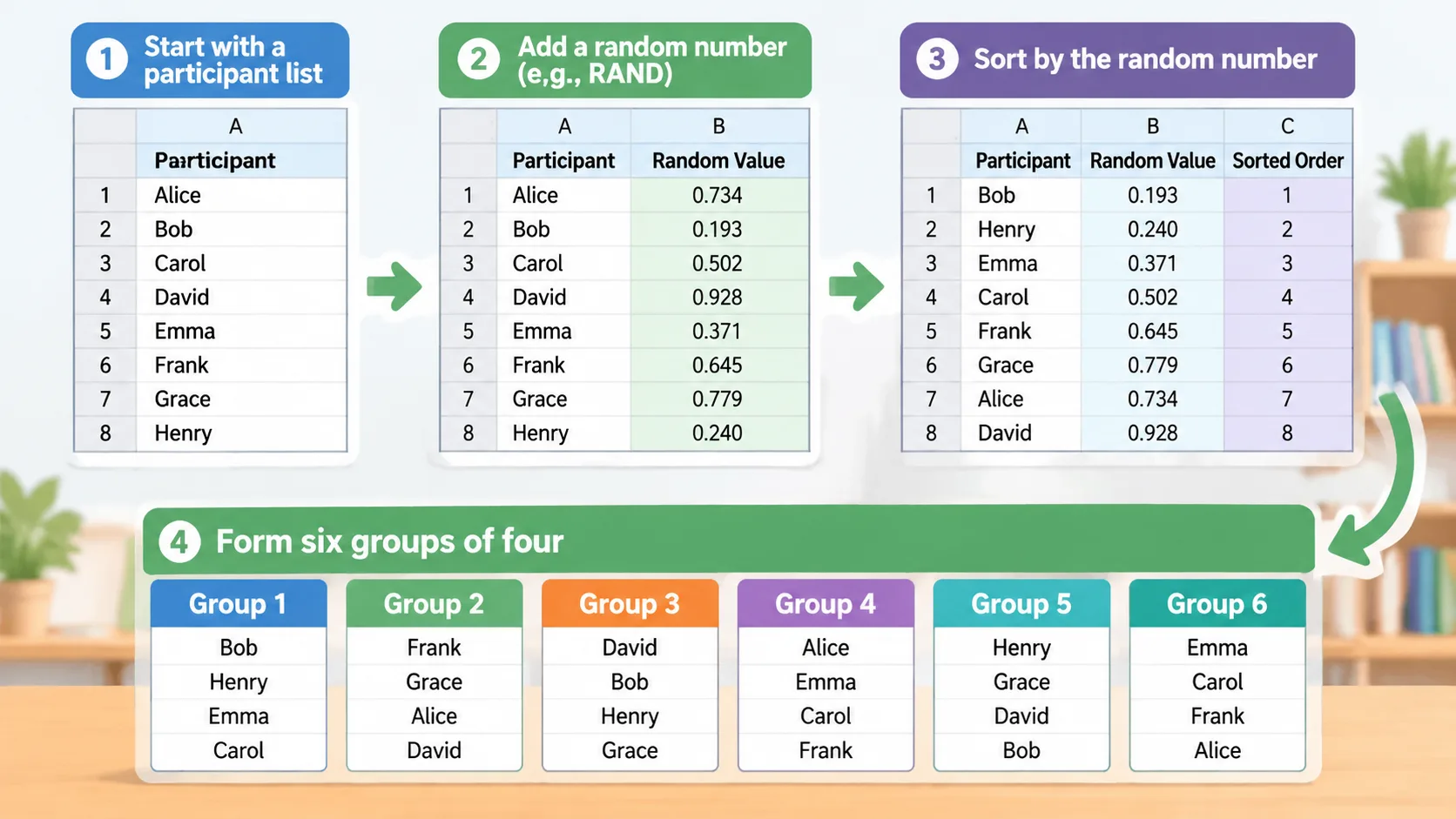
There is one important detail to remember: random formulas can recalculate when spreadsheet values change. If you have already created groups and want to preserve them, copy the randomized results and paste them as values into another area or sheet. Otherwise, a later recalculation could change the order and your assignments.
Google Sheets offers considerable flexibility, but you need to understand the spreadsheet structure and check the output. If you regularly create groups, you may also need to maintain a reusable template. This is manageable for someone comfortable with spreadsheets, but it introduces preparation steps that are unnecessary for a simple one-time activity.
3. Creating groups with an online random group generator
An online random group generator is designed specifically for dividing a participant list into groups. Instead of creating formulas and sorting rows, you use a dedicated interface to enter names, choose how the groups should be formed, and generate the assignments.
The general workflow is straightforward:
- Open an online Random Group Generator.
- Enter or paste your participant names.
- Choose whether to specify the number of groups or the number of participants per group, depending on the available settings.
- Generate the groups.
- Review the results and make sure the participant list is correct.
- Share or record the assignments for your activity.
For a teacher preparing a 30-student classroom exercise, this approach removes the need to create a random-number column and manually divide a sorted list. The teacher can concentrate on the activity itself rather than maintaining a spreadsheet formula.
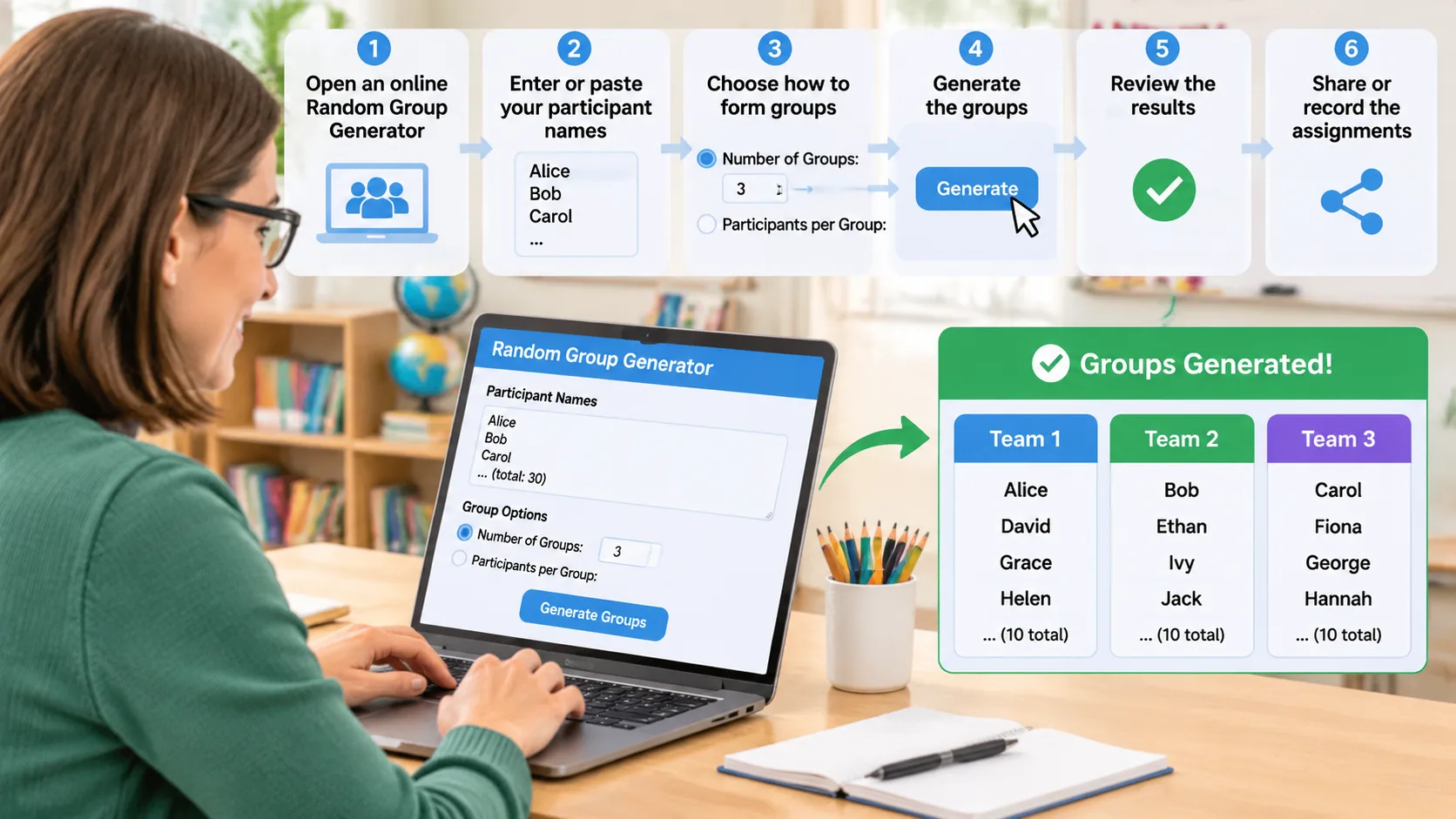
The main advantage is that the workflow matches the task. You are not building a general-purpose data table and adapting it to group formation. You are using a tool intended for creating groups.
An online generator is particularly useful when assignments change frequently. For example, a teacher might create new groups for a Monday discussion, a Wednesday problem-solving exercise, and a Friday review activity. A workshop facilitator might also need to reorganize participants between sessions. Repeating a short generation process can be easier than opening and maintaining a spreadsheet each time.
However, an online generator is not automatically the right choice for every situation. You should check its available grouping options, review the results, and avoid entering sensitive personal information into an unfamiliar website. For assignments that require detailed student profiles, confidential employee information, or complex placement rules, a controlled spreadsheet or dedicated planning process may be more appropriate.
4. Google Sheets vs. random group generator: A practical comparison
The two methods can achieve a similar basic result, but the work involved is different. Google Sheets gives you a flexible workspace, while an online random group generator focuses on producing group assignments.
| Comparison factor | Google Sheets | Online random group generator |
|---|---|---|
| Initial setup | Requires a participant list and formula setup | Usually requires entering names and selecting grouping options |
| Randomization | Uses formulas such as RAND() and sorting | Uses the generator's built-in randomization process |
| Group size management | Requires dividing the sorted list | Depends on the available group-size settings |
| Formula knowledge | Helpful for efficient setup | Generally unnecessary |
| Custom data | Supports additional columns and calculations | Depends on the tool's available features |
| Repeated activities | Can use a reusable spreadsheet template | Can generate new assignments through the same workflow |
| Data management | Spreadsheet data remains in your managed document | Depends on the website's data handling practices |
| Best suited for | Custom analysis and complex participant records | Quick, straightforward group assignments |
Which is faster? For a straightforward activity where you simply need participants divided into teams, an online random group generator will generally involve fewer manual steps. You do not need to create a formula column, sort a range, or organize the resulting list yourself.
Google Sheets may take less additional work when your participant information is already organized in a spreadsheet and you need to perform other calculations at the same time. For instance, a trainer who already tracks departments, experience levels, and project availability may prefer to keep the assignment process within the existing document.
The real comparison is therefore not just how quickly a random number appears. It is how much work is required to move from an existing participant list to usable group assignments. Consider setup, checking, formatting, and sharing together when choosing your method.
5. Real-world examples: Which method should you use?
Different activities create different grouping requirements. A five-minute classroom discussion does not need the same preparation as a semester-long collaborative project. The best method depends on the purpose of the activity, the participant information available, and how often you need new assignments.
Example A: A teacher organizing a classroom activity
A middle-school teacher has 28 students and wants to create four-person teams for a science discussion. The students will work together for approximately 20 minutes before presenting their ideas.
An online random group generator is a practical option. The teacher enters the names, selects groups of four, and checks the resulting assignments. Since 28 divides evenly into seven groups of four, the result is straightforward to organize.
If the teacher uses Google Sheets instead, they must generate random values, sort the names, and divide the results into seven teams. That approach is perfectly workable, but it requires more spreadsheet interaction for a task that does not involve additional data analysis.
Example B: A corporate trainer organizing workshop teams
A corporate trainer has 23 employees attending a communication workshop. The goal is to encourage people from different departments to collaborate during a short brainstorming exercise.
A random group generator can help create a fresh arrangement without asking participants to choose their own teams. If the selected group size is four, the trainer should check how the remaining three participants are handled. A result containing one group of five and four groups of four may be acceptable, depending on the exercise.
Google Sheets becomes more useful if the trainer needs to consider department information, previous team assignments, or availability. The trainer can retain those details in separate columns and use them to review or refine the random arrangement.
Example C: A teacher managing a long-term project
A college instructor has 36 students working on a semester-long project. Each team needs a useful mix of skills, compatible schedules, and enough experience to complete a demanding assignment.
In this situation, neither a basic spreadsheet shuffle nor a simple random group generator should make the final decision automatically. The instructor should consider the project's requirements and student information before confirming team membership.
The University of California, Berkeley's GSI Teaching & Resource Center describes random, instructor-selected, and student-selected grouping as different ways to form learning teams. It also emphasizes the importance of considering the learning objectives when planning group work.
The practical lesson is simple: use randomization when speed and variety are priorities, but use intentional placement when the activity requires specific team characteristics.
6. How to make random group assignments fair and useful
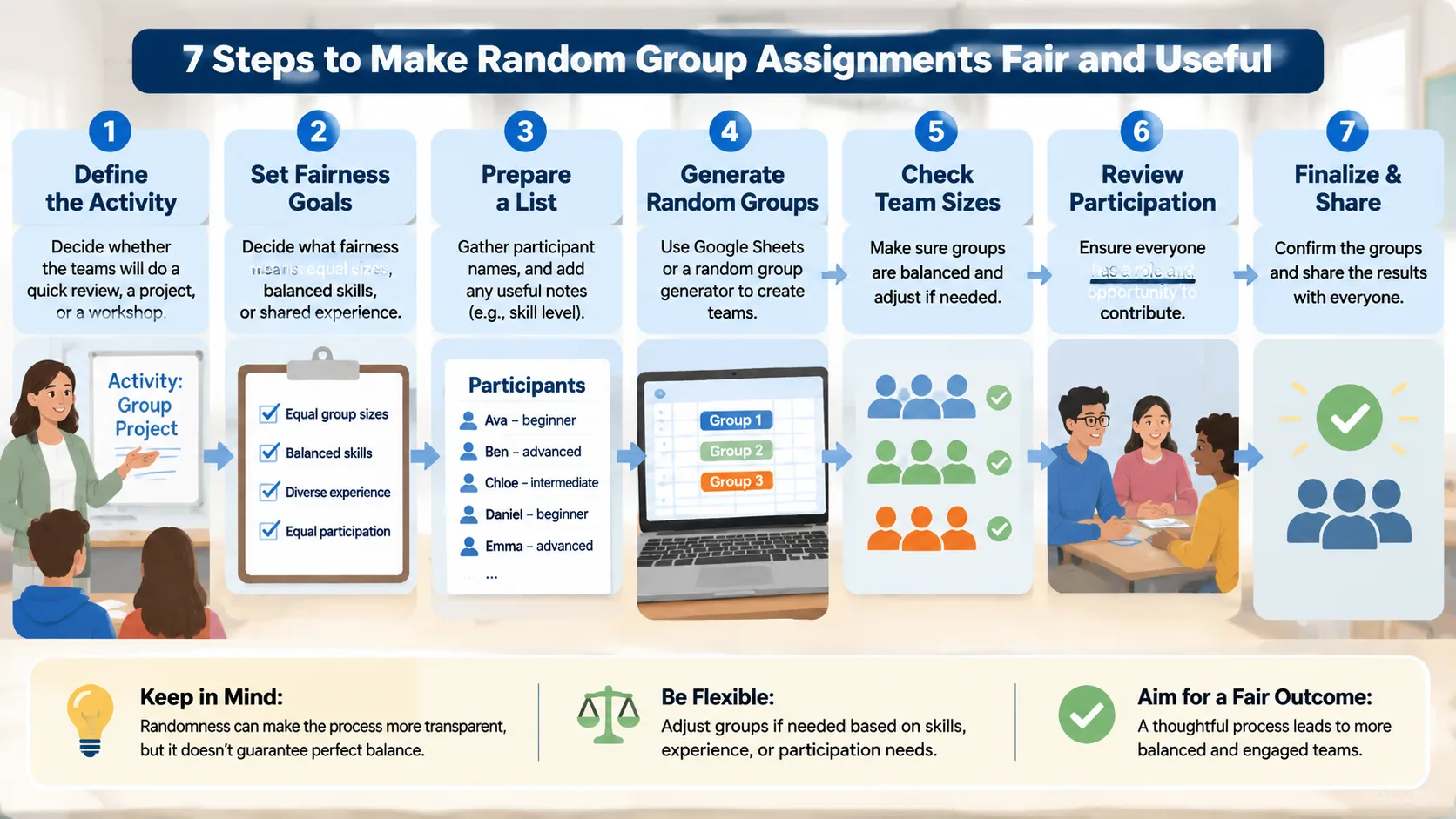
Random assignment can make the process feel more transparent because participants are not simply being placed according to personal preferences. However, randomness does not automatically guarantee balanced skills, compatible personalities, or equal participation. A randomly generated team can still contain several people who need the same type of support.
Before generating groups, decide what fairness means for the activity. For a short review exercise, equal group sizes may be enough. For a longer workshop, you may also need to consider experience, responsibilities, and opportunities for everyone to contribute.
Use this practical process:
- Define the activity. Decide whether the teams will work together for five minutes, one lesson, or several weeks.
- Choose the group size. Think about how many people can participate meaningfully in the task.
- Prepare the participant list. Remove duplicate entries and check that everyone who should participate is included.
- Select an assignment method. Use a random approach for quick activities or intentional placement when specific criteria matter.
- Check uneven numbers. Decide whether one group can have an extra participant or whether a different group size would work better.
- Explain the process. Tell participants why groups were formed this way and what each person is expected to contribute.
- Review the experience. Notice whether the group structure supported the activity and adjust your approach next time.
For example, if 25 students need to complete a discussion in small teams, you might choose five groups of five. If the task involves paired practice, a Random Pair Generator may be more suitable than creating larger teams. Matching the tool and grouping method to the activity helps avoid unnecessary work.
It is also worth considering accessibility and classroom dynamics. Some students may need specific support, and some activities may require adjustments to make participation possible. Do not assume that a random assignment is automatically appropriate for every student or every task. The teacher or facilitator remains responsible for reviewing the final arrangement.
7. Other options for organizing participants
Google Sheets and online random group generators are not the only ways to form teams. Traditional counting-off methods, name cards, and group-selection activities can also work well, particularly when the facilitator wants participants to move around the room or interact physically.
Counting off is useful when participants are already together in person. For example, if 20 employees need to form five teams, participants can count from one to five repeatedly. Everyone with the same number joins a team. This approach requires almost no technology, although it can be less convenient when the participant list is large or people are attending remotely.
For classroom activities that require individual selection rather than team formation, a Random Student Picker serves a different purpose. It helps teachers choose a participant for a question, presentation, or classroom responsibility. If the activity needs creative team identities after assignments are complete, a Group Name Generator can provide names for the newly formed teams.
The distinction matters because these tools solve different problems. A student picker selects an individual, a pair generator creates partnerships, and a group generator divides a list into teams. Choosing the correct workflow helps keep preparation simple.
For remote sessions, also consider how you will communicate the results. A spreadsheet may be useful when participants need a detailed shared record, while a straightforward group-generation workflow may be sufficient for a short online workshop. Whatever method you choose, confirm that everyone can see their assignment and knows where to work.
8. Frequently asked questions
Is Google Sheets good for making random groups?
Yes. Google Sheets can generate random values with RAND() and sort participant rows using those values. It is useful when you want to customize assignments or work with additional participant information. However, you need to set up the formulas and manage the resulting group divisions yourself.
Is an online random group generator faster than Google Sheets?
For basic group formation, an online random group generator generally requires fewer manual steps. You can enter a participant list and generate assignments without building a spreadsheet formula or sorting rows. Google Sheets may be more convenient when you already have a detailed spreadsheet and need to perform additional calculations.
Can Google Sheets divide students into equal groups?
Yes. First, randomize the participant list and then divide the sorted names into groups. If the total number of students is not evenly divisible by the number of groups, some groups will need an additional participant. Review the result to ensure the size difference is acceptable for your activity.
Are randomly assigned groups always fair?
Not necessarily. Random assignment reduces the influence of personal selection, but it does not guarantee equal skills, experience, accessibility, or participation. For short activities, random groups can be a practical choice. For important or long-term projects, consider additional placement criteria and review the final teams.
What should I use when I have an odd number of students?
You can create groups with slightly different sizes, such as one group of five and several groups of four. Another option is to use a different group size or create a temporary larger team for a particular activity. Choose the arrangement that gives everyone a meaningful role rather than forcing every group to have exactly the same number of members.
Can I use a random group generator for remote meetings?
Yes, an online group generator can help prepare teams for virtual workshops and remote discussions. Generate the assignments before the activity, then communicate them through your meeting or collaboration workflow. Check that participants know which team they belong to and how to join their assigned discussion space.
Choose the method that saves you the most preparation time
Google Sheets remains a useful option when you need control over participant data, custom calculations, or detailed assignment rules. It is flexible, familiar, and suitable for repeatable spreadsheet-based workflows. However, a straightforward grouping task does not always need a spreadsheet.
For teachers creating discussion teams, corporate trainers organizing workshop activities, and event facilitators dividing attendees, an online random group generator offers a more direct workflow. You can spend less time arranging names and more time preparing the activity that brings people together.
Ready to organize your next classroom or workshop activity? Try the free Random Group Generator to create your participant groups and get your next session started.
Related Tools
Pick the right generator for the job — every tool runs free in your browser.