
gender balanced grouping
Step-by-step guide: how to create gender-balanced groups for classrooms, workshops, and team events
Learn how to create gender-balanced groups for classrooms, workshops, and team events. Step-by-step guide using Random Group Generator includes tips for fairness, real examples, and FAQ.
In most classrooms and workshops, one of the first logistical hurdles is dividing participants into groups. Doing it randomly is easy—until you realize that some groups end up with all boys or all girls, which can dampen participation, reinforce stereotypes, or simply create an imbalance you’d rather avoid. Achieving gender-balanced grouping (性别平衡分组) is not just about numbers; it’s about creating an environment where every voice is heard. This guide shows you exactly how to use the free Random Group Generator to build fair, inclusive groups every time, without wasting precious minutes counting and re-sorting.
Why Gender Balance Matters in Group Settings
When groups are heavily skewed by gender, the dynamics often shift in subtle but important ways. Research on cooperative learning consistently finds that mixed-gender groups encourage broader perspectives and more balanced turn-taking. In educational settings, students in gender-balanced groups are more likely to contribute equally, share leadership roles, and challenge assumptions. For corporate trainers and workshop facilitators, the same principle applies: diverse groups produce more innovative solutions and avoid the echo-chamber effect of single-gender teams.
Beyond educational outcomes, gender balance signals intentionality to your participants. It shows that you, as the facilitator, have considered fairness from the very start. This simple step can preempt complaints and set a positive tone. Whether you are running a primary school science lab or a leadership retreat, a conscious approach to gender distribution helps every attendee feel valued.
Common Challenges with Manual Gender Balancing
Most teachers and facilitators have tried to create balanced groups by hand. You might scan a list of names, guess genders based on first names, and then manually move people around until the numbers look roughly even. This process can take 10 minutes or more, and mistakes are common—especially with gender-neutral names or participants who do not identify within a binary framework.
Another challenge is hidden bias. When sorting manually, even well-intentioned facilitators tend to separate the most active or dominant participants, often unintentionally grouping quiet members together. By mixing gender and personality cues, a true random shuffle with a balance constraint removes that unconscious influence. Finally, manual balancing does not scale. For a conference with 200 attendees, hand-sorting is simply impossible. An automated tool like the Random Group Generator handles any size list in seconds.
How the Random Group Generator Ensures Gender-Balanced Groups
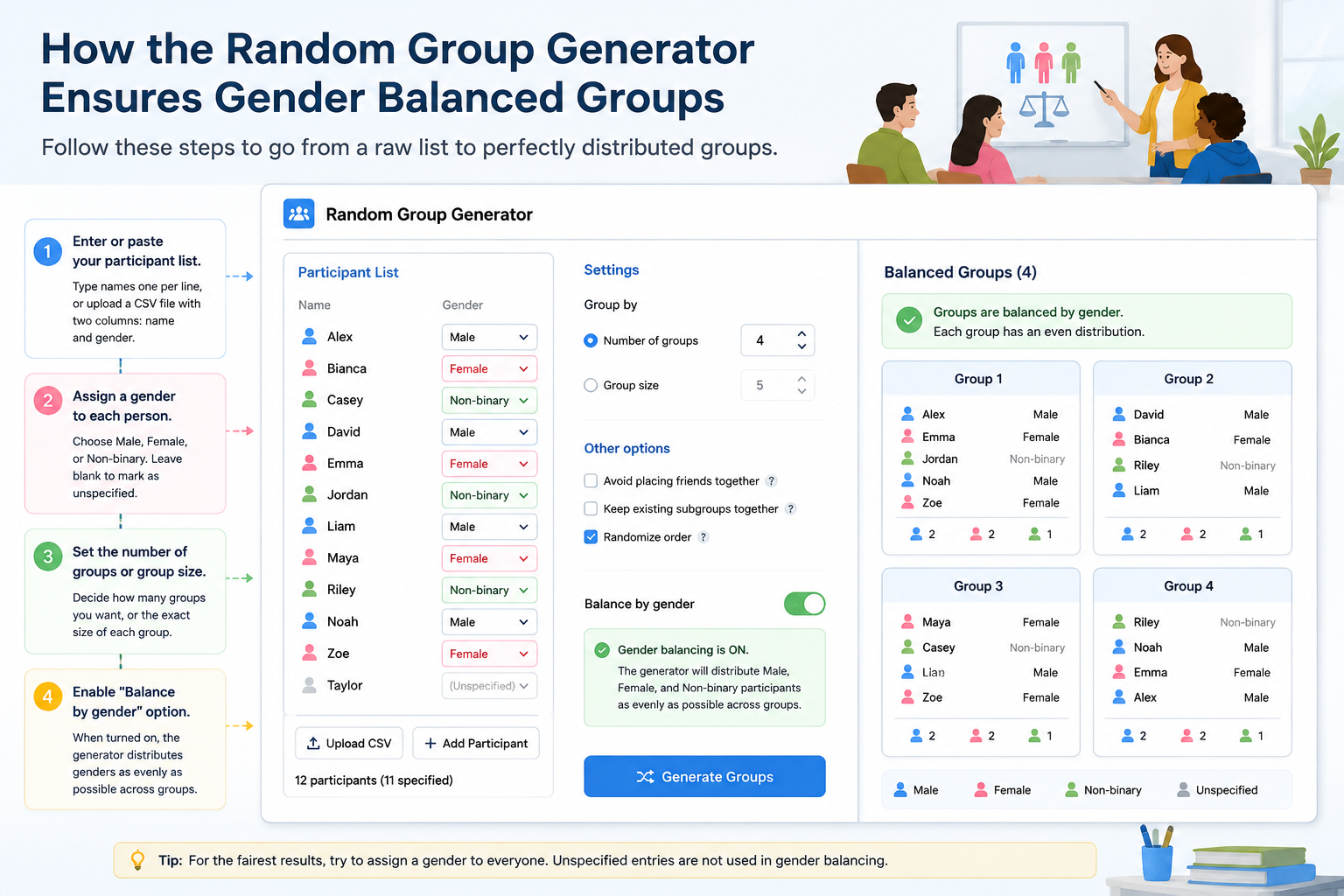
The tool makes gender-balanced grouping straightforward. Follow these steps to go from a raw list to perfectly distributed groups.
- Enter or paste your participant list. You can type names one per line, or upload a CSV file with two columns: name and gender.
- Assign a gender to each person. Next to every name, choose Male, Female, or Non‑binary. If you leave the field blank, the tool treats the entry as unspecified and does not use it for gender balancing.
- Set the number of groups or group size. Decide whether you want, for example, four groups of five, or groups of exactly four members.
- Enable the “Balance by gender” option. This is the key setting. When turned on, the generator distributes participants so that each group has as close to an equal number of each gender as possible.
- Click “Generate Groups.” The algorithm shuffles the list randomly while respecting the gender constraint, producing groups that are both varied and fair.
If the total numbers aren’t perfectly divisible by the number of groups, the tool places the extra people in such a way that the imbalance is minimized across all groups. For instance, with 23 students (11 male, 12 female) split into four groups, three groups will have 3 males and 3 females, and one group will have 2 males and 3 females—a far fairer result than purely random grouping might produce.
Real-World Example: Middle School Science Lab
Ms. Rivera, a 7th‑grade science teacher, wants her students to work in mixed‑gender lab groups of four. She has 28 students: 13 boys and 15 girls. Using a manual approach, she would have to write names on cards and sort repeatedly. Instead, she opens the Random Group Generator, pastes her roster from a class spreadsheet, and tags each student’s gender. She sets group size to 4 and turns on gender balancing. In one click, the tool outputs seven groups, each with either 2 boys and 2 girls or 1 boy and 3 girls (or vice‑versa), depending on distribution.
She then shares the groups with the class and notes the relief on students’ faces—no one feels isolated or singled out. The whole process takes less than 90 seconds, and she can focus on the lab experiment instead of logistics. This same workflow works for gym class teams, book club discussions, or any activity where gender balance matters.
Advanced Tips for Gender-Balanced Pairing and More
Beyond full groups, you can also create balanced pairs for activities like peer review or partner work. Head to the Random Pair Generator and apply the same gender-balance setting. The tool will match partners so that each pair is mixed‑gender whenever totals allow.
If you want to add a layer of creativity, use the Group Name Generator to give each balanced group a unique name—themed names help teams build identity without the awkward moment of trying to come up with one themselves. And if you are working with a very large roster, consider importing a spreadsheet that already contains a gender column; the tool automatically reads the data and applies the balancing rule, saving you from manual tagging.
For facilitators who rely on platforms like Zoom, Microsoft Teams, or Google Classroom, the Random Group Generator can integrate with your existing workflow. You can generate groups, then copy the results directly into breakout room assignments or share them as a message. This seamless transition from planning to action is a massive time‑saver.
Frequently Asked Questions
Can I create perfectly balanced groups if the total numbers aren’t even?
Yes, but “perfect” balance is only possible when the total number of participants is divisible by both the number of groups and the desired gender ratio. When numbers don’t divide evenly, the algorithm minimizes the difference so that no group is overwhelmingly one gender. For example, with 11 males and 13 females in 4 groups, you will see groups of 3M/3F, 3M/3F, 2M/4F, and 3M/3F—a far better outcome than random chance.
What if I have non‑binary or participants who do not wish to specify a gender?
The tool includes a “Non‑binary” option and also allows you to leave the gender field blank. When balance is activated, the algorithm distributes all gendered entries equally and then places unspecified participants randomly among the groups. This approach respects all identities while maintaining as much balance as possible.
Does gender‑balanced grouping work for very large events, like conferences with 100+ people?
Absolutely. The generator processes large lists almost instantly. You can upload a CSV with hundreds of rows and still receive balanced groups within seconds. The underlying algorithm scales linearly, so performance remains consistent no matter the list size.
Can I combine gender balance with other criteria, such as skill level or department?
The core tool balances on one criterion at a time. However, you can achieve multi‑criteria groupings by using a two‑step approach: first generate balanced groups by gender, then manually adjust a couple of members within each group to account for skill level, or use the tool’s “Exclude Together” feature to separate certain individuals. For complex multi‑factor grouping, you might also run the generator twice with different constraints and choose the arrangement that best fits your needs.
How do I import a class list with gender data from Google Sheets or Excel?
Prepare a two‑column spreadsheet with “Name” and “Gender” and save it as a CSV file. In the Random Group Generator, click the “Import CSV” button, select your file, and the tool will populate the list automatically with genders assigned. Make sure the gender column uses exactly the words “Male,” “Female,” or “Non‑binary” so that the tool maps them correctly.
Ready to build fair, balanced groups? Open the Random Group Generator and get started in under a minute. No sign‑up required, and your data stays private right in your browser.
Related Tools
Pick the right generator for the job — every tool runs free in your browser.