
excel random group generator
Excel Random Group Generator: Step-by-Step Guide
Learn how to build an Excel random group generator using RAND, sorting, and simple formulas. Create fair, balanced student or team groups in minutes.

Dividing students or employees into groups can take longer than expected, especially when everyone wants a fair assignment. An Excel random group generator offers a practical way to organize a class, workshop, or team without manually assigning every person. By using Excel's built-in random number formulas and sorting features, you can shuffle a list of names and distribute people into groups in just a few minutes.
This guide explains two ways to create random groups in Excel, including a simple method that works with older versions and a formula-based option for newer versions. You will also learn how to balance group sizes, save your results, and decide when an online random group generator might be more convenient.
Why Use Excel to Generate Random Groups?
Teachers often need to organize students for discussions, collaborative projects, laboratory activities, and classroom games. Corporate trainers face a similar challenge when dividing workshop participants into breakout teams. Choosing groups manually can introduce personal preferences, consume valuable preparation time, and make the selection process appear unfair.
An Excel random group generator provides a repeatable workflow. Instead of choosing names individually, you give every participant a random number, sort the list, and assign people to groups according to their position. Everyone starts with the same selection process, and you can review the resulting assignments in a spreadsheet.
For example, imagine a teacher has 24 students and needs four groups for a science activity. Rather than selecting six names at a time, the teacher can shuffle all 24 names and distribute them across four groups. The result is six students per group, with no need to make individual selection decisions.
Excel is particularly useful when your participant list already exists in a spreadsheet. You can keep additional information, such as student numbers, departments, or attendance details, alongside the names. However, random assignment does not automatically account for academic ability, accessibility needs, personality differences, or previous collaboration history. Those considerations may require additional planning.
Method 1: Create an Excel Random Group Generator with RAND
The RAND function is one of the easiest ways to randomize a participant list. It generates a decimal number greater than or equal to zero and less than one. Excel generates a new number whenever the worksheet recalculates, making it useful for shuffling names.
Start with a simple spreadsheet containing two columns: participant names and random numbers. For example, enter student names in column A and use column B to generate a random value for each person.
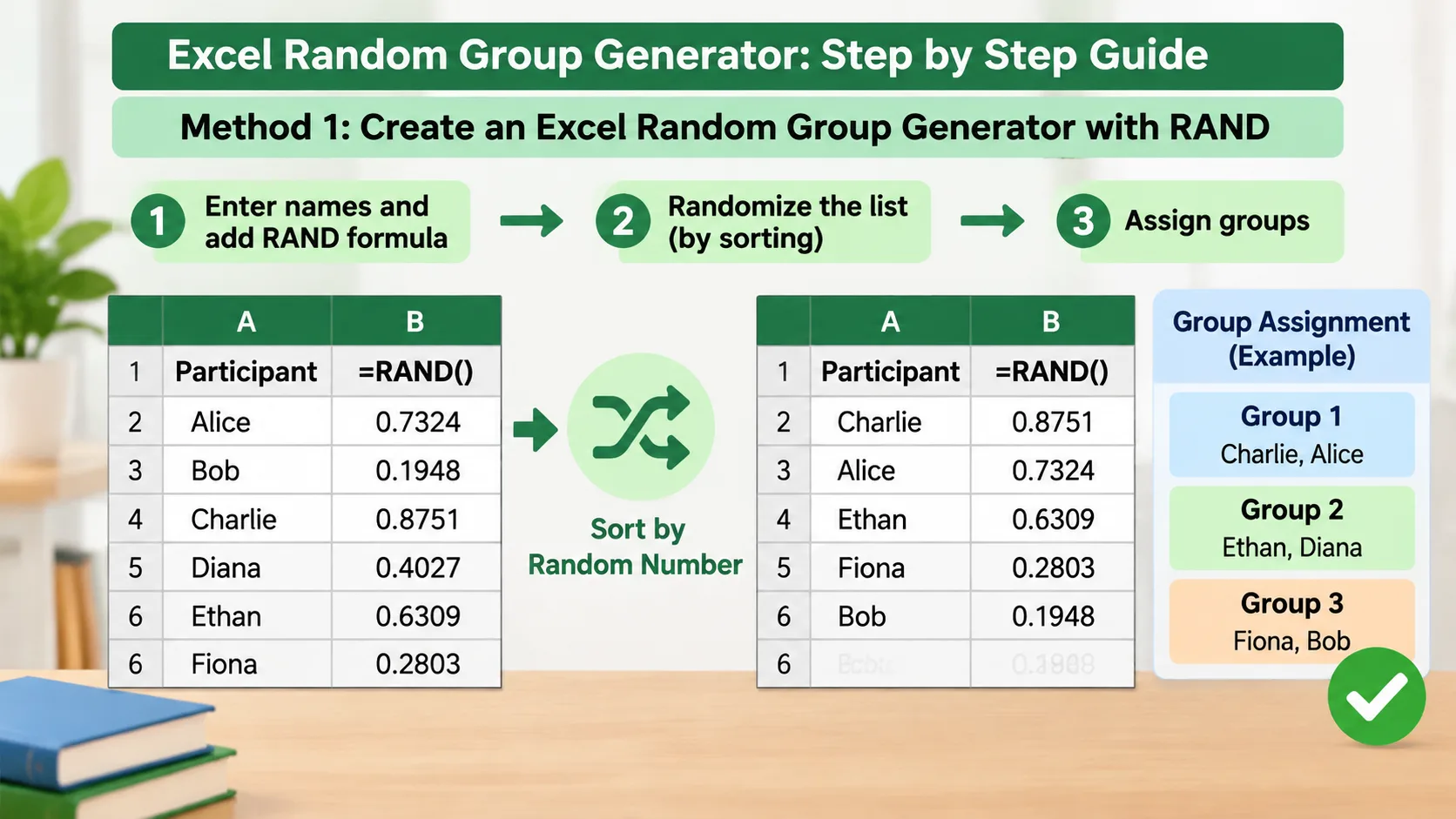
Follow these steps:
- Open a new Excel workbook.
- Enter
Participant Namein cell A1. - Add each student's or employee's name below the heading, starting in A2.
- Enter
Random Numberin cell B1. - Type
=RAND()into cell B2. - Press Enter to generate a random decimal.
- Drag the formula down to cover every participant.
- Select the entire participant table, including both columns and the headings.
- Open the Data tab and select Sort.
- Choose the Random Number column as the sorting column and select ascending or descending order.
Your names will now appear in a randomized order. Because you sort the entire table, each random number stays connected to its original participant.
For example, a list containing Alice, Ben, Chloe, David, Emma, and Frank might produce a different order after sorting. The specific result changes between randomizations, so do not expect the same sequence each time.
Important: RAND recalculates when Excel updates the worksheet. If you have already created groups and want to preserve them, copy the random-number column and use Paste Special > Values before making further changes. This replaces the formulas with fixed numbers.
Microsoft documents this recalculation behavior in its RAND function reference.
Method 2: Automatically Assign Participants to Groups
Randomizing names is only the first part of the process. You also need to distribute the shuffled participants into separate groups. Excel can handle this with a straightforward formula.
Suppose you have 20 participants and want five groups. After generating and sorting the random numbers, add a third column called Group Number.
Use the following formula in cell C2:
=MOD(ROWS($A$2:A2)-1,5)+1
Press Enter and drag the formula down through all participant rows.
The formula assigns group numbers in a repeating sequence: 1, 2, 3, 4, 5, then starts again at 1. Because the participant list has already been randomized, the assignments are distributed across the shuffled list rather than the original alphabetical order.
Here is how the first ten assignments will look:
| Participant position | Group number |
|---|---|
| 1 | 1 |
| 2 | 2 |
| 3 | 3 |
| 4 | 4 |
| 5 | 5 |
| 6 | 1 |
| 7 | 2 |
| 8 | 3 |
| 9 | 4 |
| 10 | 5 |
To create a different number of groups, replace the number 5 in the formula with your desired group count. For example, use 4 for four groups or 6 for six groups.
This approach also works when the number of participants cannot be divided equally. If you have 22 people and five groups, two groups will contain five participants and three groups will contain four. The difference in group sizes will never exceed one when participants are assigned in this repeating sequence.
For a teacher organizing a classroom debate, this means the entire class can be distributed into manageable teams without manually counting every group.
Method 3: Use Excel 365 for a Formula-Based Random Shuffle
If you use a recent version of Excel that supports dynamic array functions, you can simplify the randomization process with RANDARRAY and SORTBY.
The RANDARRAY function creates an array of random numbers, while SORTBY can rearrange a list according to another array. Together, they can generate a randomized list without requiring a separate random-number formula in every row.
For example, if your participant names are in cells A2 through A21, enter this formula in an empty cell:
=SORTBY(A2:A21,RANDARRAY(ROWS(A2:A21)))
Excel returns the participant names in a randomly shuffled order. The formula uses the number of names in the original range to generate the corresponding number of random values.
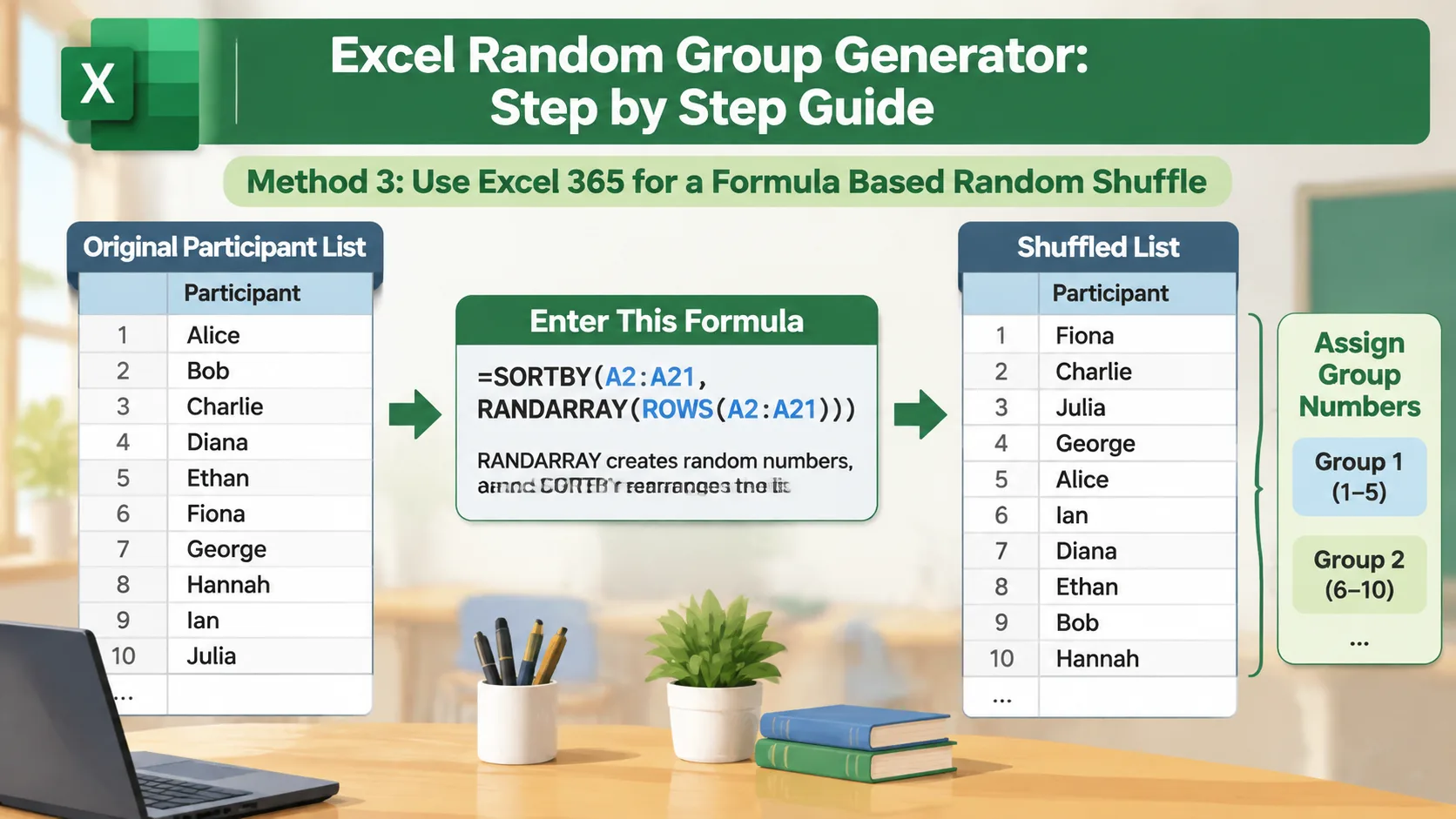
To assign group numbers to the resulting shuffled list, you can use another dynamic array formula. If the shuffled results begin in D2 and there are five groups, enter:
=MOD(SEQUENCE(ROWS(D2#))-1,5)+1
This produces a matching sequence of group numbers. The # symbol refers to the entire spilled result beginning in D2.
There are two important considerations. First, dynamic array formulas require a compatible Excel version. RANDARRAY is available in supported versions including Microsoft 365 and Excel 2021 or later. Second, random formulas can recalculate, so save fixed values when you need a permanent assignment list.
You can learn more about these functions in Microsoft's documentation for RANDARRAY and SORTBY.
How to Make Groups Balanced in Excel
Random selection and balanced group sizes are not exactly the same thing. A random shuffle determines the order of participants, but it does not guarantee equal numbers in every group unless you distribute the shuffled list carefully.
The round-robin method described above is useful because it assigns participants one at a time to each group. When the total number of participants is divisible by the number of groups, every group receives the same number of people. When it is not divisible, the remaining participants are distributed one per group until everyone has been assigned.
Consider a corporate training session with 27 employees and four discussion groups. After randomizing the list, assign group numbers from 1 through 4 repeatedly. Three groups will contain seven employees, and one group will contain six.
For more consistent results, follow these practical guidelines:
- Count the participants before creating groups.
- Decide whether you need a specific number of groups or a specific number of people per group.
- Randomize the complete participant list.
- Assign group numbers using a repeating formula.
- Check the final group sizes before sharing the assignments.
- Review any necessary accommodations or facilitator requirements separately.
Remember that equal group sizes do not automatically create equal skill levels or experience. If you need a mixture of beginners and advanced participants, you may need to organize the list using additional information before random assignment. Avoid assuming that random selection alone will solve every group-composition challenge.
How to Save and Share Your Random Group Assignments
One common problem with Excel randomization is that results can change after recalculation. This can be confusing when a teacher has already announced the groups or a trainer has shared breakout-room assignments.
The simplest solution is to freeze the results once you are satisfied with the random order. Select the random-number cells, copy them, and use Paste Special > Values. You can also copy the completed assignment table into a separate worksheet and paste it as values.
For example, a teacher preparing Monday's classroom activity can create the groups on Friday, freeze the assignments, and save the workbook with a descriptive name such as Monday_Science_Groups.xlsx. The teacher can then print the results or share the spreadsheet with a teaching assistant.
For remote sessions, the group numbers can be used to organize participants into breakout rooms in a video meeting platform. The facilitator should still verify the current platform's room-management options and transfer the assignments manually if necessary. Do not assume that an Excel spreadsheet automatically synchronizes with Zoom, Microsoft Teams, or Google Classroom.
Keep personal information to a minimum when sharing spreadsheets. A list containing student names, grades, or employee details should only be shared with people who are authorized to access it. If participants only need their group assignments, consider creating a simplified version that contains names and group numbers rather than unnecessary personal details.
Excel vs. an Online Random Group Generator
Excel is a useful option when you already maintain participant information in spreadsheets or need custom formulas. However, it is not always the quickest way to create groups, especially when you need to repeat the process during a busy class or workshop.
An online random group generator can provide a more direct workflow. Instead of building formulas and sorting columns, you can enter a participant list, choose how you want people divided, and generate groups through a dedicated interface.
For instance, a teacher who creates new discussion groups every morning may prefer an online tool because it reduces spreadsheet preparation. A corporate facilitator who regularly works with employee data in Excel may prefer to keep the entire process in a workbook.
| Feature | Excel | Online random group generator |
|---|---|---|
| Randomizing names | Yes, with formulas | Yes, through a dedicated interface |
| Balanced group sizes | Yes, with appropriate formulas | Depends on available settings |
| Custom spreadsheet calculations | Extensive flexibility | Usually more limited |
| Saving assignments | Workbook or exported values | Depends on available export options |
| Initial setup | Requires spreadsheet preparation | Usually requires less setup |
| Advanced participant analysis | Possible with spreadsheet data | Depends on the tool |
If you only need to create pairs, a Random Pair Generator provides a more focused workflow. If you want to select one student for a question or classroom activity, the Random Student Picker is designed for that different task.
The right option depends on your workflow. Excel is useful for custom data management, while a dedicated tool can make repeated group creation more straightforward.
Common Excel Random Group Generator Mistakes to Avoid
Even a simple spreadsheet can produce confusing results if you overlook a few details. The most common mistake is sorting only the random-number column rather than the complete participant table. This separates names from their original information and can create incorrect assignments.
Another problem occurs when users forget that RAND recalculates. A group list that looked correct a moment ago may change after another formula is entered or the workbook is recalculated. Freezing the random numbers prevents unexpected changes after the assignment has been approved.
Watch for these additional issues:
- Duplicate names: Include student IDs or employee identifiers if participants share the same name.
- Blank rows: Remove empty entries before generating random groups.
- Incorrect sorting: Always select the complete data range when sorting by random numbers.
- Uneven group sizes: Use a repeating group-number formula instead of dividing participants manually.
- Formula errors: Check that formulas cover every participant and that the group count is greater than zero.
- Unintended changes: Save a fixed copy of the final assignments before editing the original worksheet.
For example, if a workshop has 18 participants but the spreadsheet contains two blank rows, a formula based on the full range may create unnecessary assignments. Clean the participant list first, then generate the groups.
A short final review is worthwhile, particularly when group assignments affect graded classroom activities, team responsibilities, or scheduled presentations.
Frequently Asked Questions
Can Excel randomly divide students into groups?
Yes. Use the RAND function to assign random numbers to student names, sort the complete list by those numbers, and distribute the shuffled names using a repeating group-number formula. This works for classroom activities, projects, and collaborative discussions.
What Excel formula generates random groups?
The RAND function, written as =RAND(), generates random decimal numbers that you can use to shuffle a participant list. For group assignment, combine it with sorting and a formula such as =MOD(ROWS($A$2:A2)-1,4)+1 to distribute participants into four groups.
How do I create equal-sized groups in Excel?
Randomize the complete participant list first, then assign group numbers in a repeating sequence. If the participant total divides evenly by the number of groups, every group will have the same size. Otherwise, the group sizes will differ by no more than one person.
Why do my Excel random groups keep changing?
RAND and RANDARRAY are recalculating functions. Excel can generate new random values when the worksheet recalculates, which may change the participant order. Copy the random numbers and paste them as values once you are happy with the assignments.
Can I create random groups without Excel formulas?
Yes. You can use a dedicated online random group generator instead of building a spreadsheet. Enter your participant names, choose your preferred group arrangement, and generate the assignments through the tool interface. This can be convenient when you need quick results without managing formulas.
Is an Excel random group generator completely fair?
Randomizing a list gives participants an impartial starting point for assignment, provided the participant list is complete and the process is applied consistently. However, random groups are not necessarily balanced by experience, skill, accessibility needs, or other classroom and workplace considerations. Review those requirements separately when they matter.
Create Random Groups Without Building a Spreadsheet
Excel provides a flexible way to randomize names, distribute participants, and save group assignments. It is especially useful when your participant information already lives in a workbook or when you need custom spreadsheet calculations.
However, you do not have to build formulas every time you want to divide a class or team. The free Random Group Generator offers a dedicated way to organize participants into groups without manually setting up RAND formulas, sorting columns, or maintaining a spreadsheet.
Whether you are preparing a classroom discussion, a professional development workshop, or a team-building activity, choose the method that fits your workflow and always review the final assignments before sharing them.
Related Tools
Pick the right generator for the job — every tool runs free in your browser.