
best random group generator 2026
Best Random Group Generator 2026: 5 Tools Compared
Compare the best random group generator tools in 2026 for classrooms, workshops, and teams. Explore features, benefits, limitations, and practical tips.

Creating groups sounds simple until you have 28 students, a workshop with 40 participants, or a team that keeps choosing the same partners. Manually dividing people takes time, and letting everyone choose can leave some participants feeling excluded. The best random group generator in 2026 helps teachers and facilitators create groups quickly, distribute participants fairly, and spend more time on the activity itself.
However, not every grouping tool solves the same problem. Some are designed for everyday classroom activities, while others work directly inside online meeting platforms. This guide compares five practical approaches, explains their strengths and limitations, and shows how to choose the right option for your situation.
What Makes the Best Random Group Generator in 2026?
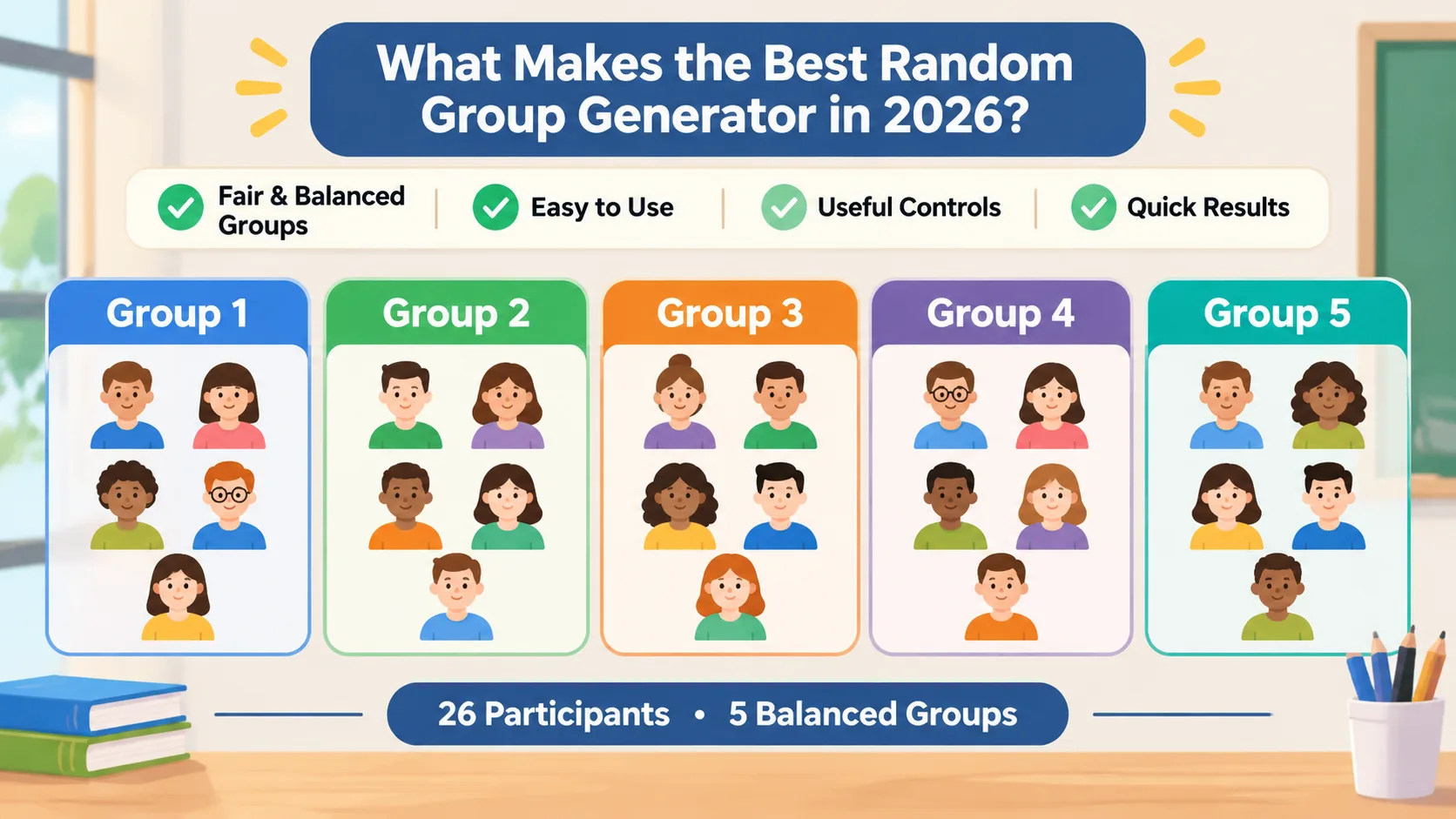
A useful group generator should do more than shuffle a list of names. It should make the grouping process straightforward, produce reasonably balanced group sizes, and give the organizer enough control to prepare participants for the next activity.
For educators, the main concern is often fairness. Students should have opportunities to work with different classmates instead of repeatedly forming the same friendship groups. For corporate trainers, the priority may be creating mixed discussion groups without spending valuable meeting time assigning people manually. Event organizers may care more about speed and ease of communication.
Here are the features worth checking before choosing a tool:
- Balanced group sizes: The tool should distribute participants as evenly as possible, including when the total number does not divide equally.
- Simple participant entry: Adding names should not require a complicated setup process.
- Flexible grouping: Look for options to create a chosen number of groups or groups of a particular size.
- Clear results: Participants should be able to understand their assignments without confusion.
- Practical workflow: Consider whether the results can be shared or transferred into your classroom or meeting process.
- Privacy awareness: Check how participant information is handled before entering sensitive or personally identifiable information.
A simple example illustrates why these details matter. Imagine a teacher with 26 students who needs five discussion groups. A useful generator can distribute the students into groups of five or six rather than forcing the teacher to count and rearrange names manually.
It is also important to understand what random grouping can and cannot do. Random assignment helps reduce the influence of personal preferences, but it does not automatically account for academic ability, accessibility requirements, language needs, or existing classroom relationships. The best results come from combining randomization with thoughtful educator judgment.
1. Random Group Generator by Random Group Generator: Best Overall for Everyday Grouping
For teachers, trainers, and facilitators who need a dedicated grouping tool, the Random Group Generator is a practical starting point. Rather than building a spreadsheet or navigating meeting settings, users can work with a tool specifically designed to create random groups.
Its main advantage is its focus. Group creation is the central task, so the workflow is suited to situations where an organizer already has a participant list and simply needs to divide everyone into teams. This makes it useful for classroom discussions, cooperative learning activities, workshop exercises, and workplace collaboration.
The platform also offers a broader collection of tools. Its verified site features include grouping and pairing tools, a student picker, a group name generator, workflow integrations involving Zoom, Microsoft Teams, Google Classroom, and Slack, and support for nine languages. These options make it useful when grouping is part of a larger facilitation workflow.
Best for: Teachers, corporate trainers, and event facilitators who regularly create groups and want a dedicated online tool.
Advantages:
- Focuses on creating random groups rather than requiring manual assignment.
- Supports balanced grouping as a core platform purpose.
- Offers related tools for different classroom and facilitation activities.
- Supports multilingual use.
- Fits a range of educational and professional scenarios.
Limitations: A random grouping tool cannot determine which participants should work together based on learning needs or professional responsibilities unless those considerations are handled separately. Organizers should review assignments before using them in sensitive situations.
For example, a trainer running a 30-person workshop might create six groups of five for a problem-solving exercise. Instead of asking participants to choose their own teams, the trainer can prepare random assignments and begin the activity with less administrative work.
2. Zoom Breakout Rooms: Best for Live Online Meetings
If your organization already runs meetings through Zoom, its built-in breakout room feature may be the most convenient choice for dividing meeting participants. Instead of generating groups in one place and manually transferring assignments elsewhere, the meeting host can create rooms within the meeting environment.
Zoom supports automatic assignment, manual assignment, and participant-selected rooms. Hosts can also make room arrangements before a scheduled meeting when the relevant pre-assignment options are available. These capabilities are documented in Zoom's official breakout room management guide.
This makes Zoom particularly useful for online training sessions, virtual classrooms, brainstorming meetings, and remote workshops. A facilitator can create several discussion rooms and let participants move into their assigned sessions without relying on a separate grouping spreadsheet.
Best for: Facilitators who already conduct their activities in Zoom.
Advantages:
- Automatic participant assignment is available.
- Hosts can also assign participants manually.
- Participants can be allowed to choose their own rooms.
- Pre-assignment is available for supported meeting setups.
- Group creation and meeting management happen in the same environment.
Limitations: Zoom breakout rooms are designed around meeting sessions, not every type of classroom or team grouping activity. They may be unnecessary when you only need a list of groups for an in-person exercise. Some configuration options also depend on meeting settings, account permissions, and participant requirements.
Consider a remote professional development session with 24 teachers. The host could create four breakout rooms and automatically distribute participants among them. Each group could then discuss a classroom scenario before returning to the main session.
For a one-time in-person activity, however, a dedicated random group generator is generally a more direct option because there is no need to create an online meeting first.
3. Microsoft Teams Breakout Rooms: Best for Organizations Using Teams
Microsoft Teams provides another useful option for online group activities. Meeting organizers and appointed breakout room managers can create rooms and assign participants before or during a meeting, depending on the available settings.
One useful capability is the shuffle option. Microsoft's official instructions explain that an organizer can select the shuffle function during a meeting to assign participants randomly. Organizers can also manually assign participants when a specific arrangement is required.
Teams is particularly suitable for organizations that already use Microsoft 365 for communication and collaboration. A facilitator can manage group discussions without asking participants to switch to a separate website for room assignments.
Best for: Corporate trainers, educators, and distributed teams that already use Microsoft Teams.
Advantages:
- Supports random participant assignment through its shuffle feature.
- Allows manual room assignments.
- Supports creating breakout rooms before or during meetings.
- Keeps meeting room management within Teams.
- Offers room management features for facilitators.
Limitations: Its grouping functionality is closely tied to Teams meetings. If you need a reusable list of classroom teams, printed assignments, or groups for an offline activity, a dedicated generator may be more convenient. Access and available controls can also depend on meeting roles and organizational settings.
For example, a company with 20 employees could create four breakout rooms for a remote brainstorming session. The facilitator can shuffle the participants, open the rooms, and bring everyone back together when the discussion finishes.
Microsoft's official guide to assigning people to breakout rooms explains the available assignment process.
4. Spreadsheet-Based Random Grouping: Best for Custom Rules
A spreadsheet is a flexible alternative when your grouping requirements are more complicated than ordinary random assignment. Teachers and facilitators can maintain participant lists, add relevant columns, and use spreadsheet formulas or built-in randomization features to organize people.
For instance, a teacher might want groups that contain a mixture of students from different project teams. A trainer might need to distribute participants from several departments across discussion groups. A spreadsheet allows the organizer to keep track of additional information while preparing assignments.
The trade-off is setup time. Someone must create the spreadsheet, check the formulas, manage the participant list, and verify that every person has been assigned correctly. A simple grouping task can become unnecessarily complicated when the organizer only needs a quick shuffle.
Best for: Organizers who need custom grouping rules or already maintain detailed participant spreadsheets.
Advantages:
- Highly adaptable to different participant lists.
- Can incorporate additional information and custom rules.
- Useful for recurring activities with established records.
- Allows organizers to inspect and adjust assignments.
Limitations: Spreadsheet formulas can be confusing for occasional users. Random values may change when a sheet recalculates, depending on the formula and application. Organizers should save a finalized assignment list and verify the results before sharing them.
Imagine an instructor who has 32 students and wants eight groups of four. The instructor can number the participants, randomize their order, and divide the resulting list into consecutive sets of four. If particular students must not be placed together, the instructor will need an additional review or custom process.
A spreadsheet is therefore a strong option for special requirements, but it is not necessarily the fastest choice for routine grouping.
5. Manual Group Assignment: Best for Highly Sensitive or Specific Activities
Sometimes the best solution is not a random tool at all. Manual grouping gives teachers and facilitators complete control over who works with whom. This matters when participants have specific support needs, when a project requires particular skills, or when an activity depends on carefully planned collaboration.
For example, an instructor may want every group to include students with different areas of expertise. A workplace facilitator may need representatives from several departments in each discussion team. Randomization alone cannot guarantee these combinations.
Manual assignment also gives organizers the opportunity to account for accessibility, interpersonal conflicts, language needs, and other considerations that should not be handled by an ordinary random shuffle.
Best for: Activities where group composition matters more than speed or unpredictability.
Advantages:
- Full control over participant placement.
- Can account for specific learning or workplace requirements.
- Makes it easier to create deliberately mixed teams.
- Allows organizers to respond to individual circumstances.
Limitations: Manual grouping takes time and can unintentionally repeat familiar patterns or introduce personal bias. For large participant lists, it is also easy to overlook someone or create uneven groups.
A practical compromise is to start with random assignments and make only the necessary adjustments. This preserves some unpredictability while allowing the facilitator to account for important circumstances.
How to Choose the Best Random Group Generator for Your Needs
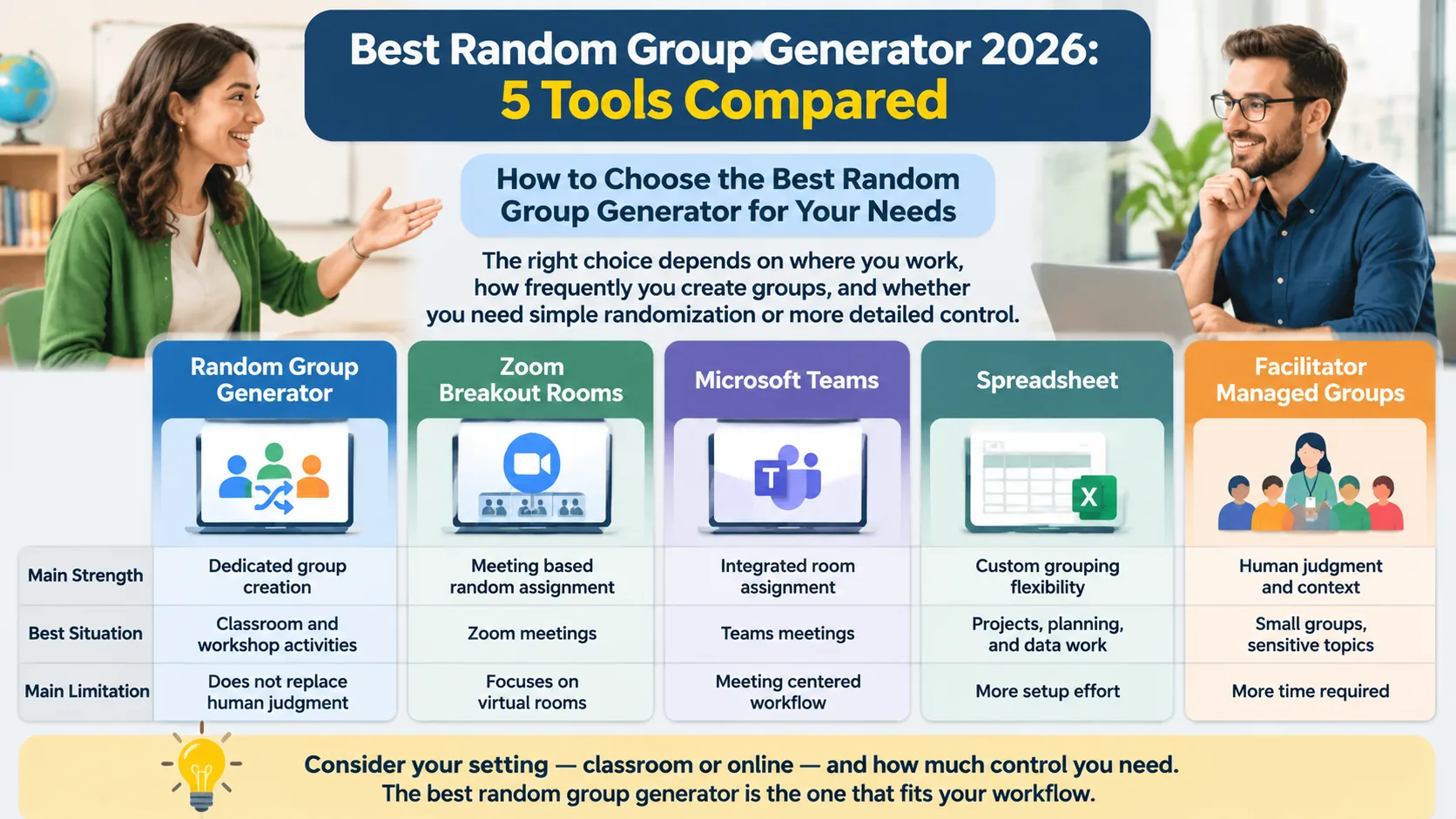
The right choice depends on where you work, how frequently you create groups, and whether you need simple randomization or more detailed control. A classroom teacher preparing an in-person discussion has different needs from a corporate trainer managing an online meeting.
Use the following comparison to narrow down your options:
| Tool or method | Main strength | Best situation | Main limitation |
|---|---|---|---|
| Random Group Generator | Dedicated group creation | Classroom and workshop activities | Does not replace human judgment |
| Zoom breakout rooms | Meeting-based random assignment | Zoom meetings | Focuses on virtual rooms |
| Microsoft Teams | Integrated room assignment | Teams meetings | Meeting-centered workflow |
| Spreadsheet | Custom grouping rules | Complex participant requirements | Requires setup and checking |
| Manual assignment | Complete organizer control | Special group composition needs | Takes more time |
Before choosing, ask yourself three questions.
First, do you need groups or online rooms? If you simply need a list of teams for an in-person activity, a dedicated generator is usually sufficient. If everyone is already attending an online meeting, the meeting platform's built-in tools may be more convenient.
Second, do you need completely random or deliberately balanced teams? Random distribution can help produce similarly sized groups, but equal group sizes are not the same as equal skill levels or experience. If your activity requires a particular mix of abilities, plan to review the results.
Third, how often will you repeat the activity? A teacher who creates groups several times each week benefits from a straightforward, repeatable workflow. Someone organizing one annual workshop may be perfectly comfortable using a spreadsheet or meeting platform.
How to Create Fair Random Groups in a Few Steps
Once you have chosen a suitable random group generator, preparing the participant list correctly is just as important as selecting the tool.
Follow this practical process:
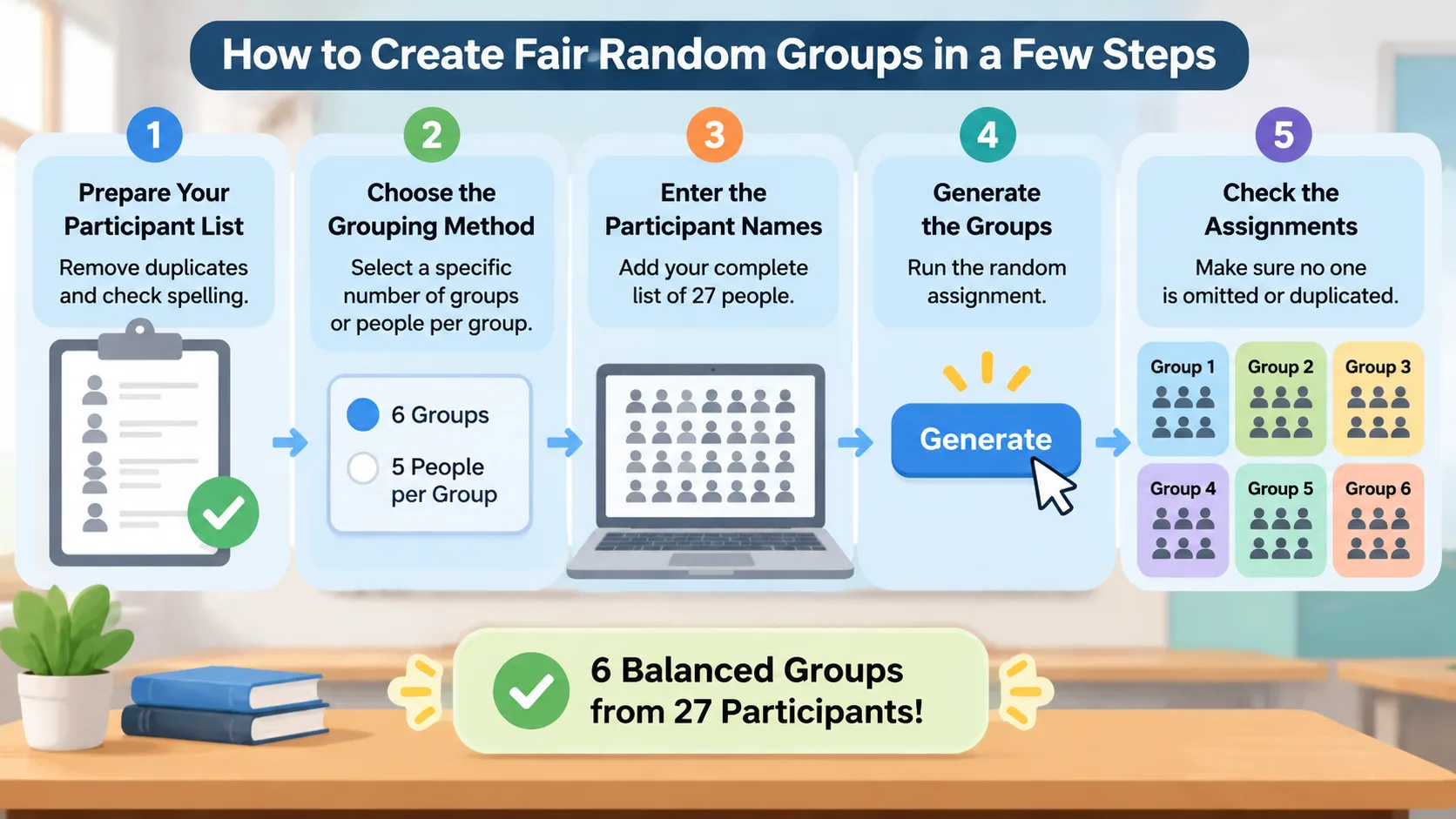
- Prepare your participant list. Collect the names of everyone who should participate. Remove duplicates and check spelling before starting.
- Choose the grouping method. Decide whether you want a specific number of groups or a specific number of people per group.
- Enter the participant names. Add the complete list to your chosen grouping tool.
- Generate the groups. Run the random assignment and review the resulting group sizes.
- Check the assignments. Confirm that nobody has been omitted or included twice. Consider whether any necessary accessibility or activity-related adjustments are needed.
- Share the results. Display the groups, copy the assignments into your lesson plan, or communicate them through your normal meeting workflow.
- Reflect before repeating. For recurring activities, consider whether students or employees are getting opportunities to collaborate with different people over time.
For example, suppose a teacher has 27 students and wants six groups. The generator can distribute the students into three groups of five and three groups of four. Every student is included, and the group sizes differ by only one person.
For repeated classroom activities, it can also be helpful to keep a simple record of previous assignments. Randomization can produce the same pair or group more than once, even when the process is fair. Reviewing recent assignments helps teachers introduce variety when that is an important learning goal.
Common Mistakes to Avoid When Using Random Group Generators
Even a convenient tool can produce disappointing results if the organizer does not prepare properly. One common mistake is entering an incomplete participant list. If a student is absent or an employee has not been included, the resulting groups will not reflect the actual session.
Another mistake is assuming that equal group sizes automatically create balanced teams. A group of five beginners and a group of five experienced participants have the same size, but they may have very different capabilities. For activities where experience matters, review the assignments and adjust them when necessary.
A third mistake is rerunning the generator repeatedly until the preferred names appear together. This undermines the purpose of random assignment and can introduce the same personal preferences that the tool was intended to reduce.
Finally, do not overlook privacy. Participant lists may contain personal information. Use only the information necessary to create groups, avoid entering sensitive details without a clear reason, and follow your organization's data-handling requirements.
A useful rule is to generate once, review for legitimate practical concerns, and communicate the final assignments clearly. This keeps the process understandable and helps participants trust the activity.
Frequently Asked Questions
What is the best random group generator in 2026?
The best option depends on your workflow. A dedicated tool such as Random Group Generator is a practical choice for classroom activities, workshops, and everyday team creation. Zoom and Microsoft Teams are convenient when you specifically need to distribute participants into virtual meeting rooms.
How do random group generators make balanced groups?
A grouping tool distributes participants across the requested number of groups or group sizes. When the total participant count does not divide evenly, some groups may contain one more person than others. This creates balanced group sizes, although it does not automatically balance academic ability, experience, or other personal characteristics.
Can teachers use a random group generator for classroom activities?
Yes. Teachers can use random grouping for discussions, collaborative projects, revision exercises, presentations, and classroom games. Before sharing the assignments, teachers should check attendance and consider any learning or accessibility requirements that need attention.
Is a random group generator better than choosing groups manually?
For routine activities, random assignment is often faster and can reduce the influence of personal preferences. Manual assignment is more appropriate when specific skills, support needs, or interpersonal considerations determine who should work together. A combination of randomization and limited adjustments can work well in many classrooms and workplaces.
Can I create groups with unequal numbers of participants?
Yes. When the total number of participants cannot be divided evenly, a grouping tool can distribute the extra participants across different groups. For example, 23 participants divided into four groups can produce groups of six, six, six, and five. The difference is only one participant per group.
Should I use a group generator or breakout rooms for online classes?
Use a dedicated group generator when you need to prepare team assignments independently of a live meeting. Use Zoom or Microsoft Teams breakout rooms when you want to place participants directly into virtual discussion spaces. The right option depends on whether your immediate goal is creating group lists or managing online sessions.
Create Your Groups with Less Manual Work
Choosing groups should not take longer than the activity itself. Whether you are preparing a classroom discussion, organizing a professional development workshop, or dividing employees into project teams, the right tool can make the process easier and more consistent.
For everyday grouping, start with a dedicated tool that lets you organize participants without building a complicated spreadsheet. Review the assignments, make any necessary adjustments, and give everyone clear instructions before the activity begins.
Try the Random Group Generator to create your next set of teams. Enter your participants, generate your groups, and spend less time organizing and more time helping people work together.
Related Tools
Pick the right generator for the job — every tool runs free in your browser.