
best apps random student groups
5 Best Apps for Random Student Groups: A Teacher’s Guide
Compare 5 apps for randomly assigning student groups. Explore classroom features, balancing options, ease of use, and tips for fair group assignments.
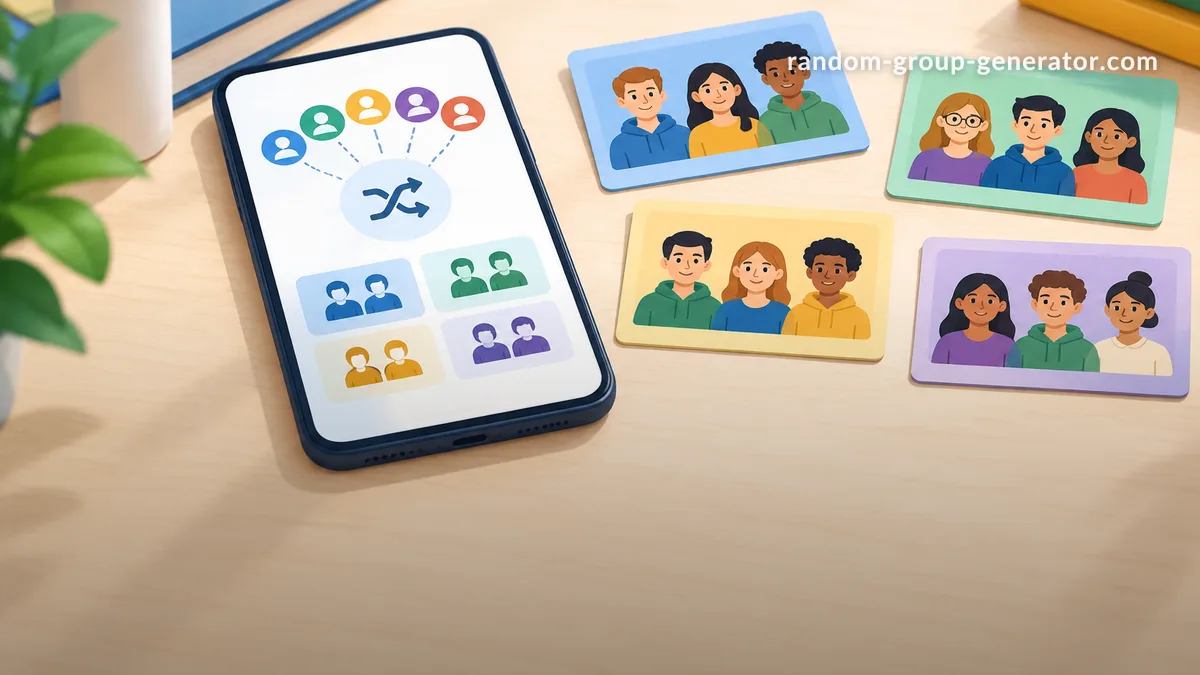
Dividing a classroom into groups sounds simple until you have 28 students, three different activities, and only a few minutes before the lesson begins. Choosing groups manually can waste valuable teaching time, create repeated combinations, and leave students wondering whether assignments are fair. The best apps for random student groups make this process quicker by distributing names automatically and giving teachers more control over how teams are organized. Whether you teach elementary school, lead university seminars, or run corporate training sessions, the right tool can make group activities easier to manage.
Not every group-making app works the same way. Some focus on quick random assignments, while others offer balanced teams, saved class lists, presentation-friendly displays, or additional classroom activities. This guide compares five useful options and explains when each one makes sense.
What Should Teachers Look for in an App for Random Student Groups?
Before choosing an app, consider how you normally organize collaborative activities. A teacher who creates temporary groups for a five-minute discussion has different needs from an instructor who regularly assigns project teams for several weeks. The most useful tool is the one that fits your actual classroom routine rather than the one with the longest feature list.
Start with these practical considerations:
- Flexible group sizes: Look for a tool that lets you choose the number of groups or the number of students in each group.
- Fair distribution: Check whether the app distributes participants evenly when the class size cannot be divided perfectly.
- Easy roster management: Pasting names, excluding absent students, and reusing class lists can save preparation time.
- Useful customization: Some activities require completely random groups, while others need certain students to stay together or work separately.
- Convenient results: Consider whether you can display, print, save, or share the generated assignments.
For example, imagine a teacher with 26 students who needs five discussion groups. An effective group maker should distribute the class into groups of five or six rather than leaving several students unassigned. The teacher should also be able to review the results before displaying them.
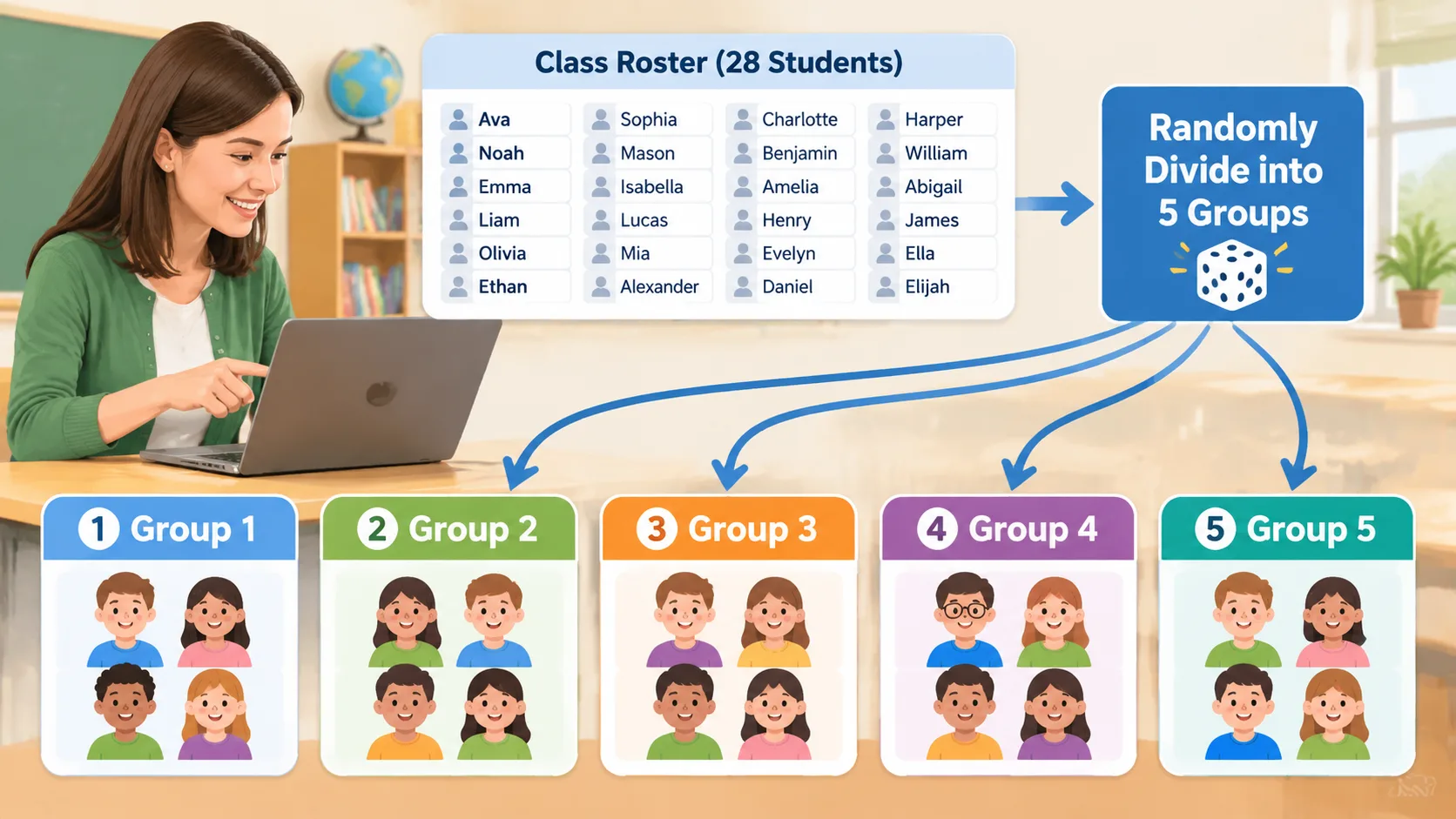
One important distinction is that random does not automatically mean academically balanced. A completely random assignment can put several advanced students together or create a team with limited experience. If your activity requires specific skill levels or carefully planned combinations, choose an app with balancing or grouping controls instead of relying on a basic shuffle.
1. Random Group Generator: A Simple Browser-Based Option
Random Group Generator is a practical starting point for teachers who want to create student groups without turning the process into another classroom management task. Instead of selecting students one at a time, you can use a group generator to organize a participant list into separate teams. This approach is particularly useful for daily discussions, collaborative exercises, classroom games, and short-term projects.
The main advantage of a dedicated group generator is its straightforward purpose. You do not need a complicated classroom management system just to divide a roster. Teachers can focus on the assignment itself, choosing how many groups they need and reviewing the resulting distribution before students begin working.
A typical classroom workflow looks like this:
- Open the Random Group Generator.
- Enter or paste the names of participating students.
- Choose the desired number of groups or group size, depending on the available settings.
- Generate the groups.
- Review the assignments and make any necessary classroom adjustments.
- Share the results with students or display them during the lesson.
Consider a middle school science teacher who has 24 students and wants six laboratory teams. The teacher can enter the roster, generate six groups, and use the results to organize the practical activity. For a later lesson, the teacher can generate a fresh arrangement rather than repeatedly choosing the same students.
This type of tool is especially suitable when speed and simplicity matter more than advanced team-management features. However, random assignment should not replace teacher judgment. If a laboratory activity requires specific supervision arrangements, accessibility accommodations, or equipment limitations, check the assignments before students start.
2. Classroomscreen: Group Making Within a Classroom Display
<Classroomscreen> is useful for teachers who want group assignments alongside other classroom management features. Its Group Maker widget can randomly distribute students using a name list, making it a convenient option for lessons where teachers already use the platform to organize classroom activities.
According to the official help documentation, teachers can select a saved list, deselect absent students, choose the number of groups, and generate assignments. The tool also supports changing group names and colors, manually moving students, locking selected students in place, and rotating groups. These options provide more flexibility than a basic random assignment tool.
Here is an example of how a teacher might use it:
- Open the Group Maker widget.
- Select an existing student list or enter names.
- Remove students who are absent.
- Set the number of groups using the available controls.
- Create the groups and review the distribution.
- Rename or recolor groups if that helps students identify their teams.
Imagine a teacher organizing a station-based reading activity. Students need to move between different learning stations, and the teacher wants to change their arrangements during the lesson. Classroomscreen's group rotation feature can help reorganize the displayed groups without requiring the teacher to start the entire process again.
Its main strength is its classroom-oriented workflow. The platform offers additional widgets, including timers and other teaching aids, so it may be useful when you want several classroom functions in one place. However, teachers who only need a quick group assignment may prefer a more focused generator. Also, check which account features are available before relying on saved lists or other advanced options.
3. Flippity: A Flexible Option for Interactive Classroom Activities
Flippity offers several educational activities, including a Random Name Picker that can also create student groups. It is worth considering if you want more than a basic group generator and enjoy using interactive activities to support classroom participation.
Its Random Name Picker includes several ways to work with student names. According to the official website, teachers can create groups, teams, lineups, seating arrangements, and other classroom lists. The group-making options are useful for teachers who want to vary their activities rather than using the same grouping method every time.
Flippity also supports a spreadsheet-based workflow. Teachers can use its Google Sheets template, organize names into columns, and generate links to the associated activities. The instructions explain that users need to make a copy of the template and use the generated links to access their tools.
A practical example is a high school English teacher preparing a collaborative literature lesson. The teacher can organize a class roster and use Flippity to create discussion teams. In another lesson, the same teacher might use its seating chart or lineup options to support a different classroom activity.
To get started:
- Visit the Flippity website.
- Open the Random Name Picker activity.
- Choose the quick-edit option or follow the spreadsheet instructions.
- Enter student names and organize the roster.
- Open the relevant grouping option.
- Generate the assignments and share the results.
Flippity is a good choice for teachers who are comfortable working with spreadsheets and want several classroom activities available from one platform. The trade-off is that its spreadsheet-based setup can take more preparation than entering names directly into a simple group generator. Teachers should also review how their generated links handle roster information before sharing them outside the intended classroom.
4. Team Shake: An App for Creating Random or Balanced Teams
Team Shake takes a different approach by focusing on team creation through a dedicated mobile app. It is designed for situations where teachers, coaches, or facilitators need to divide participants into teams quickly, including school projects, sports activities, and classroom games.
The app's published feature list includes random and balanced team creation, saved participant lists, importing names from files, and exporting team information. It also describes options for assigning participant strengths and keeping certain people together or apart. These features make Team Shake particularly relevant when a completely random distribution is not the only goal.
For example, a physical education teacher might have 20 students who need to be divided into four teams for a classroom competition. A purely random arrangement may produce teams with noticeably different ability levels. Where appropriate, the teacher can use the available balancing options to create a more even competition.
A typical process is:
- Install and open Team Shake on a supported device.
- Enter names or import a participant list.
- Exclude anyone who is absent.
- Select the number of teams or the number of participants per team.
- Choose random or balanced team settings.
- Generate and review the results.
- Save, export, or share the teams when needed.
Team Shake is particularly suitable for educators who regularly organize physical activities, competitions, and collaborative projects. Its balancing controls offer more options than a basic randomizer. However, it is a mobile application rather than a simple browser-first tool, and the current App Store listing identifies it as a paid download. Check device compatibility and pricing before choosing it for school-wide use.
5. Random Picker Wheel: A Visual Approach to Group Assignments
A random picker wheel can make group assignments more visible and engaging, especially when the teacher wants students to participate in the selection process. Random Picker Wheel offers classroom-focused tools, including a team generator and student picker, through a browser-based interface.
The platform describes features for dividing a class into groups, reshuffling participants, and displaying results on classroom screens. Its classroom tools are designed around quick access and large, readable displays. This can be useful when a teacher wants the whole class to see how assignments are being made instead of announcing groups privately.
Imagine a teacher running a Friday review activity with 30 students. Rather than writing six team lists on the board, the teacher can prepare the participant names, use the team generator, and display the results. Students can immediately identify their teammates and move into position.
A simple workflow is:
- Open the classroom group or team generator.
- Enter the student names.
- Select the desired group arrangement.
- Generate the teams.
- Display the results on a projector or classroom screen.
- Review the assignments before beginning the activity.
The visual approach is especially helpful for younger students and activities where seeing the assignment process adds interest. However, a spinning wheel is not automatically better than a standard group list. If you need detailed team balancing, saved class rosters, or more complex restrictions, compare the available controls carefully before committing to a particular tool.
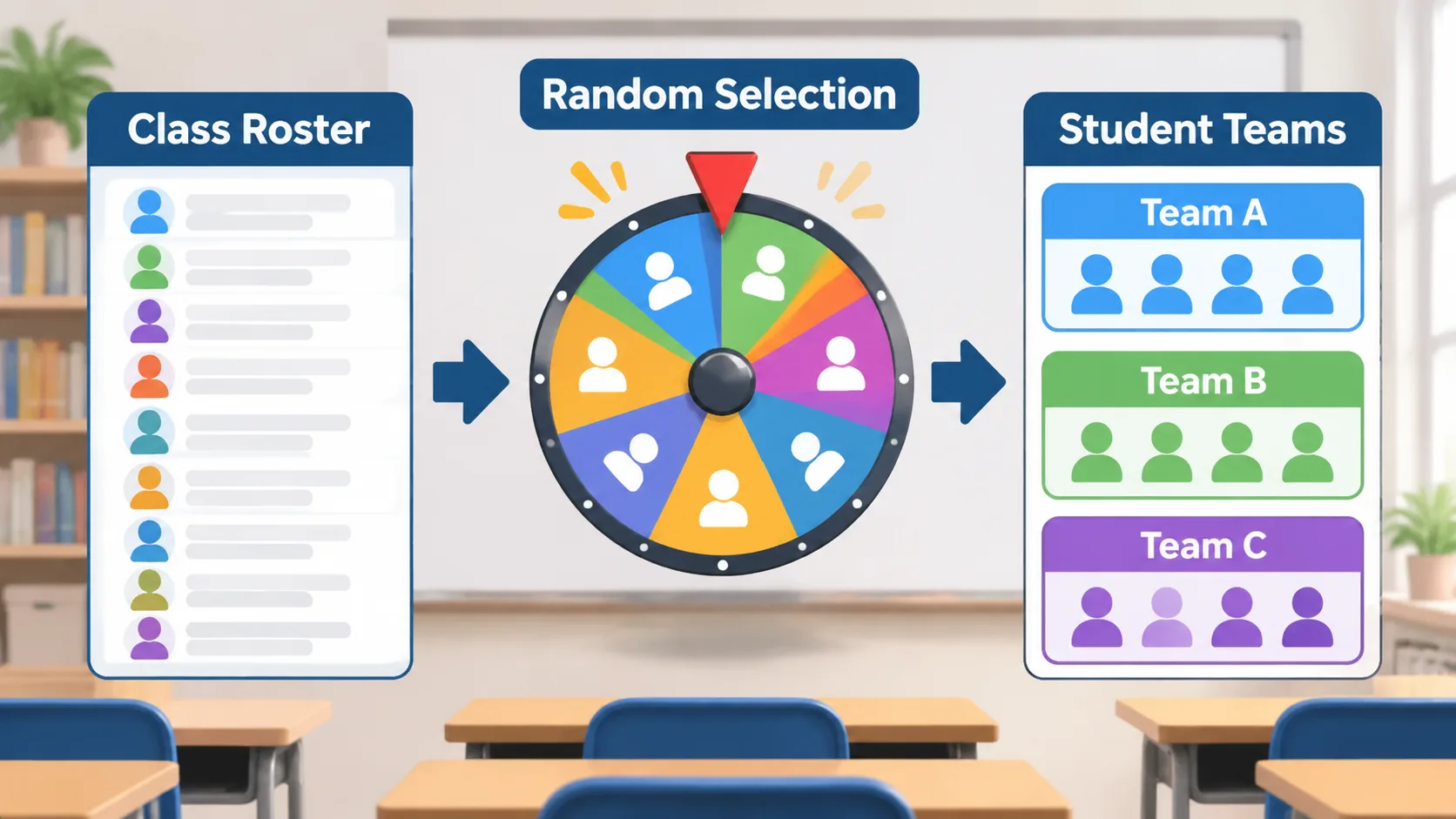
How to Choose the Right App for Random Student Groups
The five tools serve similar purposes, but they are not interchangeable. The best choice depends on the amount of control you need, the devices available in your classroom, and how frequently you create new groups.
Use these practical guidelines when making your decision:
- For quick everyday grouping: Start with Random Group Generator if you want a focused way to divide a class into teams.
- For a classroom management workspace: Consider Classroomscreen if you also use its other teaching widgets.
- For spreadsheet-based activities: Try Flippity if you want several educational activities connected to organized name lists.
- For skill-conscious team assignments: Consider Team Shake when balancing options are important.
- For visual classroom participation: Explore Random Picker Wheel when displaying the selection process is part of the activity.
The right choice also depends on how you define fairness. If your goal is to give everyone an equal opportunity to work with different classmates, random distribution may be appropriate. If the task requires balanced skills, specific learning accommodations, or carefully selected combinations, teacher oversight is essential.
For instance, a university instructor assigning short discussion groups may prefer a quick browser-based tool. A sports coach organizing teams for a competitive activity may need additional balancing controls. A corporate trainer running a workshop may value a tool that makes team assignments easy to display and share.
It is also worth checking privacy and school technology policies. Student names are personal information, and schools may have rules about entering them into external websites or applications. Use approved tools, avoid unnecessary identifying information, and review privacy documentation before uploading a class roster.
Tips for Making Random Student Group Assignments Fairer
Even the best apps for random student groups cannot make every classroom decision automatically. A useful tool can distribute names, but teachers still need to consider the purpose of the activity and whether the resulting teams are appropriate.
Start by defining what success looks like. For a quick brainstorming exercise, completely random groups may be ideal. For a graded science project, you may want to consider experience, learning needs, and the responsibilities students will share. The method should support the learning objective rather than create additional obstacles.
These steps can make the process more effective:
- Use an accurate roster. Remove absent students and correct duplicate or outdated names before generating groups.
- Choose the group size carefully. Smaller groups can make it easier for everyone to contribute, while larger teams may be suitable for complex projects with several responsibilities.
- Explain the selection method. Tell students whether assignments are random or balanced so they understand how teams were created.
- Check the results. Review assignments for accessibility, classroom behavior, and activity-specific requirements.
- Rotate combinations over time. Avoid relying on one permanent arrangement when students benefit from collaborating with different classmates.
- Give each team a clear task. Assign roles such as discussion leader, note-taker, researcher, or presenter when the activity requires shared responsibility.
Consider a teacher who creates four groups for a history debate. The teacher can use a random group generator to produce an initial arrangement, then check whether each group has the resources and support needed for the debate. Students receive a clear question, defined roles, and enough time to prepare their arguments.
Remember that random assignment does not guarantee equal academic ability, equal participation, or successful teamwork. It is a practical way to reduce manual selection and introduce variety, not a substitute for thoughtful teaching and facilitation.
Frequently Asked Questions
What is the best app for randomly assigning student groups?
The best option depends on your classroom needs. Random Group Generator is a practical starting point for straightforward group creation, while Classroomscreen and Flippity offer additional classroom activities. Team Shake is worth considering when balanced teams and mobile use are priorities.
Are random student group generators free?
Some browser-based tools provide free access to their basic grouping features, while other platforms offer a mixture of free and paid options. Check current pricing, account requirements, and feature restrictions before using a tool regularly. A paid app may be worthwhile if its additional controls save preparation time.
How do I divide 25 students into equal groups?
You cannot divide 25 students into perfectly equal groups if you want more than one group. For five groups, assign five students to each group. For four groups, distribute the students as evenly as possible, creating one group of seven and three groups of six. A group generator can help organize the distribution automatically.
Are random student groups fair?
Random assignments can reduce the influence of personal preferences and repeated manual choices, but they do not guarantee balanced skills or equal learning opportunities. Teachers should review the results when an activity involves specific support needs, accessibility considerations, or team responsibilities. Randomness is a useful starting point, not a complete definition of fairness.
Should teachers use random groups for every classroom activity?
No. Random grouping works well for short discussions, review games, brainstorming, and activities where students benefit from meeting different classmates. Longer projects or activities with specialized requirements may need teacher-selected teams or a combination of random assignment and manual adjustments.
Can I use a student group generator for online classes?
Yes, browser-based group generators can help instructors prepare teams for online discussions and collaborative assignments. You can generate the groups before a session and then share the assignments through your approved learning management system or communication platform. Check whether the tool supports the sharing format you need, and avoid exposing student information through public links.
Start Creating Student Groups in Less Time
Organizing students into teams should support your lesson, not become the lesson itself. A suitable group-making app can reduce repetitive administrative work, introduce new student combinations, and make classroom activities easier to organize.
Start with the simplest tool that meets your needs. If you regularly create discussion groups, project teams, or classroom activity groups, try the Random Group Generator and see how it fits your teaching routine. Enter your class list, create your groups, review the assignments, and get students working together.
Related Tools
Pick the right generator for the job — every tool runs free in your browser.