
random pair generator
Random Pair Generator vs Random Group Generator: Which One Do You Need?
Confused between the random pair generator and random group generator? This guide explains key differences, best use cases, and step-by-step workflows for teachers and facilitators.
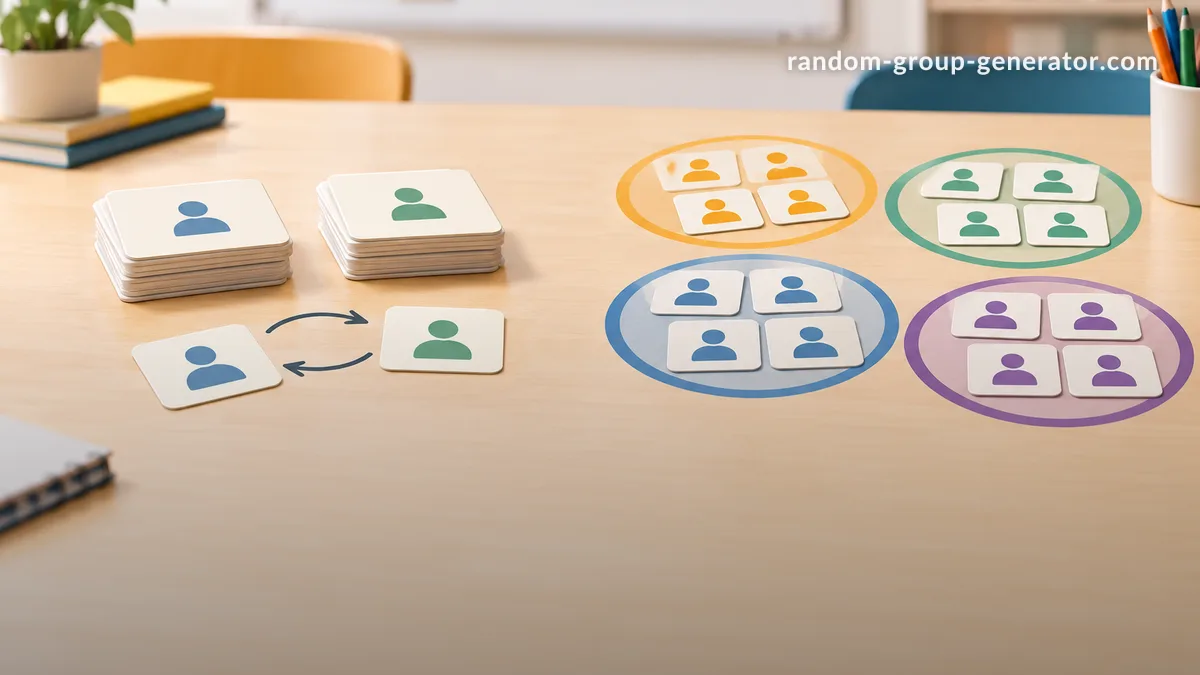
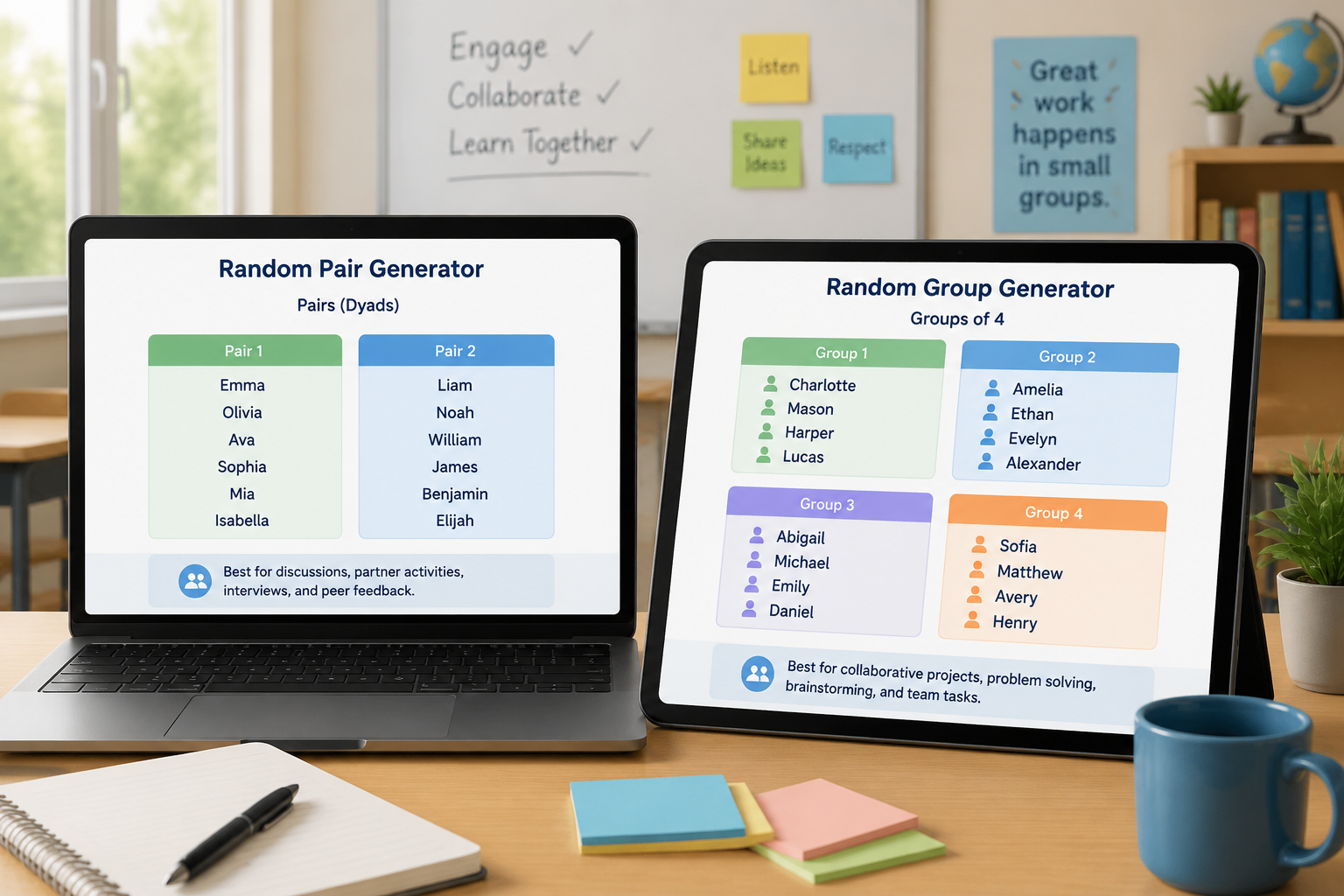
As a teacher or workshop facilitator, you have probably faced the challenge of splitting a class or group into smaller units for an activity. Do you pair everyone up? Or do you create teams of three, four, or five? Random grouping can boost engagement, but the size of those groups changes everything. This article compares the random pair generator and the random group generator on the Random Group Generator platform, helping you decide which tool fits your educational or professional scenario best.
Both tools are free, web-based, and designed to eliminate bias while saving preparation time. The key is understanding when dyads work better than small groups, how each tool handles uneven lists, and what kind of interaction you want to spark.
What Is a Random Pair Generator?
A random pair generator assigns every student or participant exactly one partner, turning a full list into a set of pairs. Because the outcome is always two-person groups, the tool is optimized for simplicity and speed. You paste a roster, click a button, and immediately see who works with whom.
Think-pair-share activities, peer editing, lab partners, and interview-style icebreakers all benefit from pairing. In pairs, there is no place to hide. Each person must contribute, which dramatically increases individual speaking time during language lessons or group discussions. Educators have long observed that pairs reduce social loafing compared to larger groups where quieter members may fade into the background.
Ms. Johnson, a high school biology teacher, uses the Random Pair Generator every Friday for peer review of lab reports. She copies her 28-student roster from Google Classroom, pastes it into the generator, and receives 14 random pairs in seconds. Students then exchange feedback before she regroups them for the next assignment. The whole process takes under a minute, and because the pairing is truly random each week, students work with a wide range of classmates over the term.
How to Use the Pair Generator
- Navigate to the Random Pair Generator.
- Type or paste your list of names, one per line. You can also upload a text file if you manage large cohorts.
- Click “Generate Pairs.” The tool shuffles the list and displays pairs in a clean two-column layout.
- If you need a different arrangement, click “Regenerate” or tweak the list and try again.
- Copy the results or share your screen directly with the class.
If you have an odd number of names, the tool alerts you. You can decide if the remaining person joins an existing pair to form a trio or works with the facilitator.
What Is a Random Group Generator?
Unlike the pair tool, the random group generator lets you define how many groups you need or how many people should be in each group. You can create groups of any size—three for jigsaw activities, four for table teams, five or six for long-term projects. This flexibility makes it the go-to tool for complex classroom models, corporate team-building workshops, and event planning.
Groups larger than two foster a different dynamic. They allow for diverse perspectives, role assignment, and richer discussion. However, they also require more careful facilitation to ensure all voices are heard. Research on cooperative learning consistently finds that groups of three to four are ideal for complex tasks, balancing participation and a variety of viewpoints (Marzano et al., 2001).
Mr. Patel, a corporate trainer, runs monthly onboarding sessions for 45 new hires. He uses the Random Group Generator to split attendees into mixed departmental groups of five. This prevents friends from clustering together and encourages cross-functional collaboration from day one. After the groups are displayed, he sends them to breakout rooms in Zoom, where they tackle case studies. Because the tool randomises each session, returning employees can never predict their team.
How to Use the Group Generator
- Go to the Random Group Generator.
- Enter your participant list, one name per line.
- Choose “Number of groups” or “Number of participants per group.” For example, to form seven teams regardless of list size, you would set 7 groups.
- Click “Generate Groups.” The output shows each group with its members.
- Use the “Regenerate” button to reshuffle. The tool handles remainders automatically—extra members are distributed evenly so that no group is significantly larger.
You can also export the list or display it full-screen for the participants to see.
Key Differences Between the Random Pair Generator and Group Generator
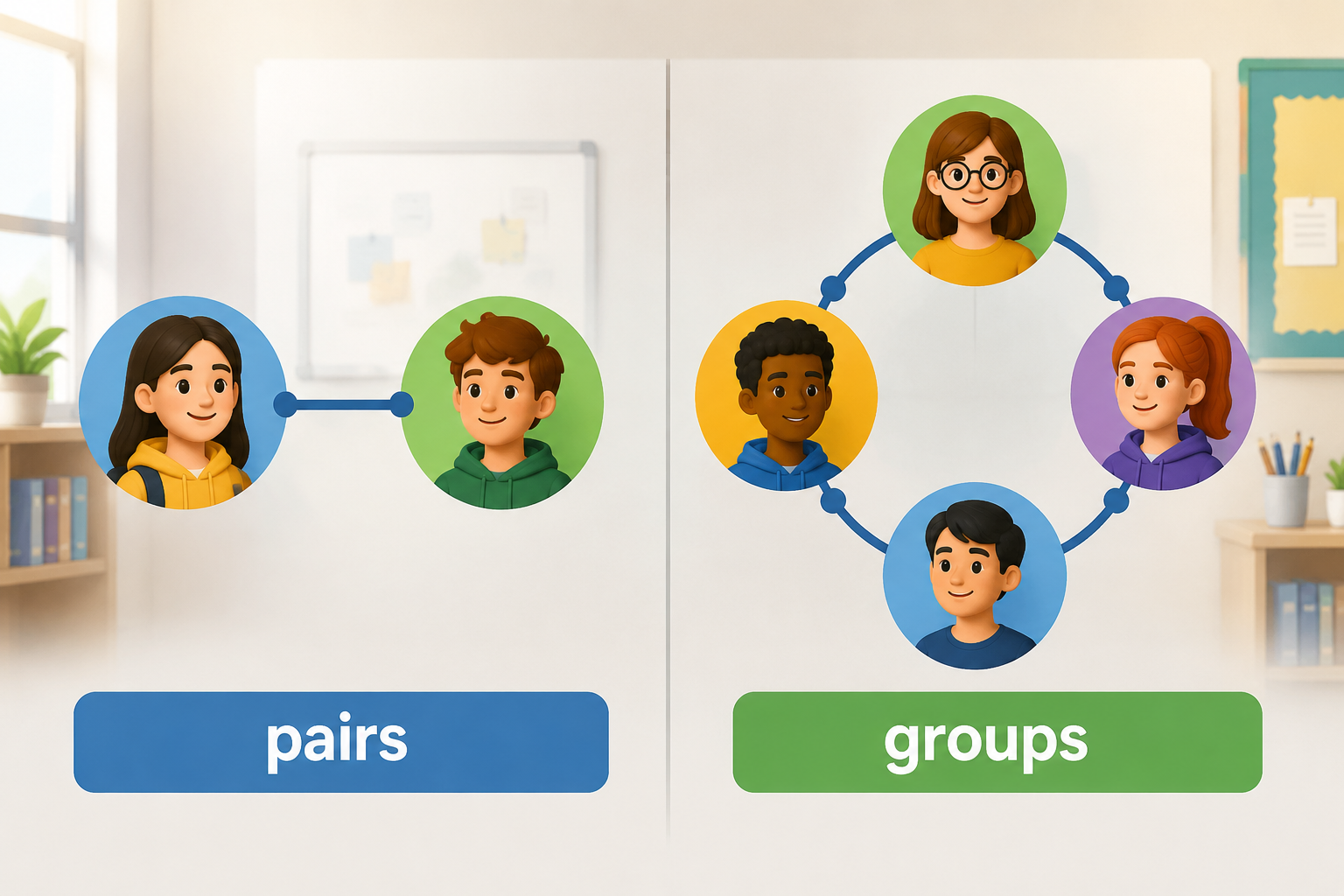
While both tools produce random assignments, their design goals and outputs differ in ways that directly affect your activity.
1. Group size flexibility
The pair generator is rigidly binary; it always creates groups of two. This is perfect when you need equal talk time or strict one-on-one interaction. The group generator, on the other hand, lets you set any whole‑number size. Need triads for a science lab where each student has a role (recorder, builder, reporter)? You can generate exactly that. The pair tool cannot do it.
2. Handling odd numbers
With the pair generator, an odd‑count list leaves one person unpaired. The tool notifies you, and you must manually decide the outcome. The group generator absorbs remainders gracefully: if you have 22 people and request groups of 5, you get four groups of 5 and one group of 2, or you can set the number of groups instead and let the tool balance them. For a mixed‑size activity, this is a lifesaver.
3. Algorithm and output
The pair generator uses a one‑to‑one matching process, guaranteeing every student has exactly one partner. The group generator distributes all names across N groups using a uniform shuffle. Neither tool repeats the same assignment in consecutive runs unless you specifically ask it to; both rely on a Fisher‑Yates‑based shuffle to ensure fair distribution.
4. Classroom management
Pairs are easier to manage physically. Desks can stay where they are, noise levels are lower, and transitions are quicker. Groups of four or more often require moving furniture or entering breakout rooms. The pair generator saves time when you need a rapid, low‑disruption rearrangement.
5. Integration workflow
Both tools support copy‑paste into breakout room platforms, but the group generator offers a dedicated Zoom integration that sends group names directly into breakout rooms. The pair generator can achieve a similar result by you manually assigning pairs from the displayed list.
When Should You Use a Random Pair Generator?
Opt for the pair generator when you want to maximise individual accountability and speaking time. Language teachers love it for dialog practice. Camila, a Spanish instructor, uses the generator every class to give students a fresh speaking partner. After five minutes of conversation, she regenerates pairs and students move again. In one 45‑minute lesson, a student might interact with four or five different partners—far more exposure than staying in a small group for the whole period.
Use the pair generator for:
- Quick think‑pair‑share sessions
- Peer editing and feedback exchanges
- Interview‑style icebreakers during the first week of school
- Lab partners where only two sets of hands fit at a station
- Tutoring pair‑ups where a stronger student works with someone who needs support
- Conference networking activities
The key advantage: no participant can hide. The forced one‑on‑one dynamic builds communication skills and ensures even shy students speak.
After generating pairs, many teachers display the results on a projector or link the output in Slack for virtual teams. If you teach online, you can copy the pairs and manually assign them in your video conferencing tool.
When Should You Use a Random Group Generator?
Choose the group generator when a task benefits from multiple perspectives and division of labor. Long‑term projects, escape room challenges, and design sprints all thrive in groups of three to six. Mr. Lee, an eighth‑grade science teacher, assigns a month‑long renewable energy project. He uses the Random Group Generator to create teams of four, ensuring students do not self‑select into cliques and that each team mixes achievement levels.
The tool is also ideal for:
- Jigsaw activities, where each group member becomes an expert on a subtopic
- Sports team allocation for PE classes
- Staff development workshops that require cross‑departmental collaboration
- Large conference breakout sessions
- Board game or trivia teams at community events
- Role‑based group tasks where you need a specific number of members (e.g., manager, designer, tester)
With the group generator, you can experiment with size. For a 30‑student class, you might compare groups of three (10 groups, more reports to manage) against groups of five (6 groups, richer but slower discussion). The tool lets you try both in seconds and decide what fits your time block.
Can You Use Both Tools Together?
Absolutely. In fact, combining them within one lesson is a powerful way to vary participation structures. For example, begin with a pair discussion using the pair generator to warm up ideas. After five minutes, stop the class and ask each pair to join another pair, forming a group of four. You can achieve this by taking your original list and running it through the group generator set to groups of four—though the tool will randomise completely, which might break the existing pairs. An alternative is to manually combine pairs, but if you need a fresh mix, the group generator works well.
This two‑step approach keeps energy high and prevents the monotony of staying in the same configuration. Corporate trainers often pair participants for a role‑play, then group them into fives for a case study analysis. The platform’s ability to switch tools instantly makes such transitions seamless.
Step‑by‑Step: A Complete Pair‑Then‑Group Workflow
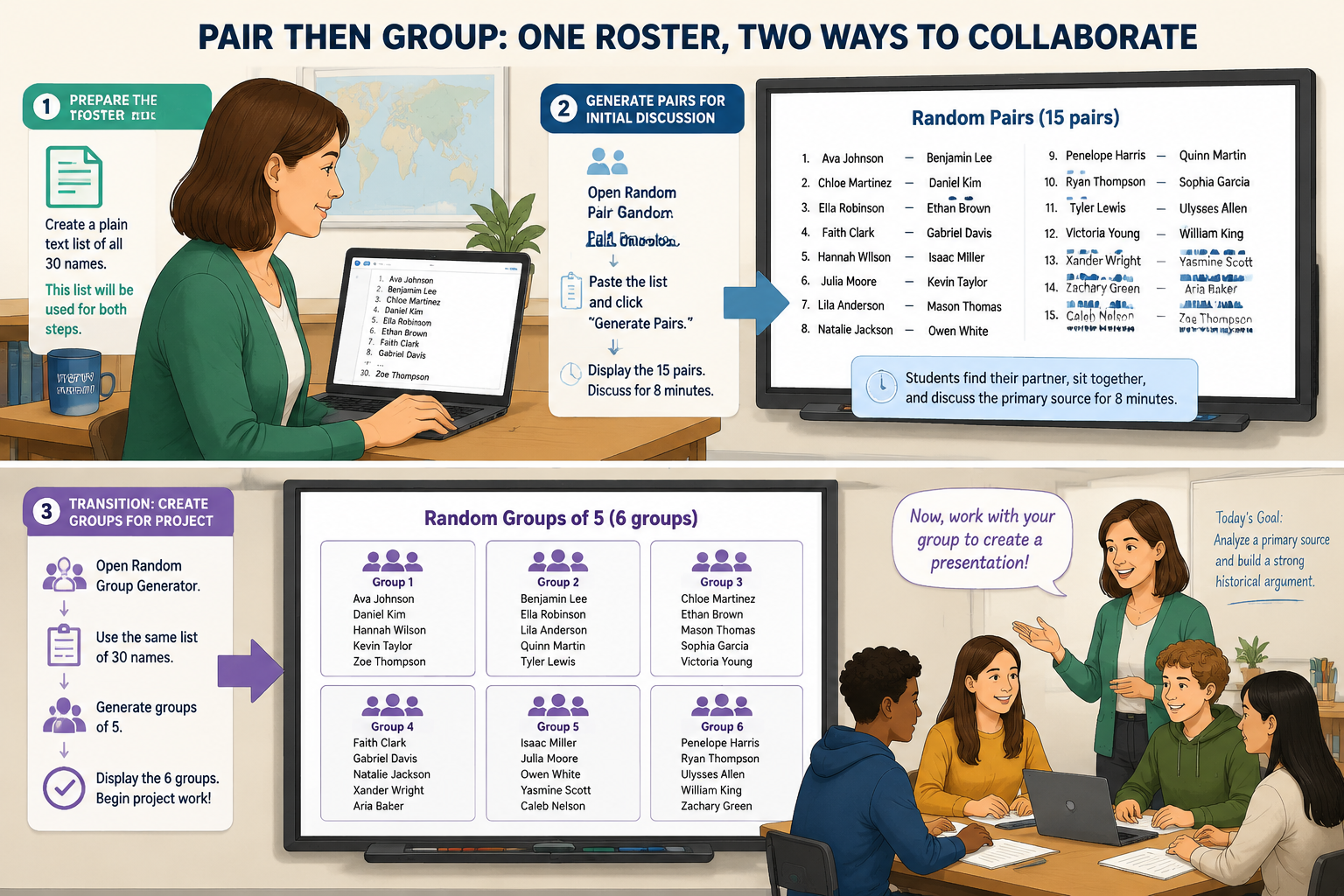
Let’s walk through a real workflow that uses both the random pair and random group generators in one 60‑minute lesson. Scenario: a history teacher with 30 students wants them to first discuss a document with a partner and then build a group presentation.
- Prepare the roster
Create a plain text list of all 30 names (one per line) and save it on your computer or Google Doc. This single list will serve both steps.
- Generate pairs for initial discussion
Open the Random Pair Generator. Paste the list and click “Generate Pairs.” Display the 15 pairs on the interactive whiteboard. Instruct students to find their partner, sit together, and spend 8 minutes discussing the primary source.
- Transition to groups
After the pair discussion, bring the class back. Explain that they will now move into presentation teams. Open the Random Group Generator in a new tab. Paste the same list, choose “Number of participants per group” and enter 5. Click “Generate Groups.” Six groups appear. Display the new groups, and ask students to move to their new team stations.
- Monitor and support
While students work in groups, circulate. Because the pair‑to‑group transition was random, shy students may now be with more confident peers, and social dynamics shift positively.
- Wrap up and reflect
After presentations, you can ask students to return to their original partner for a one‑minute debrief. The initial pairing is still visible in the first tab, or you can regenerate it quickly.
This workflow saves about 10‑15 minutes of manual counting and grouping, time you can instead invest in the learning task.
Frequently Asked Questions
Is the random pairing truly fair?
Yes. The pair generator applies a uniform random shuffle, similar to drawing names from a hat. No algorithm biases the outcome, and every student has an equal chance of being paired with any other student.
What if I have an odd number of students in a pair exercise?
The tool will flag the remaining student. You can either add that student to an existing pair as a trio or ask a teaching assistant to work with them. For virtual classes, you can place the odd student in a waiting room and rotate them into a pair after the first round.
Can I use the group generator to create pairs by setting group size to two?
Technically yes, but the pair generator is purpose‑built for dyads and handles the pairing logic more cleanly, especially with odd numbers. The group generator set to groups of two may produce one group of one if the count is odd, and it does not explicitly display the “pairs” in the same double‑column format that many teachers prefer.
Which tool integrates with Zoom breakout rooms better?
The group generator includes a Zoom integration that can assign participants directly into pre‑named breakout rooms. The pair generator does not have this one‑click feature, but you can manually name your breakout rooms after the generated pairs. For frequent pair work with Zoom, many educators keep the pair generator open in a browser and copy the names.
Can I save my generated pairs or groups for later?
The platform does not store your data or your generated lists. To save them, take a screenshot, copy the text into a document, or use your browser’s print function. This protects student privacy and ensures no data is collected on the server.
Will the same list always produce different groups each time?
Yes, because the tool re‑randomizes on every click. If you need to avoid certain pairings—for example, to keep two students apart—you can simply regenerate until a satisfactory set appears, or manually swap names after generation.
What "Random" Means Here: The Algorithm in Plain Terms
Skeptics deserve the details. Both tools shuffle your list with the Fisher–Yates algorithm—the textbook method where every possible ordering is exactly equally likely—so no student ever occupies a "cursed slot." The pair tool then deals the shuffled list out two at a time; the group tool deals it around your chosen number of groups like a deck of cards. Two consequences follow, and both are features:
- Odd counts are handled gracefully. With 25 students, twelve pairs form and the final student shows up as a visible "solo" group you can absorb on purpose—nobody silently disappears.
- Repeats are rare and predictable. In a class of 28, the chance the same two students draw each other again next round is 1 in 27 (3.7%), so "new partner every round" needs no settings—just re-run.
We also stress-tested the exact production code with a 100,000-run simulation (40 participants, 6 groups): every position in the shuffled order appeared within 4.2% of its expected frequency, a fixed pair landed in the same group 14.78% of the time against a theoretical 14.62%, and two independent runs shared 16.64 pairs where probability predicts 16.66. That is what honest randomness looks like. The simulation script ships with our grouping fairness notes, so any teacher or trainer can rerun the numbers.
One thing randomness will not do is balance: it cannot know that two students stopped speaking in October, or that one project team already has three designers. Generate first, then swap the outliers—manual reassignment exists for exactly that.
Template to Start Faster
If your roster already lives in a spreadsheet, grab the class roster CSV template or the sports rotation template with position and skill-level columns for coaches who swap manually.
Choose the Right Tool for Your Next Session
Both the random pair generator and the random group generator serve the same honest purpose: to take the guesswork and potential bias out of grouping. The choice comes down to the kind of interaction you want—tight, talkative pairs that maximise every voice, or more varied teams that build collaboration skills.
Ready to stop writing names on slips of paper? Try the Random Pair Generator for instant partner assignments, or jump into the Random Group Generator to create balanced small groups with one click. If you’re still exploring, the wider Random Group Generator platform also offers a random student picker, a group name generator, and multi‑language support to fit any classroom or workshop setting.
Related guides
- How to Use a Random Pair Generator in the Classroom — Learn how to use a random pair generator to create fair student pairs in seconds.
- Pair Maker: How to Create Random Pairs for Class or Workshops — Learn how to use a free pair maker to quickly create random pairs for classrooms, workshops, and training s…
- Random Partner Generator: When to Use Partner Picking Instead of Groups — Discover when a random partner generator works better than random groups.
- Random Pair Generator Tutorial: How to Create Fair Pairs Instantly — Learn how to use the Random Pair Generator to create balanced, unbiased pairs for classrooms, workshops, or…
SponsoredExplore more resources