
random pair generator
How to Use a Random Pair Generator in the Classroom
Learn how to use a random pair generator to create fair student pairs in seconds. Step-by-step guide with classroom examples, tips, and FAQs for teachers.
Pairing students for activities can be a time‑consuming and often contentious task. Whether you’re setting up lab partners, peer review duos, or quick think‑pair‑share exercises, manual methods like counting off or drawing names from a hat eat into lesson time and can feel unfair to students. A random pair generator removes the guesswork—instantly creating balanced, unpredictable pairs with a single click. In this guide, you’ll learn exactly how to use a random pair generator in your classroom, from entering your class list to weaving pairing into everyday instruction.
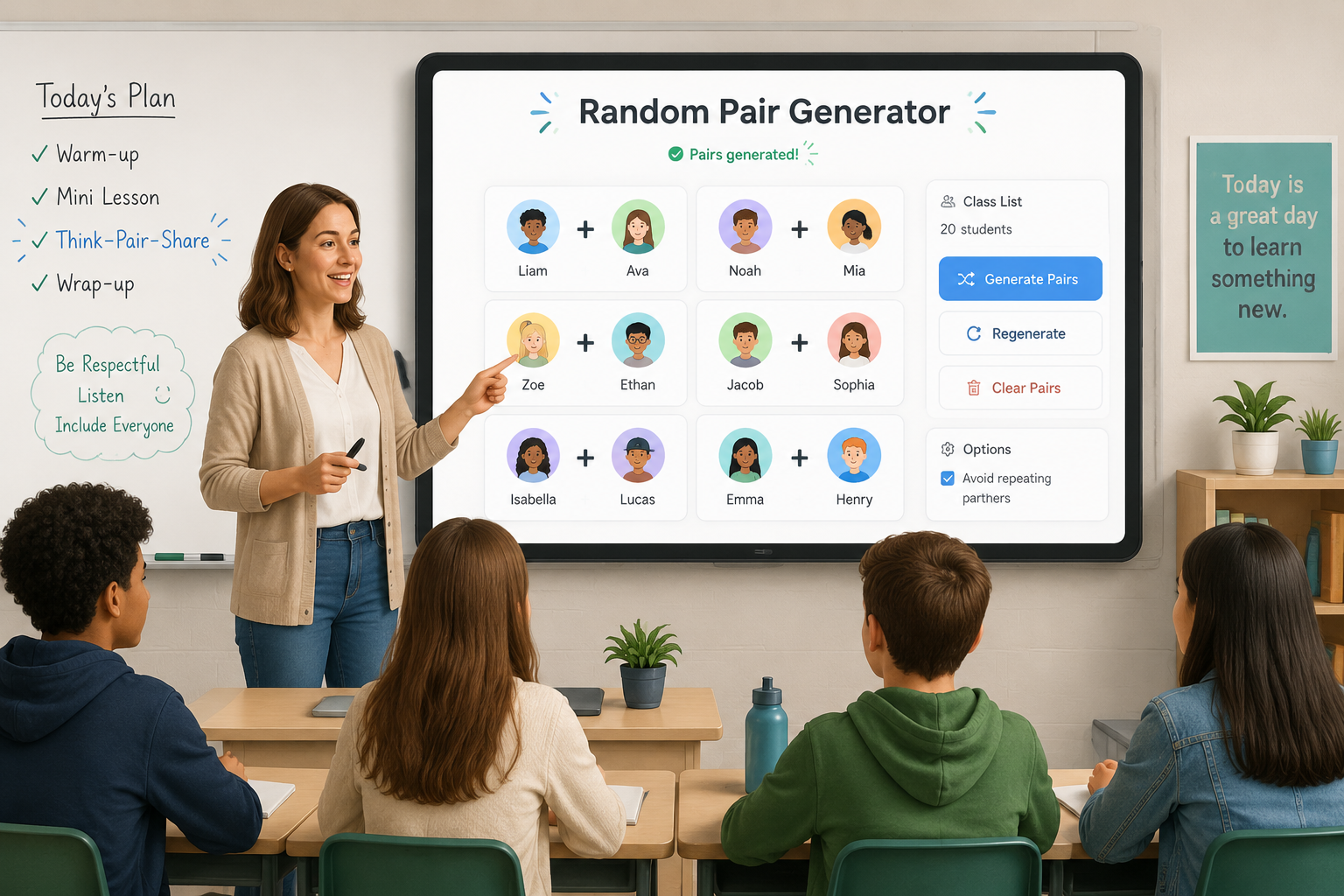
Why Use a Random Pair Generator?
Random pairing does more than save time. When every student has an equal chance to work with anyone else, common social tensions—"I always get stuck with X" or "You never pair me with my friends"—fade away. Because the tool handles the selection, you become a neutral facilitator rather than the decision maker, which reduces complaints and classroom friction.
Beyond fairness, random pairs break up fixed social patterns. Students who normally choose the same friends get fresh perspectives, and quieter students are more likely to find their voice with a partner they wouldn't have selected themselves. For the teacher, a random pair generator allows on‑the‑fly adaptation—if a planned group activity needs to shrink to pairs, you can generate new duos in seconds without halting momentum.
Finally, random pairing helps you meet common instructional goals. Peer review, think‑pair‑share, reciprocal teaching, and quick diagnostic conversations all flourish when partners are varied and unexpected. The simplicity of the tool means you can introduce randomness even into short transition moments, not just big projects.
Step‑by‑Step: Using a Random Pair Generator with Your Class
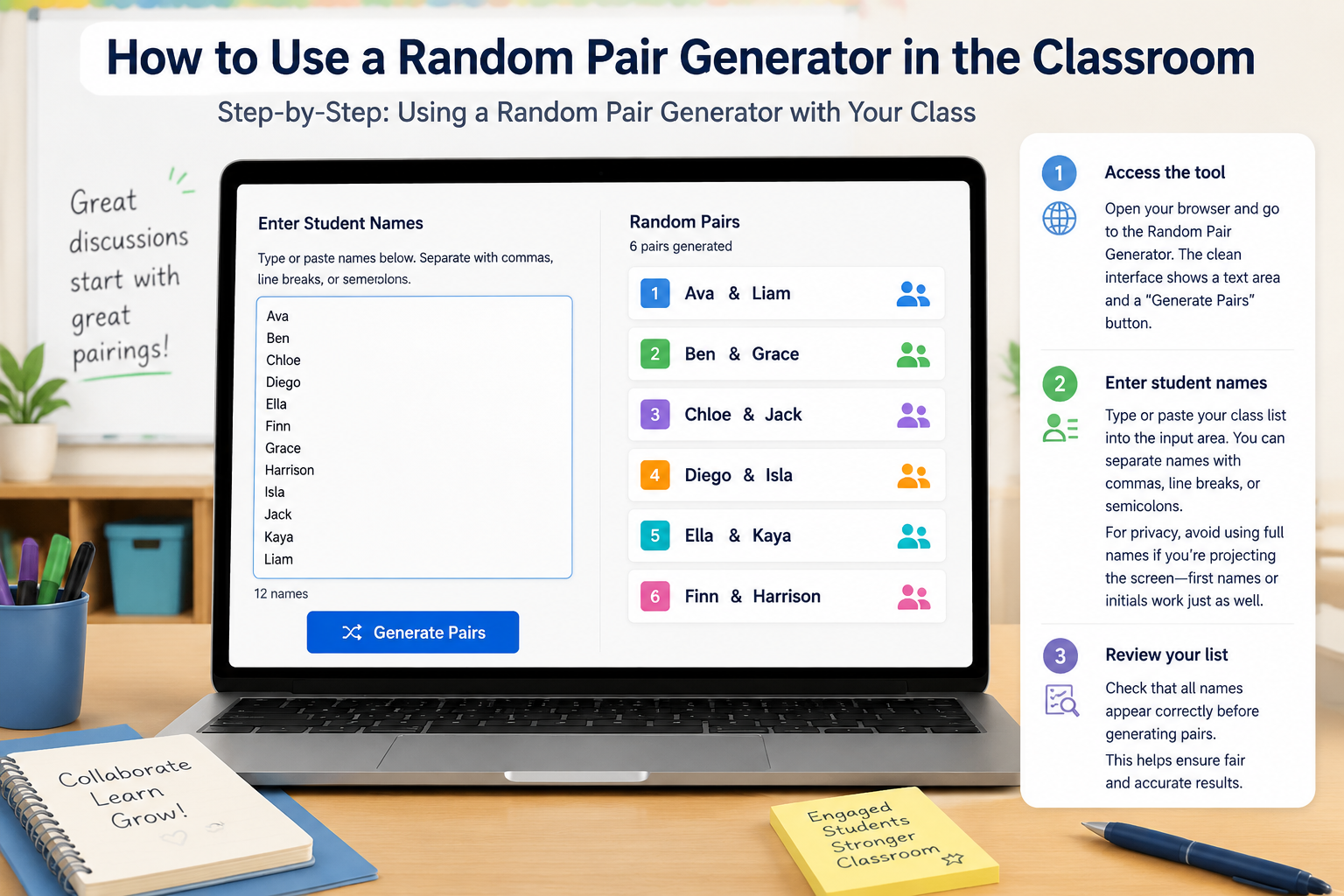
Below are the exact steps to create random pairs using our free online pair generator. The process works on any device—laptop, tablet, or interactive whiteboard—and no account is needed.
- Access the tool
Open your browser and go to the Random Pair Generator. The clean interface shows a text area and a “Generate Pairs” button.
- Enter student names
Type or paste your class list into the input area. You can separate names with commas, line breaks, or semicolons. Many teachers keep a plain‑text roster document that they copy‑and‑paste whenever they need pairs. For privacy, avoid using full names if you’re projecting the screen—first names or initials work just as well.
- Review your list
Check that every student is included and names are spelled consistently. The generator will pair exactly two names per group, so if you have an odd number, the last student will be paired with a placeholder (e.g., “No partner”). You can handle that student by assigning them to a group or having them join another pair as a trio.
- Generate the pairs
Click the “Generate Pairs” button. In an instant, the tool shuffles the list and displays pairs in a numbered format—Pair 1: Alex & Bailey, Pair 2: Charlie & Dana, and so on.
- Adjust the output if needed
If you spot a combination that you’d rather avoid (for example, two students who don’t work well together), simply click the button again to re‑randomize the list. Because each shuffle is independent, re‑generating is quick and doesn’t disturb the rest of the class. You can also manually swap names by reading the on‑screen result, but the tool’s instant re‑shuffle usually suffices.
- Share the pairs with students
Display the pairs on a projector or shared screen, or read them out as students find their partners. For distance learning, paste the results into a chat message or a slide.
Real‑World Example: A High‑School Biology Class
Imagine Ms. Chen’s 28‑student biology class. She wants students to review card‑sort diagrams with a partner, but doesn’t want friends to cluster together. During her planning period, she copies her roster from a Google Doc, pastes it into the Random Pair Generator, and clicks Generate Pairs. The tool instantly creates 14 pairs. She checks the list quickly—no problematic combinations—and then pastes the output into a warm‑up slide. At the start of class, the pairs are projected on the board. Students find their designated partner and begin the activity, with zero instructional time lost to pairing.
Classroom Scenarios Where Random Pairs Shine
Icebreakers and First‑Day Activities
On the first day of class, quick “get to know you” prompts done in random pairs help students meet peers outside their immediate social circle. Display the generator on the board and have students move to sit with their new partner. Because the pairing is visibly random, reluctant students are more likely to accept the outcome. In a 45‑minute period, you can run three short rounds of different prompts with freshly generated partners each time.
Peer Review and Feedback
When students review each other’s writing, solving problems, or practicing language dialogues, random pairs add novelty and objectivity. A middle‑school ELA teacher might ask students to exchange drafts and give feedback according to a rubric. Using the random pair generator ensures reviewers aren’t just reading their friend’s work, but engaging with a variety of writing styles. After the first round, the teacher re‑generates pairs so students get a second perspective.
Lab and Practical Work
Science, culinary, or art labs often require partners with a clear division of tasks. Rotating lab partners throughout a semester gives students exposure to different working styles and prevents the same “leader‑follower” pattern from solidifying. A chemistry teacher might re‑generate pairs at the start of each unit, so students tackle new experiments with fresh lab mates.
Hybrid and Remote Classrooms
In hybrid settings, pairing a remote student with an in‑person counterpart can be logistically tricky if done randomly by location. A better approach is to use the generator for the whole class, then have in‑person students join a video call or chat pod for one‑on‑one discussion. The tool doesn’t consider physical location, so when you screen share the result, both remote and face‑to‑face students see their partner quickly. For fully remote classes, paste the pairs into your conferencing platform’s breakout rooms or chat.
Tips for Getting the Most from Random Pairing
Rotate pairs often. Students adapt quickly to variety. Use the generator multiple times per lesson—once for a warm‑up discussion, again for a practice problem, and once more for reflection. The minimal time cost encourages more active participation.
Combine with other classroom tools. After you’ve created pairs, you might need to pick a randomly chosen individual to report back. Use the Random Student Picker to select a spokesperson from each pair without singling anyone out. If later you want to turn those pairs into larger teams, the Random Group Generator can merge them into balanced groups of three or four. You can even give each pair a playful name with the Group Name Generator to foster a quick sense of team identity.
Save your roster once. Keep a plain‑text file or a locked Google Doc with your up‑to‑date class list. Paste it into the generator whenever you need pairs. Because the tool doesn’t store data on any server, this practice also protects student privacy while saving you the effort of retyping names.
Keep it visible. When pairing happens in plain sight—on the board or screen—students perceive the process as impartial. Projecting the generator’s output minimizes the “you placed me with them on purpose” arguments. If you can’t project, simply read the pairs aloud as they appear.
Random Pair Generator vs. Manual Methods
| Method | Time Required | Student Perception | Effort to Modify |
|---|---|---|---|
| Popsicle sticks / name jar | Slow (drawing, sorting) | Can seem random but easy to manipulate | Must re‑draw physically |
| Counting off | Moderate | Often feels forced, students “re‑count” to get desired partner | Have to re‑count entire room |
| Assigned pairs (teacher choice) | Fast for teacher, slow mentally (deciding) | Can breed resentment if choices seem biased | Must re‑think entire list |
| Random Pair Generator | < 5 seconds | Viewed as neutral and transparent | One click to re‑shuffle |
Many classrooms still rely on legacy systems because “that’s the way we’ve always done it.” Yet when a procedure can be replaced with a more equitable, time‑saving digital tool, the instructional payoff is immediate. The random pair generator doesn’t eliminate your oversight—you can always re‑roll or make a manual swap after the fact—but it removes the administrative drag and perceived favoritism that accompany old‑school methods.
Frequently Asked Questions
Can I prevent two specific students from being paired together?
The core random pair generator treats every name equally, so it can’t automatically exclude combinations. However, because you can re‑generate in one click, it’s easy to shuffle until you get a configuration without problematic pairings. If you still need to avoid certain students being together, simply swap names manually after the list appears. For more nuanced control over groupings, the Random Group Generator lets you set group size and even create balanced teams based on attributes.
What happens if I have an odd number of students?
The tool creates pairs of two. When there’s an odd count, the last student will be paired with a placeholder—often shown as “Partner 2” being blank or a generic tag. In practice, you can assign that student to join an existing pair and form a trio, or have them work with you for the activity. The generator ensures the remaining list is fully paired without errors.
Is the tool suitable for groups larger than two?
The pair generator is designed for dyads. If you need trios, quartets, or teams of any size, use the Random Group Generator. You specify the number of groups or members per group, and it splits the list accordingly. Many teachers use the pair generator for quick two‑person interactions and the group generator for longer projects.
How is student privacy handled?
Names you enter stay entirely inside your browser. The tool doesn’t send them to a server, store them in a database, or record them in any way. Just close the tab and your class list is gone. This makes it safe to use with student first names or initials and compliant with common school privacy practices.
Can I save my class list for future use?
Because no data is transmitted or stored online, the tool doesn’t remember your list between sessions. The easiest approach is to keep a plain‑text document or spreadsheet with your student names. Copy and paste it into the generator whenever you need fresh pairs—it takes only seconds. Some teachers bookmark the tool and keep their roster in the same clipboard manager or a pinned note for rapid access.
Start Using a Random Pair Generator Today
Moving from manual pairing to a one‑click digital tool is one of the simplest upgrades you can make to your classroom workflow. The random pair generator gives you back valuable instruction time, reduces social friction, and helps every student work with a true variety of partners. Try it now with your own class list and see how quickly you can set up your next pair activity.
SponsoredExplore more resources