
team randomizer
How to Use a Team Randomizer for Corporate Training
Learn how to use a team randomizer for corporate training workshops. Step-by-step guide with real examples, icebreaker ideas, tips for virtual sessions, and FAQs.

If you’ve ever stood in front of 50 employees with a stack of colored paper, trying to quickly form groups for a training exercise, you know the mixed feelings: the groans when best friends are separated, the awkwardness when the same people always end up together, and the creeping sense that the groups aren’t really fair. A team randomizer removes that friction. For corporate trainers, HR professionals, and team leads who run workshops—whether in person or online—this guide shows exactly how to use a random group generator to build balanced, unbiased teams in seconds, making every session more productive and inclusive.
Why Use a Team Randomizer in Corporate Training?
When people choose their own groups, they naturally gravitate toward familiar colleagues. That comfort can undermine the very goal of training: to expose employees to new perspectives and build cross-functional empathy. A random group generator breaks those silos. By creating groups based purely on chance, you push participants to collaborate with people they might not normally work with—from different departments, seniority levels, or office locations.
Beyond diversity, randomization saves time. In a typical half-day workshop, manually sorting 40 names into eight groups can eat up 10–15 minutes of precious agenda time. With a tool like the random group generator, you input a list and click a button. The tool handles the rest, letting you focus on the learning objectives rather than logistics.
Another less obvious benefit: perceived fairness. Employees quickly notice when a facilitator seems to bias groups (intentionally or not). When you visibly use a randomizer displayed on a shared screen, participants trust that the process is neutral, which reduces complaints and resistance.
Step‑by‑Step: Running a Random Team Generator for Your Workshop
1. Gather Your Participant List
Start with a simple list of names—one per line. You can copy them from a registration spreadsheet, an HR system export, or the participant panel of a virtual workshop. Pasting works the same everywhere: copy the list from Zoom, Microsoft Teams, Google Classroom, or Slack, paste it into the input box, and check that each name landed on its own line. Because the tool runs entirely in your browser, participant names are processed locally and never uploaded—handy when you are working with employee data.
2. Choose Between Number of Groups or Group Size
The random group generator offers two modes: “Number of groups” and “Group size.” For a design sprint with 20 participants, you might want four groups of five. For a breakout discussion that requires triads, set the group size to 3 and let the system calculate the total groups automatically. If you have an odd number, you can decide in advance whether the leftover person joins an existing group or works solo—the tool shows the arrangement clearly.
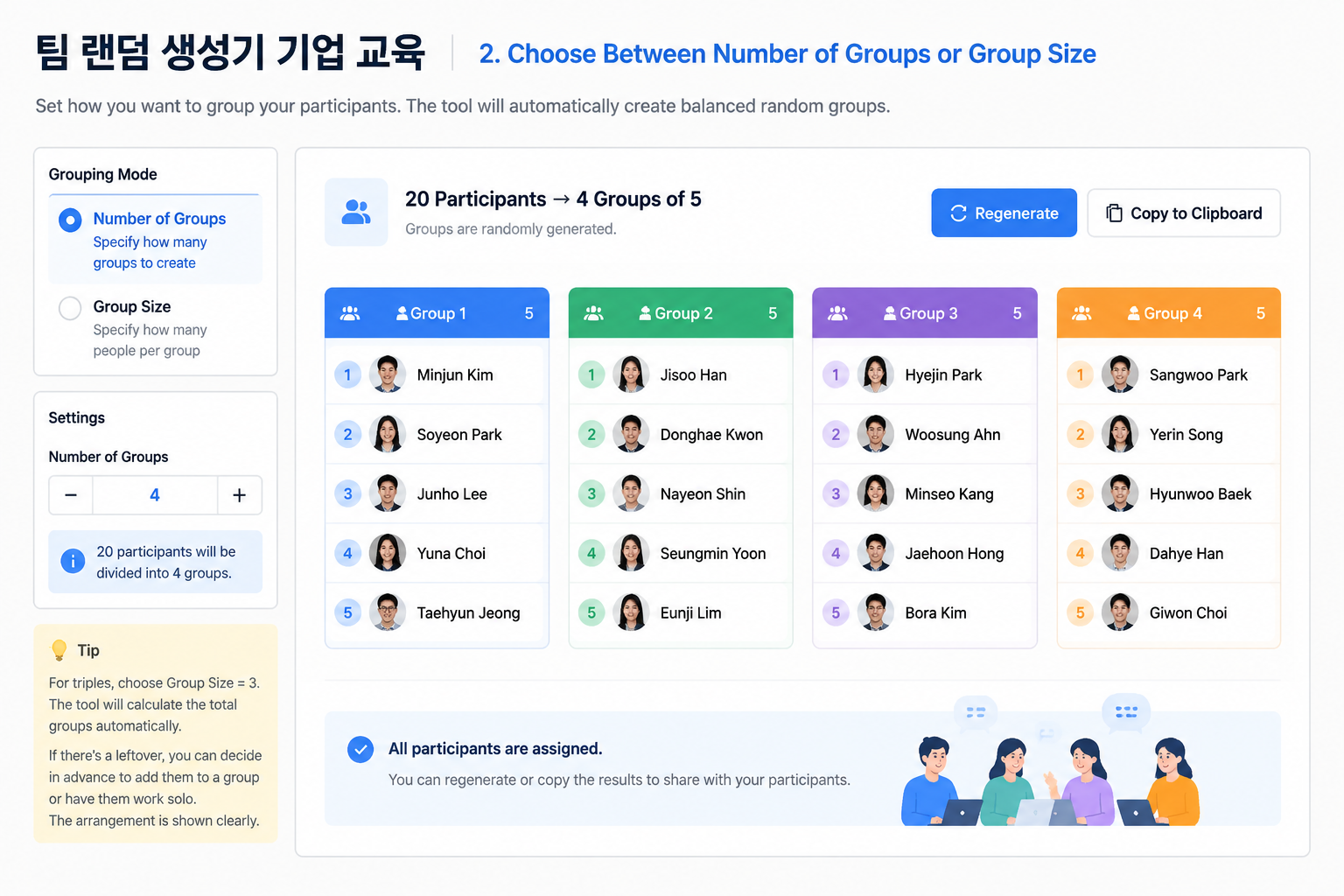
3. Generate and Review
Click “Generate.” The tool instantly assigns each person to a group. Review the output. If you need to tweak one or two assignments (for example, because a manager is already coaching a specific group as part of the exercise), you can manually swap names. But the power is in the randomness: trust it.
4. Share the Groups
Once satisfied, copy the group list to your clipboard. For in‑person workshops, you can paste it directly into a printed handout or a Google Doc shared with the facilitators. For virtual workshops, paste the list into the chat of your Zoom or Teams meeting, or use the platform’s breakout room function—manually assigning rooms to match the generated groups.
A Real‑World Example: Leadership Cross‑Training Workshop
Imagine a mid‑sized tech company running a half‑day workshop on inclusive leadership. The 48 participants include engineers, marketers, HR, executives, and interns—from four different offices across three time zones. The learning designer wants mixed groups so that every table (physical or virtual) includes a non‑technical voice to challenge assumptions.
Using the random group generator:
- The facilitator copies the attendee list from the Zoom participant panel and pastes it into the tool.
- She sets “Number of groups” to 8 (six people each).
- One click produces eight groups. She quickly scans and sees that each group indeed spans multiple functions and office locations.
- She copies the list into the slide deck that will be shown at the start of the session.
As the facilitator projects the groups on screen, participants see their names appear next to unfamiliar colleagues. A soft murmur of curiosity replaces the usual sighs. During the exercise, cross‑functional ideas flow more freely because nobody is huddled with their everyday teammates.
Integrating a Team Randomizer into Virtual and Hybrid Workshops
Remote and hybrid trainings add another layer of complexity: breakout rooms. Platforms like Zoom and Microsoft Teams let you split participants into rooms, but they don’t usually randomize by job function, background, or anything beyond a simple count. By generating your groups in advance with a random group generator, you maintain control over the mix while still benefiting from the platform’s automation.
For hybrid sessions, you can create physical table assignments for on‑site attendees and a matching virtual breakout layout for remote participants. Display both on a shared screen so everyone sees the same structure. This parity helps remote colleagues feel equally included.
Common Pitfalls and How to Avoid Them
Even with a solid randomizer, a few missteps can undermine your workshop:
- Not explaining the “why.” Some participants may feel anxious when separated from their team. Open the session by saying, “We’re using a random group generator to ensure diverse perspectives in every discussion. This helps everyone learn more.”
- Ignoring sensitive dynamics. Pure randomness works for most groups, but if you know that two individuals are in an active conflict that could derail a short exercise, swap them manually after generation. The generator isn’t a human—you are the facilitator.
- Over‑complicating the setup. Don’t try to pre‑assign roles or complex balancing rules unless the tool supports it natively. For complex sorting (like equal distribution of junior vs. senior), you can generate random groups first, then move one or two people. It’s faster than a deep manual sort.
How a Team Randomizer Compares with Other Methods
| Method | Speed | Bias Risk | Best For |
|---|---|---|---|
| Self‑selected groups | Slow | High | Informal, short icebreakers |
| Manual facilitator sorting | Very slow | Medium | Highly curated, small groups |
| Spreadsheet random formula | Medium | Low | One‑off, no‑tool environments |
| Dedicated random generator | Instant | Lowest | Regular, repeatable workshops |
A spreadsheet can work if you’re comfortable with RAND() and lookups, but it requires setup each time. A dedicated random group generator is ready whenever you are, keeps your recent sessions for quick re-runs, and gives a polished, shareable output—especially valuable when you facilitate multiple sessions a month.
Frequently Asked Questions
Can I paste names from Zoom, Teams, or Google Classroom?
Yes. Copy the participant list from your platform, paste it into the tool, and it splits the names automatically—one name per line. There is no account connection to set up: the tool runs locally in your browser, so nothing is uploaded and there are no typing mistakes from manual entry.
What if I need groups balanced by gender, department, or experience level?
The current generator creates purely random groups. For simple balancing, generate the groups and then manually swap one or two individuals to meet your criteria. For large‑scale balancing needs, many facilitators find that random distribution naturally approximates diversity—and the manual tweak step is minor.
Can I use the tool for pair activities instead of larger groups?
Absolutely. The random pair generator is built exactly for that purpose. It pairs everyone randomly and can create a “solo” person if the total is odd, so no one feels left out.
Is the random group generator suitable for recurring training programs?
Yes. Because you can save participant lists and quickly re‑randomize, it’s ideal for corporate academies, monthly all‑hands exercises, or agile team ceremonies where you want to mix people up regularly.
Do I need to install any software?
No. The tool works entirely in your browser on both desktop and mobile. All processing happens on your device, so there is nothing to install and no data leaves your browser.
Ready to Transform Your Next Workshop?
Stop wasting precious training minutes on manual grouping. Use our random group generator to create fair, diverse teams in seconds—whether you’re in a conference room or a Zoom call. It’s free, works with your existing tools, and frees you to concentrate on what matters: the learning experience.
Try the team randomizer now and make your next corporate training session the most engaging yet.